The new Microsoft Edge offers a rich set of policies that enable IT administrators to control many aspects of its operation.
You can visit edge://policy/ to see the policies in effect in your current browser:
Clicking on a policy name will take you to the documentation for that policy. The Status column indicates whether the policy is in effect, in Error, or Ignored. A policy is in Error if the policy name is unrecognized or the policy value is malformed.
A policy can be Ignored for several reasons. On reason is if the policy is a Protected Policy and the machine is not Domain Joined or MDM managed. Policies are marked “Protected” if they are especially often abused by malware. For instance, policies controlling the content of the New Tab Page are protected because adware/malware commonly attempted to monetize users by silently changing their search engine and homepage when their “free” apps were installed on a user’s PC. Protected Policies are marked in the Edge documentation with the note:
This policy is available only on Windows instances that are joined to a Microsoft Active Directory domain, Windows 10 Pro or Enterprise instances that enrolled for device management, or macOS instances that are that are managed via MDM or joined to a domain via MCX.
When Edge detects that a device is in a managed state in which Protected Policies are allowed, it will show “Managed by your organization” at the bottom of the … menu
A Policy may also be ignored if the user is running in a Personal (MSA) Profile on an Enterprise client and the policy has been filtered as not applicable.
A Policy may also be ignored if there are conflicting policies between EMX/MAM and GP/MDM management tooling.
UPDATE: With the introduction of “Edge for Business” in version 116, some policies apply only to browser profiles signed in with organizational/enterprise accounts (e.g. eric@contoso.com) but not Microsoft Accounts (e.g. eric@hotmail.com). Each of Edge’s available policies has been annotated to note whether it applies to non-organizational accounts. For example, this policy will not be respected for a profile signed in with a personal Hotmail account:
The idea of this split is to better delineate between settings the enterprise is expected to have control over vs. those things that shouldn’t need to be controlled in an employee’s personal browsing. This was an … interesting … design choice.
Implementation mechanism
There’s no magic in how policies are implemented: while you should prefer using edge://policy to look at policies to get Edge’s own perspective about what policies are set, you can also view (and set) policies using the Windows Registry:
On Mac, the policies are stored in a .plist configuration file.
One important note: Chromium policy names are case-sensitive. If you write a policy to the registry yourself (rather than relying on the Group Policy editor or the like), you will see that the policy is not respected if you do not exactly match the case. For example, if you try to specify the URLBlocklist policy but write it as URLblocklist, you’ll see the following error inside the edge://policy page:
Careful, this thing is loaded…
You must take great care when configuring policies, as they are deliberately much more powerful than the options exposed to end-users. In particular, it is possible to set policies that will render the browser and the device it runs on vulnerable to attack from malicious websites.
Administrators should take great care when relaxing security restrictions through policy to avoid opening clients up to attack. For instance, avoid using entries like https://* in URLList permission controls– while such a rule may cover all of your Intranet Zone sites, it also includes any malicious site on the Internet using HTTPS.
… but Incomplete
Notably, not all settings in the browser can be controlled via policy. For instance, some of the web platform feature settings inside edge://settings/content can only be enabled/disabled entirely (instead of on a per-site basis), or may not be controllable by policy at all, only enabling end-user control.
In some cases, you may only be able to use a Master Preferences file to control the initial value for a setting, but the user may later change that value freely.
There are many different authentication primitives built into browsers. The most common include Web Forms authentication, HTTP authentication, client certificate authentication, and the new WebAuthN standard. Numerous different authentication frameworks build atop these, and many enterprise websites support more than one scheme.
Each of the underlying authentication primitives has different characteristics: client certificate authentication is the most secure but is hard to broadly deploy, HTTP authentication works great for Intranets but poorly for most other scenarios, and Web Forms authentication gives the website the most UI flexibility but suffers from phishing risk and other problems. WebAuthN is the newest standard and is not yet supported by most sites.
Real World Authentication Flows
Many Enterprises will combine all of these schemes, using a flow something like:
The login provider checks to see whether the user has any cached authentication tokens, e.g. using the cookies accessible to the login provider.
If not, the login provider tries to fetch https://clientcert.corp.example.com with a certificate filter specifying the internal CA root. If the user has a client certificate from the CA root, it is sent either silently or after a one-click prompt.
If not, the login provider checks to see whether the user’s browser has any domain credentials using the HTTP Negotiate authentication scheme.
If not, the login provider shows a traditional HTML form for login, ideally with a WebAuthN option that allows the user to use the new secure API rather than typing a password.
After all of these steps, the user’s identity has been verified and is returned to the app.corp.example site.
In today’s post, I want to take a closer look at Step #6.
Silent HTTP Authentication
Unfortunately for our scenario, the HTTP Authentication scheme doesn’t support any sort of NoUI attribute, meaning that a server has no way to demand “Authenticate using the user’s domain credentials if and only if you can do so without prompting.”
WWW-Authenticate: Negotiate
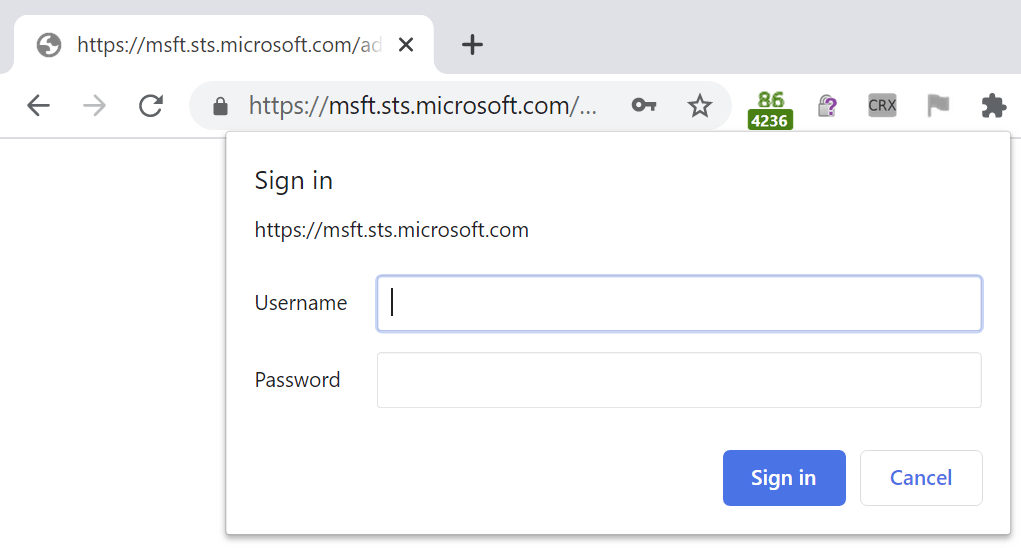
And browsers’ HTTP Authentication prompts tend to be pretty ugly:
Depending upon client configuration and privacy mode, HTTP Authentication using the Negotiate (wrapping Kerberos/NTLM) or NTLM schemes may happen silently, or it may trigger the manual HTTP Authentication prompt.
So, at step #6, we’re stuck. If automatic HTTP authentication would’ve worked, it would be great– the user would be signed into the application with zero clicks and everything would be convenient and secure.
Load-Bearing Quirks
Fortunately for our scenario (unfortunately for understandability), there’s a magic trick that authentication flows can use to try HTTP authentication silently. As far as I can tell, it was never designed for this purpose, but it’s now used extensively.
To help prevent phishing attacks, modern browsers will prevent1 an HTTP authentication prompt from appearing if the HTTP/401 authentication response was for a cross-site image resource. The reasoning here is that many public platforms will embed images from arbitrary URLs, and an attacker might successfully phish users by posting on a message board an image reference that demands authentication. An unwary user might inadvertently supply their credentials for the message board to the third party site.
  if (resource_type == blink::mojom::ResourceType::kImage &&
      IsBannedCrossSiteAuth(request.get(), passed_extra_data.get())) {
    // Prevent third-party image content from prompting for login, as this
    // is often a scam to extract credentials for another domain from the
    // user. Only block image loads, as the attack applies largely to the
    // "src" property of the <img> tag. It is common for web properties to
    // allow untrusted values for <img src>; this is considered a fair thing
    // for an HTML sanitizer to do. Conversely, any HTML sanitizer that didn't
    // filter sources for <script>, <link>, <embed>, <object>, <iframe> tags
    // would be considered vulnerable in and of itself.
    request->do_not_prompt_for_login = true;
    request->load_flags |= net::LOAD_DO_NOT_USE_EMBEDDED_IDENTITY;
  }
So, now we have the basis of our magic trick.
We use a cross-site image resource (e.g. https://tryhttpauth.corp-intranet.com) into our login flow. If the image downloads successfully, we know the user’s browser has domain credentials and is willing to silently release them. If the image doesn’t download (because a HTTP/401 was returned and silently unanswered by the browser) then we know that we cannot use HTTP authentication and we must continue on to use the WebForms/WebAuthN authentication mechanism.
Update (Feb 2021): As of Chrome/Edge88, this magic trick will now fail if the user has configured their browser to “Block 3rd Party Cookies”, because the browser now treats a cross-origin authentication demand as if it were a cookie. Credentials for the cross-origin image will be omitted, and the browser will conclude that HTTP authentication is not available.
-Eric
1 Note that this magic trick is defeated if you enable the AllowCrossOriginAuthPrompt policy, because that policy permits the authentication prompt to be shown.
Post-Script: Prompting for Credentials vs. Approving for Release
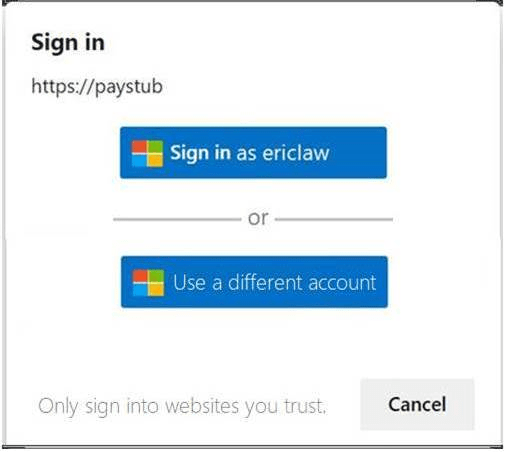
As an aside, the HTTP Authentication prompt shown in this flow is more annoying than it strictly needs to be. What it’s usually really asking is “May I release your credentials to this site?“:
…but for implementation simplicity and historical reasons the prompt instead forces the user to retype their username and password.
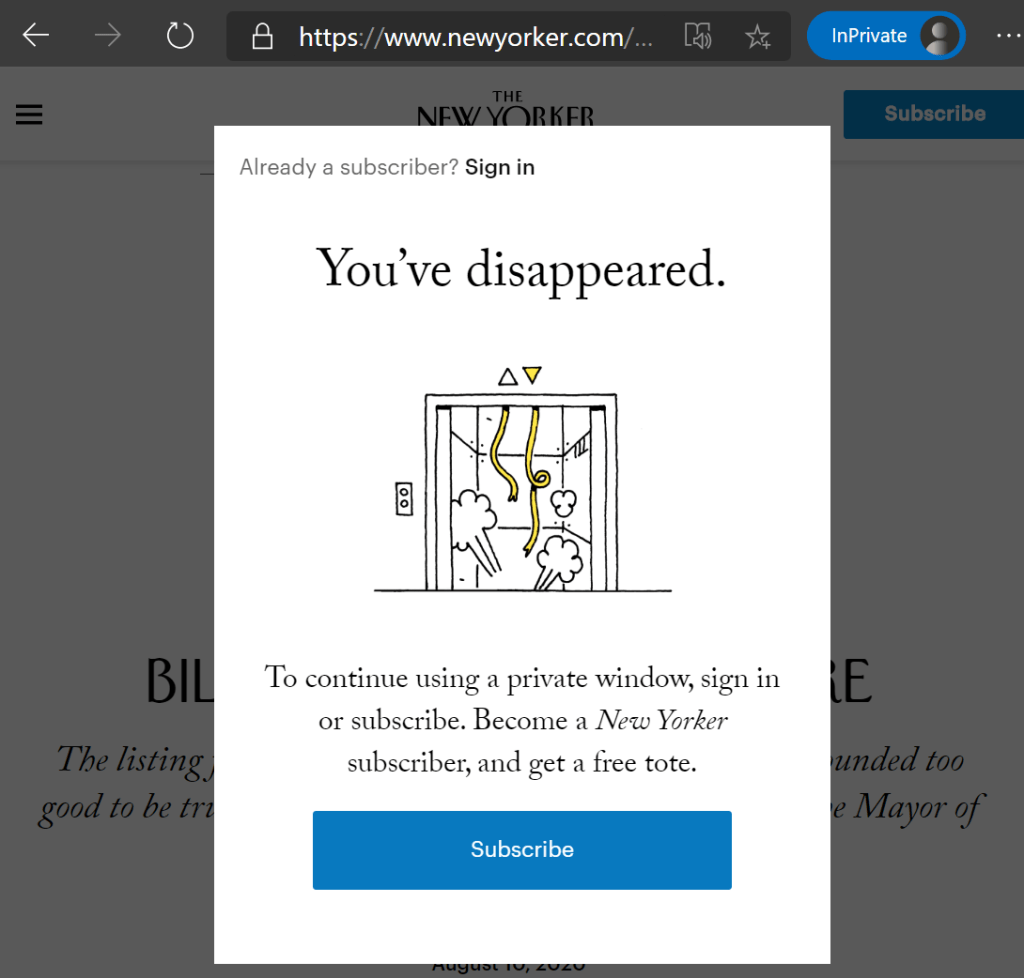
Back in 2018, I explained how some websites use various tricks to detect that visitors are using Private Mode browsers and force such users to log-in. The most common reason that such sites do this is that they’ve implemented a “Your first five articles are free, then you have to pay” model, and cookies or similar storage are used to keep track of the user’s read count.
The New Yorker magazine is one such site:
Unfortunately, such “Private Mode blockers” make it hard for those of us who use Private Mode for other reasons (I don’t want to leave any traces of my Beanie Baby shopping research!). Private Mode detectors typically trigger for Chromium-based browsers’ Guest Profile that you might be use when borrowing a trusted friend’s computer.
So, what’s a privacy-conscious user to do?
If you’re using Firefox, you can use that browser’s “Containers” feature to isolate such sites into a partitioned container such that trackers from the site cannot follow you around the web.
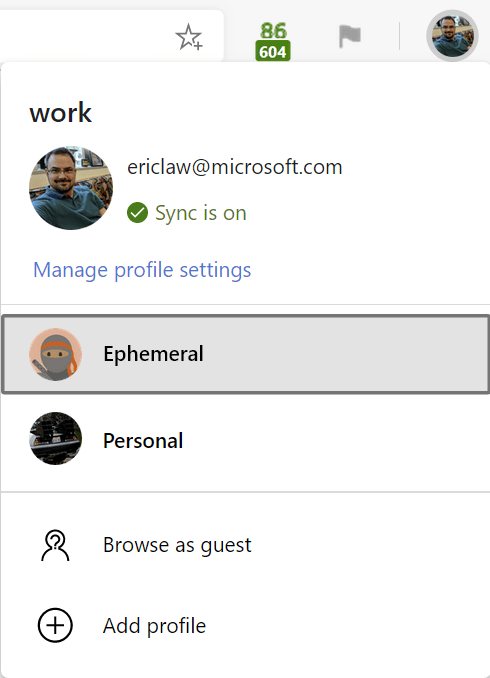
If you use Microsoft Edge, you might consider creating your own “Ephemeral” browser profile for browsing sites that block InPrivate:
After you create the new profile, visit its Settings page at edge://settings/clearBrowsingDataOnClose and configure all storage areas to be cleared every time you close the browser1:
Note: Chrome does not offer a Clear on Closelist, but does offer a limited Clear cookies and site data when you quit Chrome option.
You can then adjust any other settings you like, for instance, adjusting Tracking Protection to Strict in edge://settings/privacy or the like.
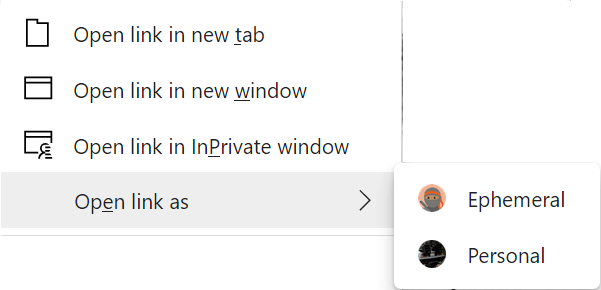
Then when you want to visit a site that blocks InPrivate, you can either open your Ephemeral profile from your profile icon, or use the Open link as command on a hyperlink’s context-menu:
In current versions of Edge, you can instruct the browser to automatically switch to your auto-erasing profile when navigating to a target site:
Over time, browsers will continue to work to make Private Mode detectors less reliable, but it’s unlikely that they’ll ever be perfect. Creating an ephemeral profile that clears everything on exit is a useful trick to combat sites which prioritize their business model needs over your privacy.
-Eric
1 In Edge 85 and earlier, you must unfortunately close all browser windows (even from your main profile) to trigger the cleanup of your ephemeral profile; closing just the windows from the ephemeral profile alone is not enough. This bug was recently fixed in Edge 86.
Advanced Q&A
Q: How is this Ephemeral/ClearOnExit Profile different than a regular InPrivate Mode session?
A: There are a few key differences.
InPrivate tries not to write anything to disk (although the OS memory manager might at any time decide to swap process memory to the disk), while true profiles do not impose such a limitation. The “no disk write” behavior of Private Mode is the primary source of web-platform-observable differences in behavior that allow sites to build Private Mode detectors.
By default, your default browser extensions do not load in InPrivate, but they can be configured to do so. In a different profile, you’ll have to install any desired extensions individually.
By default, your credentials (usernames and passwords) do not autofill while InPrivate. In a different profile, your main profile’s credentials will not be available (and will be cleared on exit if configured to do so).
InPrivate tabs do not perform Windows Integrated Authentication to Intranet sites automatically. Regular browser profiles do not have such a limitation.
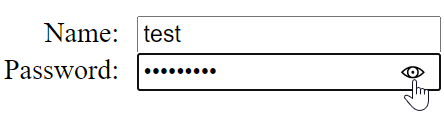
The Microsoft Edge browser, Edge Legacy, and Internet Explorer all offer a convenient mechanism for users to unmask their typing as they edit a password field:
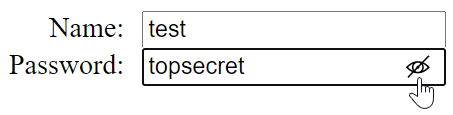
Clicking the little eye icon disables the masking dots so that users can see the characters they’re typing:
This feature can be very useful for those of us who often mistype characters, and is especially important for users with various accessibility needs that can make error-free typing especially challenging. Keyboard users can hit ALT+F8 to toggle the reveal feature without using the mouse.
Nevertheless, Web Developers may disable this feature (for instance, if they offer their own version) by targeting the -ms-reveal pseudo element on an input type=password field:
.classNoReveal::-ms-reveal {
     display: none;
  }
If a site offers its own “reveal” feature, it should use CSS to hide the built-in feature to avoid confusing UI like this one:
Edge Legacy and Internet Explorer also respect a Windows policy (DisablePasswordReveal) that removes the password reveal button in various places throughout the system, including Edge Legacy and Internet Explorer. Some security configuration guides suggest setting this policy, arguing “Visible passwords may be seen by nearby persons, compromising them.” This is literally true; it is also true that such nearby persons might simply watch as the user’s fingers as they type in their password manually.
Notably, this Windows policy is not respected2 by Edge 79 and later, so we’ve had a few questions about that. I’d like to point out a few non-obvious characteristics of this feature that might assuage security concerns.
The most obvious attack that administrators are worried about is that a passerby might use this mechanism to steal auto-filled passwords from an unlocked, unattended computer. This concern is misplaced1: when the browser’s Password Manager autofills a password, the reveal icon is removed:
The PasswordInputType code is smart too– an attacker cannot get the icon to appear by simply adding or deleting a few characters, it only reappears after the user completely removes all of the characters in the input field. The icon is hidden if the field is modified by JavaScript, and it’s hidden if focus leaves the input field.
1 Notably, while concern about the reveal button is misplaced, it’s entirely possible to steal your own password using the Developer Tools or by running JavaScript from the omnibox.
2 In Edge 87, we added an Edge-specific Group Policy to suppress the reveal button. You shouldn’t use it.
Back in the mid-aughts, Adam G., a colleague on the IE team, used the email signature “IE Networking Team – Without us, you’d be browsing your hard drive.” And while I’m sure it was meant to be a bit tongue-in-cheek, it’s really true– without a working network stack, web browsers aren’t nearly as useful.
Background on Proxy Determination
One of the very first things a browser must do on startup is figure out how to send requests over the network. Typically, the host operating system already provides the transport (TCP/IP, UDP) and lower-level primitives, so the browser’s first task is to figure out whether or not web requests should be sent through a proxy. Until this question is resolved, the browser cannot send any network requests to load pages, sync profile information, update phishing blocklists, etc.
In some cases, proxy determination is simple— the browser is directly configured to ignore proxies, or to send all requests to a directly specified proxy.
However, for convenience and to simplify cases where a user might move a laptop between different networks with different proxy requirements, all major browsers support an algorithm called “Web Proxy Auto Discovery”, or WPAD. The WPAD process is meant to find and download a Proxy AutoConfiguration Script (PAC) for the current network.
Determine whether WPAD should be used, either by looking at browser settings or asking the host operating system if the browser is configured to match the OS setting.
Ensure the network is ready.
If WPAD is to be used, issue a DHCPINFORM query to ask for the URL of the PAC script to use.
If the DHCPINFORM query fails to return a URL, perform a DNS lookup for the unqualified hostname wpad.
Establish a HTTP(S) connection to discovered URL’s server and download the PAC script.
If the PAC script downloads successfully, parse and optionally compile it.
For each network request, call FindProxyForURL() in the PAC script and use the proxy settings returned from the function.
While conceptually simple, any of these steps might fail, and any failure might prevent the browser from using the network.
Performance
… or “Why on earth do I see Downloading proxy script… for a few seconds every time I start my browser!??!”
A Microsoft Edge feature team reached out to the networking team this week asking for help with an observed 3 second delay in the initialization of their feature. They observed that this delay magically disappeared if Fiddler happened to be running.
With symptoms like that, proxy determination is the obvious suspect, because Fiddler specifies the exact proxy configuration for browsers to use, meaning that they do not need to perform the WPAD process.
We asked the team to take an Edge network trace using the “Capture on Startup” steps. Sure enough, when we analyzed the resulting NetLog, we found almost exactly three seconds of blocking time during startup:
Note: Timestamps [e.g. t=52] are shown in milliseconds.
Because the browser took a full three seconds to decide whether or not to use a proxy, every feature that relies on the network will take at least three seconds to get the data it needs.
So, where’s the delay coming from? In this case, the delay comes from two places: a two second delay for PAC_FILE_DECIDER_WAIT and a one second delay for the DNS lookup of wpad.
The two second PAC_FILE_DECIDER_WAIT [Step #2] is a deliberate delay that is meant to delay PAC lookups after a network change event is observed, to accommodate situations where the browser is notified of a network change by the Operating System before the network is truly “ready” to perform the DHCP/DNS/Download steps of WPAD. In this browser-startup case, we haven’t yet figured out why the browser thinks a network change has occurred, but the repro is not consistent and it seems likely to be a bug.
The (failing) DNS lookup [Step #3] might’ve taken even longer to return, but it timed out after one second thanks to an enabled-by-default feature called WPADQuickCheckEnabled.
This three second delay on startup is bad, but it could be even worse. We got reports from one Microsoft employee that every browser startup took around 21 seconds to navigate anywhere. In looking at his network log, we found that the wpad DNS lookup [Step #5] succeeded, returning an IP address, but the returned IP was unreachable and took 21 seconds to timeout during TCP/IP connection establishment.
What makes these delays especially galling is that they were all encountered on a network that does not actually need a proxy!
Failures
Beyond the time delays, each of these steps might fail, and if a proxy is required on the current network, the user will be unable to browse until the problem is corrected.
For example, we recently saw that [Step #7] failed for some users because the Utility Process running the PAC script always crashed due to forbidden 3rd-party code injection. When the Utility Process crashes, Chromium attempts to bypass the proxy and send requests directly to the server, which was forbidden by the Enterprise customer’s network firewall.
We’ve also found that care must be taken in the JavaScript implementation of FindProxyForURL() [Step #8] because script functions behave slightly differently across different browsers. In most cases, scripts work just fine across browsers, but sometimes corner cases are encountered that require careful handling.
Even if we were to comment out the LOAD_DISABLE_CACHE directive in the fetch, this wouldn’t allow reuse of a previously downloaded script file– my assumption is that the download is happening in a NetworkContext that doesn’t actually have a persistent cache, but I haven’t looked into this.
The PAC script fetches will be repeated on network change or browser restart.
Security
WPAD is something of a security threat, because it means that another computer on your network might be able to become your proxy server without you realizing it. In theory, HTTPS traffic is protected against malicious proxy servers, but non-secure HTTP traffic hasn’t yet been eradicated from the web, and users might not notice if a malicious proxy performed an SSLStripping attack on a site that wasn’t HSTS preloaded, for example.
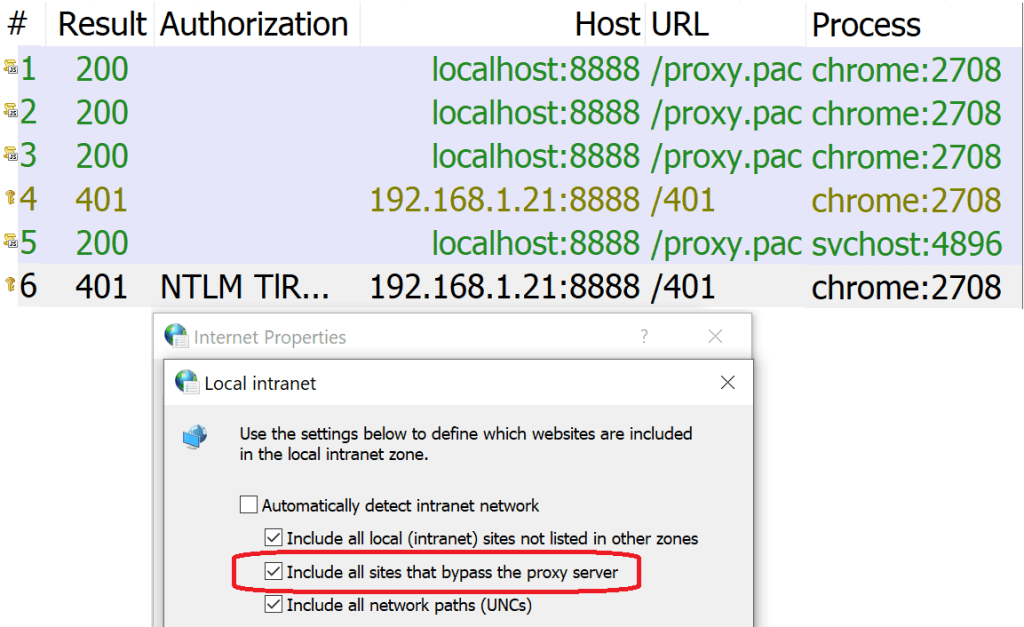
Edge Legacy and Internet Explorer have a surprising default behavior that treats sites for which a PAC script returns DIRECT (“bypass the proxy for this request“) as belonging to your browser’s Intranet Zone.
Chrome performing Automatic Authentication due to Proxy Bypass
Edge Legacy and Internet Explorer
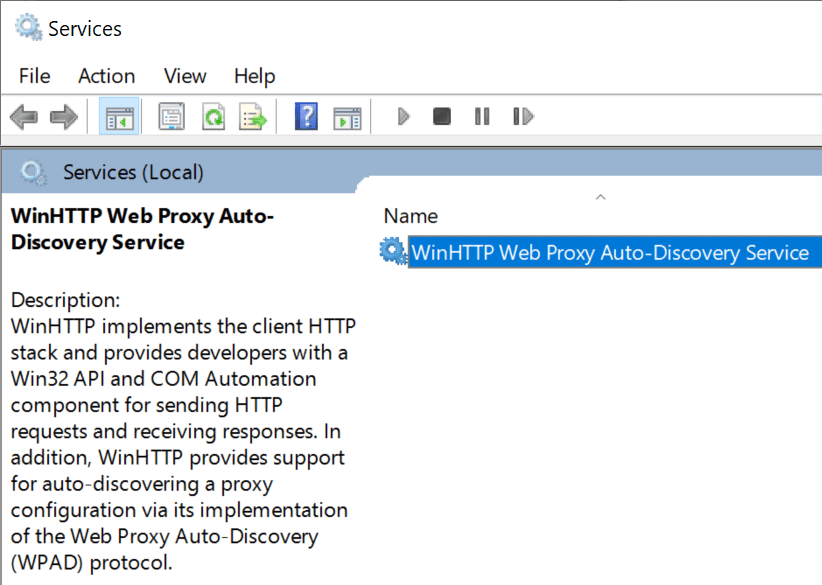
Interestingly, performance and functionality problems with WPAD might have been less common for the Edge Legacy and Internet Explorer browsers on Windows 10. That’s because both of these browsers rely upon the WinHTTP Web Proxy Auto-Discovery Service:
This is a system service that handles proxy determination tasks for clients using the WinHTTP/WinINET HTTP(S) network stacks. Because the service is long-running, performance penalties are amortized (e.g. a 3 second delay once per boot is much cheaper than a 3 second delay every time your browser starts), and the service can maintain caches across different processes.
Chromium does not, by default, directly use this service, but it can be directed to do so by starting it with the command-line argument:
--winhttp-proxy-resolver
A Group Policy that matches the command-line argument is also available.
SmartWPAD
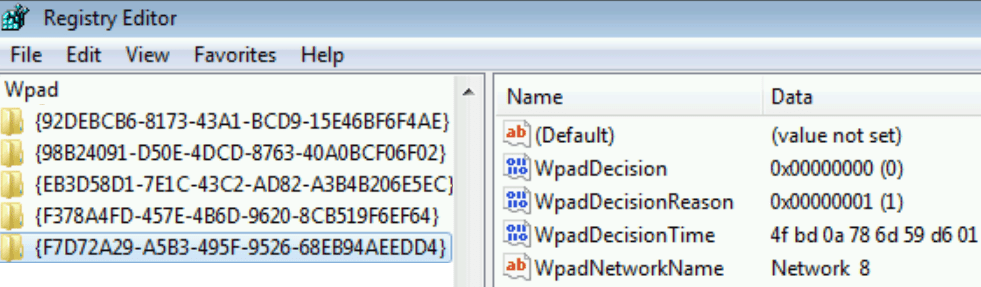
Prior to the enhancement of the WinHTTP WPAD Service, a feature called SmartWPAD was introduced in Internet Explorer 8’s version of WinINET. SmartWPAD caches in the registry a list of networks on which WPAD has not resulted in a PAC URL, saving clients the performance cost of performing the WPAD process each time they restarted for the common case where WPAD fails to discover a PAC file:
Cache entries would be maintained for a given network fingerprint for one month. Notably, the SmartWPAD cache was only updated by WinINET, meaning you’d only benefit if you launched a WinINET-based application (e.g. IE) at least once a month.
When a client (including IE, Chrome, Microsoft Edge, Office, etc) subsequently asks for the system proxy settings, SmartWPAD checks if it had previously cached that WPAD was not available on the current network. If so, the API “lies” and says that the user has WPAD disabled.
The SmartWPAD feature still works with browsers running on Windows 7 today.
Notably, it does not seem to function in Windows 10; the registry cache is empty. My Windows 10 Chromium browsers spend ~230ms on the WPAD process each time they are fully restarted.
Update: The WinINET team confirms that SmartWPAD support was removed after Windows 7; for clients using WinINET/WinHTTP it wasn’t needed because they were using the proxy service. Clients like Chromium and Firefox that query WinINET for proxy settings but use their own proxy resolution logic will need to implement a SmartWPAD-like feature optimize performance.
Disabling WPAD
If your computer is on a network that doesn’t need a proxy, you can ensure maximum performance by simply disabling WPAD in the OS settings.
On Windows, you can thus turn off WPAD by default by using the Internet Control Panel (inetcpl.cpl) Connections > LAN Settings dialog, or the newer Windows 10 Settings applet’s Automatic Proxy Setup section:
Simply untick the box and browsers that inherit their default settings from Windows (Chrome, Microsoft Edge, Edge Legacy, Internet Explorer, and Firefox) will stop trying to use WPAD.
Update: There’s also a registry key that will directly disable WPAD inside the WinHTTP service, DisableWPAD. However, this key will NOT impact clients like Chrome, Edge, and Firefox that ask the system for the proxy configuration state, and when those clients “see” that PROXY_TYPE_AUTO_DETECT is enabled, they will themselves perform WPAD directly.
Looking forward
WPAD is convenient, but somewhat expensive for performance and a bit risky for security/privacy. Every few years, there’s a discussion about disabling it by default (either for everyone, or for non-managed machines), but thus far none of those conversations has gone very far.
Ultimately, we end up with an ugly tradeoff– no one wants to land a change that results in users being limited to browsing their hard drives.
If you’re an end user, consider unticking the “Automatically Detect Settings” checkbox in your Internet settings. If you’re an enterprise administrator, consider deploying a policy to disable WPAD for your desktop fleet.







 text/plain