Google Chrome–Two(ish) Years In

My first year (2016) on Chrome was both exciting and challenging. Beyond the expected firehose of new things to learn, and foreseen challenges (a second son!), there were unforeseen challenges, like working as a SWE instead of a Developer Advocate, and a long illness.

Overall, my second year (2017) on Chrome was a bit smoother– I was still learning a ton every day, but I finally started to make non-trivial contributions as a developer.

I started to develop a sense of direction when navigating the millions of lines of code that make up Chrome’s multi-process architecture, and did the development work for HTTPBad Phase 2. Building that feature involved sending messages from Blink through Mojo to the Browser process and triggering UI updates, collecting metrics and rolling out the feature gradually via a Chrome Field Trial. Shipping the change on iOS (where Chrome must use WkWebView rather than Blink) was especially tricky as the architecture, toolchain, and testing are all quite different.

I briefly took ownership of maintaining Chrome’s HSTS Preload list and processes and worked with domain registry fTLD in getting the .bank and .insurance top-level-domains added to the preload list. Getting TLDs preloaded is a huge win for security and performance, and hopefully we’ll see more TLDs joining in the near future.

The single biggest productivity improvement of the year was moving from building locally to using Goma for dramatically faster builds. With the benefit of hindsight, I should’ve done this in 2016 and failing to do so was one of the biggest mistakes I’ve made.

Reproducing, reducing, and triaging security issues remained my favorite thing to do, and I got better at identifying which of Chrome’s many experts was best suited to investigate and develop patches. I also made a bunch of updates to Chrome’s public Security FAQ and other documentation, and published some notes on my research into Chrome’s XSS Auditor. I had the chance to do the pre-launch security review for a number of cool features around the product, and work with other Google teams on a number of HTTPS-related issues. I filed 161 issues.

The only constant when working on Chrome is change, and I spent a lot of time keeping up with changes in everything from architecture (Site Isolation!) to tooling, including the move from Reitveld to Gerrit for code review. I also kept the extensions I’ve developed up-to-date with changes and bugfixes, and code-reviewed a few publicly-available extensions, both good and evil.

Speaking of changes…

I’ve learned a ton over the last two years and I’m grateful for having had the opportunity to help keep users safe and work with such a talented group of passionate engineers. I still get dizzy when I think about the size and skillset of the Chrome team, and I’m super-excited about the improvements coming to Chrome in the near future. While progress is never as fast as I’d like, I’m proud to see the real-world web moving toward a more encrypted, secure, and powerful future.

May 29th will be my last day on the Chrome team and at Google. Starting in June, I’ll be heading back to Program Management, working together with a lot of old friends.

I Still ❤ The Web

I’ve been working on web security for a long time at this point, and spending most of my time looking at all of the bad stuff happening on the web can get pretty demoralizing. Fortunately, there’s also a lot of amazing stuff on the web that periodically reminds me of what an amazing tool it can be.

For instance, this afternoon a friend posted the following picture:

MysteryText

Now, I’ve loved mysteries for a long time, and this one seemed like it ought to be an easy one with all of the magical tech we have at our disposal these days.

I first gave it a shot with the Google Translate app on my phone, which frequently surprises me with the things it can do. However, while it can do translations via photo, that feature requires that you first specify the source language, and I don’t know it yet.

I gave this nice article on recognizing character sets a skim, but no perfect match leapt out at me, although it did eliminate some of my guesses. The answer’s actually in there, had I done more than skim it.

Fortunately, I remembered an amazing website that lets you draw a shape and it’ll tell you what Unicode characters you might be writing. I chose the most distinctive character I could and scrawled it in the box, and the first half of the puzzle fell into place:

Drawbox

After that, it was a simple matter of clicking through to the Georgian character set block and verifying that all of the characters were present. I then copied the text over to Google Translate, which reports that ელდარ translates to Eldar.

There’s a ton of amazing stuff out there on the web. Don’t let all the bad stuff get you down.

-Eric

SSLVersionMin Policy returns to Chrome 66

Chrome 66, releasing to stable this week, again supports the SSLVersionMin policy that enables administrators to control the minimum version of TLS that Chrome is willing to negotiate with a server.

If this policy is in effect and configured to permit, say, only TLS/1.2+ connections, attempting to connect to a site that only supports TLS/1.0 will result in an error page with the status code ERR_SSL_VERSION_OR_CIPHER_MISMATCH.

This policy existed until Chrome 52 and was brought back for Chrome 66 and later. It is therefore possible that your administrators configured it long ago, forgot about the setting, and will be impacted again with Chrome 66’s rollout.

-Eric

HSTS Preload and Subdomains

In order to be eligible for the HSTS Preload list, your site must usually serve a Strict-Transport-Security header with an includeSubdomains directive.

Unfortunately, some sites do not follow the best practices recommended and instead just set a one-year preload header with includeSubdomains and then immediately request addition to the HSTS Preload list. The result is that any problems will likely be discovered too late to be rapidly fixed– removals from the preload list may take months.

The Mistakes

In running the HSTS preload list, we’ve seen two common mistakes for sites using includeSubdomains:

Mistake: Forgetting Intranet Hosts

Some sites are set up with a public site (example.com) and an internal site only accessible inside the firewall (app.corp.example.com). When includeSubdomains is set, all sites underneath the specified domain must be accessible over HTTPS, including, in this case, app.corp.example.com. Some corporations have different teams building internal and external applications, and must take care that the security directives applied to the registrable domain are compatible with all of the internal sites running beneath it in the DNS hierarchy. Following the best practices of staged rollout (with gradually escalating max-age directives) will help uncover problems before you brick your internal sites and applications.

Of course, you absolutely should be using HTTPS on all of your internal sites as well, but HTTPS deployments are typically smoother when they haven’t been forced by Priority-Zero downtime.

Mistake: Forgetting Delegated Hosts

Some popular sites and services use third party companies for advertising, analytics, and marketing purposes. To simplify deployments, they’ll delegate handling of a subdomain under their main domain to the vendor providing the service. For instance, www.example.com will point to the company’s own servers, while the hostname mail-tracking.example.com will point to Experian or Marketo servers. A HSTS rule with includeSubdomains applied to example.com will also apply to those delegated domains. If your service provider has not enabled HTTPS support on their servers, all requests to those domains will fail when upgraded to HTTPS. You may need to change service providers entirely in order to unbrick your marketing emails!

Of course, you absolutely should be using HTTPS on all of your third-party apps as well, but HTTPS deployments are typically smoother when they haven’t been forced by Priority-Zero downtime.

Recovery

If you do find yourself in the unfortunate situation of having preloaded a TLD whose subdomains were not quite ready, you can apply for removal from the preload list, but, as noted previously, the removal can be expected to take a very long time to propagate. When a site is removed from the HSTS preload list via HSTSPreload.org, it will take weeks for Chrome and Edge to release the change in their Stable channels, as these removals usually flow through the channels like any other change.

Thus, depending on when exactly the changelist containing the HSTS Preload List Update containing the removal lands, the elapsed time varies: 6 weeks to get to stable if it lands just before the branch for Beta, and ~14 weeks to get to an Extended Stable if it just misses the last one. It could be faster or even slower to get to other browsers which do not pick up the HSTS preload list on the same cadence (e.g. WinINET pulls its preload list from Mozilla’s copy just a few times per year).

For cases where you only have a few domains out of compliance, you should be able to quickly move them to HTTPS. You might also consider putting a HTTPS front-end out in front of your server (e.g. Cloudflare’s free Flexible SSL option) to allow it to be accessed over HTTPS before the backend server is enables HTTPS.

If you’ve broken your Intranet, you might hope that a Group Policy deployed to your employees’ PCs would allow you to turn off HSTS temporarily, but alas, the policy you’re hoping for does not (as of February 2023) exist.

Deploy safely out there!

-Eric

NET::ERR_CERT_INVALID error

Some users report that after updating their Operating System or Chrome browser to a more recent version, they have problems accessing some sites (often internal sites with self-signed certificates) and the browser shows an error of NET::ERR_CERT_INVALID.

NET::ERR_CERT_INVALID means that a certificate was itself is so malformed that it’s not accepted at all– sometimes rejected by certificate logic in the underlying operating system or sometimes rejected by additional validity checks in Chrome. Common causes include

  1. malformed serial numbers (they should be 20 digits)
  2. Certificate versions (v1 certificates must not have extensions)
  3. policy constraints
  4. SHA-1 (on OS X 10.13.3+)
  5. validity date formatting (e.g. missing the seconds field in the ASN.1, or encoding using the wrong ASN.1 types)
  6. disk corruption

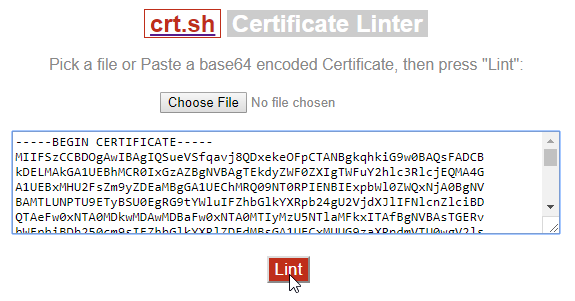
Click the “NET::ERR_CERT_INVALID” text such that the certificate’s base64 PEM data appears. Copy/paste that text (up to the first –END CERTIFICATE–) into the box at https://crt.sh/lintcert and the tool will generate a list of errors that can lead to this error in Chrome.

CertLint

In most cases, the site will need to generate and install a properly-formatted certificate in order to resolve the error.

If the certificate was generated incorrectly by a locally-running proxy (e.g. antivirus) or content-filtering device, the interceptor will need to be fixed.

Finally, Windows does not have a robust self-healing feature for its local Trusted Certificates store, meaning that if an on-disk certificate gets even a single bit flipped, every certificate chain that depends on that certificate will begin to fail. The only way to fix this problem is to use CertMgr.msc to delete the corrupted root or intermediate certificate. In a default configuration, Windows will subsequently automatically reinstall the correct certificate from WindowsUpdate.

-Eric