Script-Generated Download Files

As we finish up the next release of Windows 10, my team is hard at work triaging incoming bugs. Here’s a pattern that has come up a few times this month:

Bug: I click download in Edge Legacy:

DownloadButton…but I end up on an error page:

WompWompDataURI

Womp womp.

If you watch the network traffic, you’ll see that no request even hits the network in the failing case. But, if you carefully scroll that ugly error URL to see the middle, the source of the problem appears:

ms-appx-web://microsoft.microsoftedge/assets/errorpages/dnserror.html?ErrorStatus=0x80704006&NetworkStatusSupported=1#data:text/csv;charset=UTF-8...n%0D%0A

The error shows that Edge Legacy failed to navigate to a URL with the Data URI scheme.

Ever since we introduced support for DATA URLs a decade ago in Internet Explorer 8, they’ve been throttled with one major limitation: You cannot navigate to these URIs at the top level of the browser. Edge Legacy loosened things up so that Data URLs under 4096 characters can be used as the source of IFRAMEs, but the browser will not navigate to a data URL at the top level. The new Chromium-based Edge does not have this limitation.

(Yes, this error page could use some love.)

Now, you might remember that last winter, Chrome took a change to forbid top-level navigation to data URIs (due to spoofing concerns), but that restriction contains one important exception: navigations that get turned into downloads (due to their MIME type being one other than something expected to render in the browser) are exempted. So this scenario sorta works in Chrome. (I say “sorta” because the authors of this site failed to specify a meaningful filename on the link, so the file downloads without the all-important .csv extension).

ChromeWorksSorta2

So, does IE/Edge Legacy’s restriction on Data URIs mean that webdevs cannot generate downloadable files dynamically in JavaScript in a way that works in all browsers?

No, of course not.

There are many alternative approaches, but one simple approach is to just use a blob URL, like so:

var text2 = new Blob(["a,b,c,d"], { type: 'text/csv'});
var down2 = document.createElement("a");
down2.download = "simple.csv";
down2.href = window.URL.createObjectURL(text2);
down2.addEventListener("onclick", function(){ if (navigator.msSaveOrOpenBlob) {navigator.msSaveOrOpenBlob(text2,"simple.csv"); return false;}});
document.body.appendChild(down2);
down2.innerText="I have a download attribute. Click me";

When the link is clicked, the CSV file is downloaded with a proper filename.

See this GitHub thread for a fuller discussion.

-Eric

PS: Even in the new Chromium-based Edge, downloads sourced from blob: or data: may not be handled properly by browser policies that call for special handling of files from specified sites. See https://crbug.com/1169904, for details.

CORS and Vary

Yesterday, I started looking a site compatibility bug where a page’s layout is intermittently busted. Popping open the F12 Tools on the failing page, we see that a stylesheet is getting blocked because it lacks a CORS Access-Control-Allow-Origin response header:

NoStylesheetCORS

We see that the client demands the header because the LINK element that references it includes a crossorigin=anonymous directive:

crossorigin="anonymous" href="//s.axs.com/axs/css/90a6f65.css?4.0.1194" type="text/css" />

Aside: It’s not clear why the site is using this directive. CORS is required to use  SubResource Integrity, but this resource does not include an integrity attribute. Perhaps the goal was to save bandwidth by not sending cookies to the “s” (static content) domain?

In any case, the result is that the stylesheet sometimes fails to load as you navigate back and forward.

Looking at the network traffic, we find that the static content domain is trying to follow the best practice Include Vary: Origin when using CORS for access control.

Unfortunately, it’s doing so in a subtly incorrect way, which you can see when diffing two request/response pairs for the stylesheet:

VaryDiff

As you can see in the diff, the Origin token is added only to the response’s Vary directive when the request specifies an Origin header. If the request doesn’t specify an Origin, the server returns a response that lacks the Access-Control-* headers and also omits the Vary: Origin header.

That’s a problem. If the browser has the variant without the Access-Control directives in its cache, it will reuse that variant in response to a subsequent request… regardless of whether or not the subsequent request has an Origin header.

The rule here is simple: If your server makes a decision about what to return based on a what’s in a HTTP header, you need to include that header name in your Vary, even if the request didn’t include that header.

If your response specifies Vary: Origin to ensure that the browser rechecks with you before reusing a response, your server had better not return a HTTP/304 Not Modified response to a request from a different Origin without *also* updating the Access-Control-Allow-Origin to match the new request context. Otherwise, your cached response is not going to be readable in that new context.

-Eric

PS: This seems to be a pretty common misconfiguration, which is mentioned in the fetch spec:


CORS protocol and HTTP caches

If CORS protocol requirements are more complicated than setting `Access-Control-Allow-Origin` to * or a static origin, `Vary` is to be used.

Vary: Origin

In particular, consider what happens if Vary is not used and a server is configured to send Access-Control-Allow-Origin for a certain resource only in response to a CORS request. When a user agent receives a response to a non-CORS request for that resource (for example, as the result of a navigation request), the response will lack Access-Control-Allow-Origin and the user agent will cache that response. Then, if the user agent subsequently encounters a CORS request for the resource, it will use that cached response from the previous non-CORS request, without Access-Control-Allow-Origin.

But if Vary: Origin is used in the same scenario described above, it will cause the user agent to fetch a response that includes Access-Control-Allow-Origin, rather than using the cached response from the previous non-CORS request that lacks Access-Control-Allow-Origin.

However, if Access-Control-Allow-Origin is set to * or a static origin for a particular resource, then configure the server to always send Access-Control-Allow-Origin in responses for the resource — for non-CORS requests as well as CORS requests — and do not use Vary.


Be skeptical of client-reported MIME Content-Types

Over the 14 years that I’ve been working on browsers and the web platform, I’ve seen a lot of bugs where the client’s configuration causes a problem with a website.

By default, Windows maintains File Extension to Content Type and Content Type to File Extension mappings mappings in the registry. You can find the former mappings in subkeys named for each file extension, e.g. HKEY_CLASSES_ROOT\.ext, and the latter as subkeys under the HKEY_CLASSES_ROOT\MIME\Database\Content Type key:

PDFMapping

These mappings are how Internet Explorer, Edge, and other browsers know that a file delivered as Content-Type: application/pdf should be saved with a .pdf extension, and that a local file named example.html ought to be treated as Content-Type: text/html.

Unfortunately, these mappings are subject to manipulation by locally-installed software, which means you might find that installing Microsoft Excel causes your .CSV file upload to have a Content-Type of application/vnd.ms-excel instead of the text/csv your website was expecting.

Similarly, you might be surprised to discover that some popular file extensions do not have a MIME type registered by default on Windows. Perhaps the most popular of these is files in JavaScript Object Notation format; these generally should have the file extension .json and a MIME type of application/json but Windows treats these as an unknown type by default.

Today, I looked at a site which allows the user to upload a JSON file containing data exported from some other service. The upload process fails in Edge with an error saying that the file must be JSON. Looking at the script in the site, it contains the following:

validateFile = function(file) {
  if (file.type !== "application/json") // BUG BUG BUG
    { alert('That is not a valid json file.'); return; }

This function fails in Edge– the file.type attribute is the empty string because Windows has no mapping between .json and application/json.

This site usually works in Chrome because Chrome has a MIME-type determination system which first checks a fixed list of mappings, then, if no fixed mapping was found, consults the system registry, and finally, if the registry does not specify a MIME type for a given extension, Chrome consults a “fallback” list of mappings (kSecondaryMappings), and .JSON is in that final fallback list. However, even Chrome users would be broken if the file had the wrong extension (e.g. data.jso) or if the user’s registry contained a different mapping (e.g. .json=>”text/json”).

As a consequence, client JavaScript and server-side upload processing logic should be very skeptical of the MIME type contained in the file.type attribute or Content-Type header, as the MIME value reported could easily be incorrect by accident (or malice!).

-Eric Lawrence
PS: End users can workaround the problem with sites that expect particular MIME types for JSON by importing the following Registry Script (save the text as FixJSON.reg and double-click the file):

Windows Registry Editor Version 5.00

[HKEY_CLASSES_ROOT\.json]
"Content Type"="application/json"

[HKEY_CLASSES_ROOT\MIME\Database\Content Type\application/json]
"Extension"=".json"


Edge EV UI Requires SmartScreen

A user recently noticed that when loading Paypal.com in Microsoft Edge, the UI shown was the default HTTPS UI (a gray lock):

Non-EV-UI-For-Paypal

Instead of the fancier “green” UI shown for servers that present Extended Validation (EV) certificates:EV-for-Paypal

The user observed this on some Windows 10 machines but not others.

The variable that differed between those machines was the state of the Menu > Settings > Advanced > Windows Defender SmartScreen setting.

Edge only shows the green EV user interface when SmartScreen is enabled.

IE 11

Internet Explorer 11 on Windows 10 behaves the same way as prior versions of IE going back to IE7– the green EV UI requires either SmartScreen be enabled or that the option Tools > Internet Options > Advanced > Security > Check for Server Certificate Revocation be enabled.

Chrome

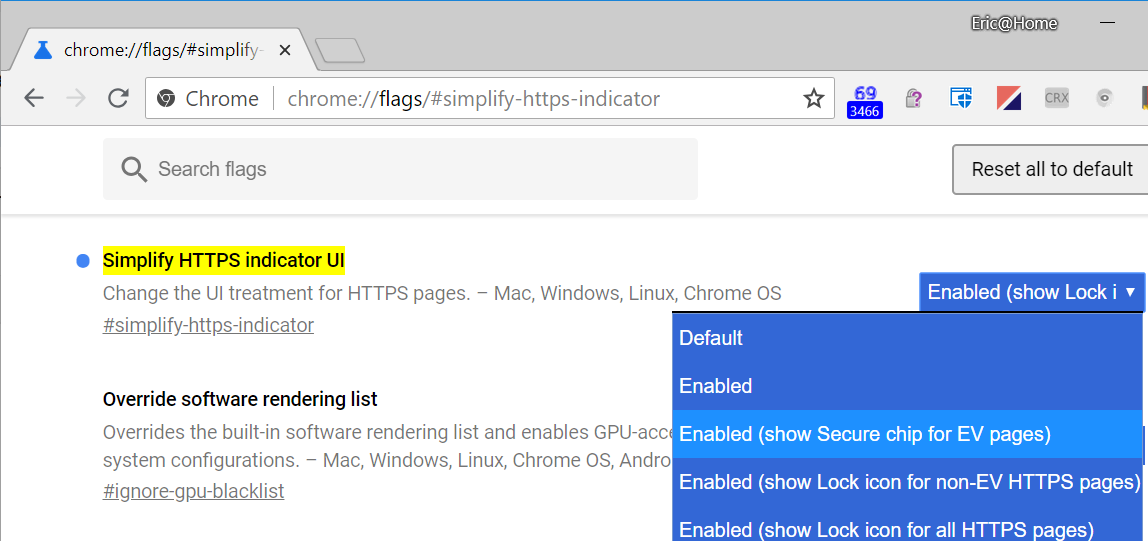
The Chrome team recently introduced a new setting, exposed via the chrome://flags/#simplify-https-indicator page, that controls how EV certificates are displayed in their Security Chip. A user (or a field trial) can configure sites with EV certificates to display using the default HTTPS UI.

ChromeEV


-Eric