Kilimanjaro – Gear

This is the second post in my Kilimanjaro series. The index is here.

When I was initially thinking about signing up for a trek up Kilimanjaro, I had two major areas to think about: my fitness, and all of the stuff I’d need for the trip. I knew that even if I didn’t ultimately take the trek, investing in my fitness would be a great outcome. I also figured that researching, collecting, and breaking in gear would be a welcome diversion from thinking about work and loss, so it seemed like another good reason to take the trek vs. just running races locally or something.

Over the next 18 months, I went from 240lbs to 190lbs (having bottomed out around 180) and dramatically improved my overall level of fitness, primarily by running. I’ve previously written a fair bit about my fitness journey as a part of my ProjectK series.

What I didn’t do for most of that time, however, is shop for gear. Early on, I bought and read a few books about Kilimanjaro treks, but I didn’t start buying most of my gear until late May, just about a month before my departure. In the final week, the Amazon driver was dropping a half dozen items at my house every day.

Trekking Kili takes a lot of gear, much of it cold-weather gear and not anything I have on hand after having lived in Texas for the last decade. Even things I thought I had (e.g. socks and underwear) needed to be replaced because it’s important to wear wicking clothing for long hikes. I’d never dreamed that I’d be spending $350 on socks and underwear for this trip!

One factor I didn’t anticipate is how good it feels to have and use the right tool for the job, and that turned out to be a big factor in how I felt about the trip. Where I had the right gear, I felt happy and confident. Where I didn’t, I felt regret and annoyance.

While we were told to plan on bringing a backpack of 30L or more, and a duffel of 140L or more, the true constraint turned out to be weight— porters are forbidden to carry duffels over 15 kilos (33 pounds), and weight accumulates fast. As I took off for Maryland to meet my brother on my way to Tanzania, my duffel was 40 pounds– and that was without any water in the bottles. 😬

In Maryland, I managed to drop just over two pounds (leaving behind clothes for the rest of my vacation after Tanzania, but adding some weight via consumables like protein bars and chocolate). At the bottom of Kili before the trek, I left behind two backpacks full of unneeded gear (power converters, extra clothing), starting the trek with a duffel at exactly the maximum allowed 33lbs.

Ultimately, it turned out that a fair number of my gear choices weren’t needed for the weather conditions of the trek– it wasn’t cold/wet enough to require much of the gear. Layering turned out to be key — on the summit day, I started with 5 layers on top and 3 on the bottom and it went great.

Our tour company provided a packing checklist, but it mostly doesn’t recommend any specific brands or styles and was often frustratingly ambiguous to someone who has spent as little time adventuring as I have.

The following is a list of gear I brought:

montem Ultra Strong Trekking Poles$74The top pick from Wirecutter, these were simple and worked great. I expected we’d only use poles for part of the hike, but in reality we used them for the entire trip except for a few brief sections of rock scrambling, e.g. up the Barranco Wall.
Salomon Quest 4 Gore-Tex Boots$172Perhaps my best purchase for this trip. These were absurdly comfortable and I couldn’t help but feel like a confident trekker each time I put them on. I’d worried that I hadn’t broken them in enough (with just ~20 miles in walking around the neighborhood) but I didn’t get any blisters for the entire trek.

While some of our team hiked in mid cuts, the fact that these were high ankle boots meant that no rocks/pebbles/etc ever got in my boots so I had no need for gaiters.
Boot InsolesA gift, I didn’t end up using these except for the one day before the summit, where they didn’t seem to offer meaningful comfort beyond the already-comfortable boots.

On summit day, they didn’t fit with my super-thick socks, so I took them out and didn’t use them again.
Merrell MOAB 2 Hiking Shoe $90I bought these shortly before the trip with the intention of wearing them for the first few days of the trek and in camp.

I didn’t end up bringing them after I realized that I was never going to make weight with them in my duffel. Ultimately, I think my full-size boots were more comfortable anyway.
My 5yo CrocsI ended up wearing Crocs as my “camp shoes.” The traction was awful (and I should’ve brought fully enclosed ones given the dirt/dust), but they were light and worked okay.
DarnTough Merino Wool Socks$150
/6
Absurdly expensive but awesome. I could’ve easily done the whole hike with 3 or 4 pairs.

I’d bought some liner socks to augment these (for warmth/sweat) but never bothered using them.
Smartwool Mountaineer Socks$26These were my most “bulky” socks. I wore them to the summit, but they were no better than the DarnTough socks and I didn’t wear them again.
Qezer 0F Sleeping bag$165Reasonably compact, and not too heavy. I didn’t end up using it in full “mummy” mode most nights, but it was warm enough anyway.
IFORREST Sleeping Pad$69Pretty comfortable after learning that I’d over-inflated it on the first night.

The side-rails on this pad were probably unnecessary and the overall weight-to-value ratio was probably questionable.
Eagle Creek Duffel$116This was a great bag — super-sturdy and extremely water-resistant. At 133L, it was slightly smaller than the 140L+ bag we were told to bring, but I later noticed that a branded version of this bag is the only one that our tour company sells in their shop.
Frelaxy Dry sacks 3L, 5L, 10L, 15L, 20L$32Very useful for keeping my duffel under control, although I probably should’ve gotten just two sizes (e.g. 5L and 15L)
Well made, but expensive, and I wasn’t disciplined about what went where, so I spent a lot of time hunting for things.
Frelaxy Compression Sack 30L$20I bought this to store dirty laundry. Ultimately the 30L size was much bigger than I needed given how much rewearing I was doing; I should’ve gotten the 18L version.
Osprey Talon Pack 33L$165This bag came highly recommended and I liked it a bunch, although I probably could’ve gotten away with the 26L variant. I liked this one because it could hold my hydration reservoir and it had holders for my poles, but I did not end up using the latter.

My brother carried the 22L version, which was too small.
Osprey Reservoir 2L$38While a bit cumbersome to get into my pack, this worked pretty well and I ended up using it almost exclusively over the Nalgene bottles we carried.
Nalgene bottles $63
/4
We were told to bring four of these. I never used more than 2, and mostly didn’t use them at all in favor of my reservoir.

That said, I did not do a good job with water on the trip and was technically dehydrated for most of it.
Osprey Raincover$30A bit expensive and I ended up needing this only on the last day, but it helped a lot and worked great.
Canon Rebel T7$600While one tour company noted “Our guests have never regretted bringing a high quality DSLR“, bringing this camera was probably my biggest mistake.

While it has a nice telephoto lens, the camera was big, heavy (several precious pounds), comparatively fragile, and its bulk and complexity meant that I usually didn’t have it out of the bag while hiking.

It was useful on the mini-safari day because we were far from the zebras and giraffes, but the telephoto was mostly pointless while on the mountain. Worse, I got a spec of dirt on the sensor at some point, so many of my photos have a smudge at the top. :(

I’d hoped to take some cool photos of the night sky, but I never got around to learning how to use the advanced modes for this camera and failed in this task.
Camera batteries and charger$26I worried about my camera running out of battery, so I bought a USB charger and extra batteries. I needn’t have bothered– after taking over a thousand pictures, the Canon still claimed that its stock battery was full.
Google Pixel 6 ProI kept my Pixel powered-off for most of the trek to save battery, but it took some decent photos and was useful for texting once we got above the treeline and had intermittent service.

My brother brought his new Samsung Galaxy S23 which took very good pictures, including an absolutely bonkers telephoto of the Uhuru Peak sign from the Stella Point sign (~3000 feet away).
iPad Mini 6I used this to watch movies on the flight over and many nights, my brother and I would watch an episode of the Simpsons in our tent before falling asleep. I never ran down the battery with light use. Probably not worth the weight/fragility given that I could’ve used my phone.
EINSKEY Sun Hat$18Great buy. The sun on Kili is relentless and the cool temperatures mean that it’s easy to get burned without realizing it until too late. I wore this giant hat to minimize the need for sunscreen and neck protection.
ELLEWIN Folding baseball cap$11Great buy. While I wore my big hat while hiking for sun protection, I wore this one pretty much non-stop otherwise. (I couldn’t wash my hair for 9 days 😬). I bought three more after coming home.
ALLWEI International Travel Adapter$42This power adapter looked great on paper (flexible, lots of sockets, many plug adapters), but proved a total waste. Our hotel had USB charging ports, and this adapter didn’t work in most of the sockets (and I could never figure out why).
Power Bank 30,800mAh LCD Display Power Bank$23I like that this power bank showed the remaining charge, but it didn’t seem to hold as much as claimed.
Anker PowerCore Slim 10000mAh Power Bank$18This two year-old power bank powered our tent light for almost the entire trip.
BigBlue 28W Solar Panel$71While I love solar, and this wasn’t totally useless, for the bulk and weight I’d’ve been better off leaving this behind in favor of an extra battery pack.

In theory, I could hang this on my backpack while hiking with the included carabiners, but since I was doing that with my heavy camera bag it would’ve made my pack even more cumbersome. So instead I just set it up atop my tent when we made camp.

I’ve been using this panel at the kids’ flag football practices/games — it sits nicely atop my shaded folding chair.
6.5′ LED light strip$11I brought these to light the tent and they worked well for that task. Amusingly, I also wore the light strip as a necklace on the final morning because I’d misplaced my headlamp.
Red LED Flashlight$9Great – Good battery life, limited impact on night vision, lightweight and trouble-free.
HeadlampA fancy gift from my brother, powered by either a rechargeable battery or AAA batteries.

It seemed to work well, but I only used it twice — once on a trip to the toilet tent, and once for two hours on the pre-dawn summit morning. There ended up being a sorta funny story about that.
Pike Trail Gaiters$32These worked okay, but proved redundant because I was wearing high-ankle boots. I didn’t wear them after the first day. Ultimately, I left them in Tanzania after the hike.
Ice Spikes$16I was excited to use these “YakTrax” that strap spikes over the bottoms of boots for hiking on ice and snow. Alas, we never got closer than half a mile away from anything frozen (except a few puddles in the shade). Ultimately, I lamented wasting the weight and I left them in Tanzania after the hike.
IRONLACE – Paracord 550 Laces Type III Boot Laces 72-Inch$8I really didn’t want to have a disaster where a boot lace broke, so I brought these. I didn’t ultimately need them, but they also would’ve been good for hanging laundry to dry, so I’m glad I had them.
Eddie Bauer 30L collapsible backback$20I’ve used this for a bunch of trips and while it’s not super-light, it’s pretty compact and it’s a “good” non-flimsy backpack. I used this to hold the stuff that I was leaving at the bottom and not bringing up the mountain.
4Monster collapsible 32L backpack$29This backpack weighed almost nothing and took up almost no space. It was an excellent “leave behind” backpack but unlike the Eddie Bauer one, I wouldn’t want to actually use it as a backpack for long.
Smartwool Merino 250 Cuffed Beanie$32Expensive, but comfortable and warm.
Merino Wool Balaclava$29Many of our group wore these a lot, but I only wore mine during the summit descent to keep the dust out of my nose. A bit pricey for how little I used it.
MERIWOOL Merino Wool Thermal Pants$64Midweight, I wore these every night after the first and they kept me comfortable.
MERIWOOL Long Sleeve Shirt$64Midweight, I wore this every night and it kept me warm. I wouldn’t’ve survived the trip without this.
MRIGNT Heavyweight Long Johns Set for Extreme Cold$46I didn’t end up wearing these, although they were soft and looked comfy/warm, if a bit bulky.

Lacking any plausible scenario for wearing them after the trek back home in Texas, I’d planned to leave the set behind in Tanzania but accidentally took them home. Ah well.
BALEAF Hooded Shirt
$26This was a great hooded hiking shirt and I wore it for two or three days. I wish I’d brought more. The hood and thumbholed-sleeves were useful for times when I didn’t want to bother with sunscreen.
Under Armour Men’s Tech 2.0 ½ Zip Long Sleeve$39
/2
These were light and comfortable, although they didn’t have hoods, and I preferred the Baleaf shirt overall.
Columbia Tamiami II Shortsleeved Shirt$36This was my most “safari” looking shirt and I like how it looked. That said, I ended up wearing long-sleeves for most of the trip for sun protection.
5 Pack Men’s Active Quick Dry Crew Neck T Shirts$43
/5
Cheap, comfortable and nice looking. I didn’t wear them on the trek often due to the short sleeves, but I wore on the rest of my vacation.
BAMBOO COOL Men’s Underwear boxer briefs$77
/8
Great. I wore these almost every day.
adidas Boxer Briefs$46
/6
I bought a bunch of these and they were okay.
Smartwool Merino 150 Boxer Brief$44By far the most expensive underwear I’ve ever owned. ($44/pair?!?!). They seemed nice, but I didn’t wear them.
Outdoor Ventures Rain Pants
$32I didn’t need these until the summit day, when they kept me warm as windpants pre-dawn, and then again on the last day as it drizzled. Ultimately, I really liked these pants (especially because they zipped from the bottom too, enabling taking them off without removing my boots). Alas, they got muddy on the last day and I somehow managed to either drop them or forgot them on the Land Rover.
North Face shell jacket[est $120]This was a very nice waterproof shell that weighed almost nothing but provided excellent protection from the rain and wind; I got it as team swag while at Microsoft but had never worn it before. It has a hood, zippered pockets, and zippered vents under the arms.
Patagonia “Nano Puff” jacket
STY84212
[est $220]Also (expensive) Microsoft swag, this turned out to be one of the “MVP” pieces — not only was it a critical layer for warmth every night at dinner and on the summit day, it also folded into one of its own pockets and served as my pillow from night 2 onward.
Free Soldier Waterproof Hooded Military Tactical Jacket$57I had expected this to be my “heavy” coat that I’d wear to the summit. In practice, it provided almost no warmth, and I left it behind when I left Tanzania.

I liked how this jacket looked (and that I could put my 1991 Space Camp flight suit’s name badge on its velcro). Shame it wasn’t useful.
Free Soldier Fleece Cargo Hiking Pants
$47These were nice and would’ve made for excellent snow pants. However, it never was cold enough to require these while hiking, so I didn’t end up wearing them.
Wespornow Hiking Shorts$43
/2
These were great — light and sturdy. While it was too chilly to wear them as much as I expected, I’ve been wearing them non-stop since returning from the trek.
Free Soldier Hiking Pants$42These were great — comfortable and sturdy, and I wore them a bunch.
Convertible Zip Off Safari Pants$21These were fine hiking pants, although I ended up not needing their convertible feature at all.
Cooling Bandana$16This was very high quality, but I didn’t use it.
Bandanas$22I didn’t end up using any of these, although two women in my group ended up borrowing them to cover their hair or neck.
Outdoor Essentials Running Gloves$13These were excellent — not too warm, but they kept my hands at a good temperature in the chilly weather. I wore them a bunch while hiking even when I wasn’t cold to keep the sun off my hands.
Tough Outdoors Winter Gloves$22These heavy gloves seemed great, but the only time when I wanted to be wearing them (pre-dawn on summit day), they were packed in my duffel because I thought the light gloves would’ve been enough. Oops.
Fisher Space Pen$33Crazy-expensive, but I used this for journaling every day and it did write at any angle and temperature.
GlassesI ended up bringing a total of 4 pairs of glasses on the trip — three pairs of sunglasses and one pair of regular glasses.

I wore one pair of sunglasses (wraparound RayBans) for almost the entire hike, and they worked well with my big hat which reduced the need for the recommended side-shields I didn’t have. I only brought extra sunglasses because I was afraid of breaking or losing a pair, but I certainly didn’t need three pairs.

I brought my regular glasses for stargazing, but ultimately I didn’t really use them due to the cold weather at night.
Katadyn Micropur MP1 Purification Tablets$13I brought these on a recommendation from a Kili hiking site.

Ultimately, I only used them on the first day; the porters prepared our water via either boiling or purification and ultimately I decided that my belly problems were unlikely to be a result of the water (or that double-treating it would be worse).
Loperamide Hydrochloride Caplets, Anti-Diarrheal$3I ended up taking one or two of these most days on the hike.
Malarone (Atovaquone –
Proguanil) Anti-Malarial
$0This is apparently the anti-malarial BillG uses, which was good enough for me. I noticed no side-effects.

I spent a lot of time thinking about mosquitos, but ultimately I think I only got one bite during the entire trip.
After Bite Itch Eraser stick$11
/2
I use these a lot in Texas, but didn’t need them on the trek.
Ben’s 30% DEET Repellent$11We all used this for the first few days before we cleared the tree line.
Diamox (Acetazolamide) Altitude medication$5Pretty much everyone on the trip took this to help with acclimatization at extreme altitude.

I started taking half doses (1/2 pill twice a day) on the second or third day before ramping up to a full dose of two pills per day two days later.

The most common side-effect from this medication is frequent urination which proved annoying during cold overnights. The second most common side-effect is tingling in your fingers and toes– I didn’t encounter this on the half dose, but it was immediate (and felt very odd!) once I started taking the full dose. It only lasted (or I only noticed) for fifteen minutes or so after each dose.
Advil$8I think I may’ve taken two on the whole trip.
Dr. Scholl’s Moleskin Plus Padding Roll $7Seemed like high-quality stuff, but no blisters meant no need for anti-blister tape.
DripDrop Hydration – Electrolyte Powder Packets$28
/32
I’ve used these when running and I like them. I brought them to try to encourage me to drink more water (and mask the kinda chemically taste of treated water). Ultimately, I only used four packets or so.
Neutrogena Ultra Sheer Sunscreen SPF 70$10I liked this. I used it on the backs of my hands, face, and neck when they weren’t covered by clothing.
Coppertone Pure and Simple Zinc Oxide Sunscreen Stick SPF 50$8Tiny and convenient, I used this mostly on my cheeks when I worried that my hat wasn’t providing enough coverage.
Royal SunFrog Tropical Lip Balm SPF 45$8
/2
Great. I wore this long before I thought I needed it and it kept my lips (mostly) in good shape. I somehow ended up with some slight bleeding on the inside of my bottom lip, but it wasn’t a big deal.

PURELL Hand Sanitizer Gel with aloe
$15
/6
My hands have never been as dirty as they were on this trip.
Care Touch Hand Sanitizer Wipes$11While pitched as more convenient than the Purell,
I think I used one of the hundred I bought on the entire trip.
Body Wipes$22
/50
These were big and great. I ended up taking 30 to TZ and only using about 8 of them while trekking. (Eww. I didn’t really smell, I swear!)
Kleenex TissuesMy nose ran for basically the entire trek, but fortunately I’d heard about this and brought Kleenex. Ultimately, I did too good a job of conserving these and only used about one pack of the three I brought.
JUKMO Quick Release Tactical Belt 1.5″ Nylon Web Hiking Belt with Heavy Duty Buckle$21This was a cool belt, but cumbersome– you had to remove the buckle to take it off because it was too big for belt loops. I’d brought it for the heavy snow pants that I didn’t end up wearing. Ultimately, I loaned it to one of our luggage-delayed trekmates.
BIERDORF Diamond Waterproof Black Playing CardsBrought but barely used.
ATIFBOP Biodegradable Dog Poop BagsTechnically, we were supposed to pack out any TP we used on the trail, but fortunately I never had to resort to that. Still, having bags was useful for various reasons and I used about 10.
Master Lock TSA Luggage Lock$8I’ve never flown with a duffel before and I had nightmares of it coming open and spilling all of my gear in some foreign luggage transfer.
Coghlan’s Featherweight Mirror $5Useful for seeing whether you’ve got your sunblock on right.

Fun fact: my trekmates thought it was hilarious when I busted this out for the cinematographer when he was trying to fix his sunblock, and I think it’s what cemented my trail nickname: “REI.”
Smith & Wesson pocket knifeA gift, I didn’t use this often, but it came in handy a few times and it worked well.
Folding Steel Pocket Scissors$7These seemed fine, but I didn’t end up using these at all, using the knife on the rare occasions when I needed to open something.
Sun Company Compass & Thermometer Carabiner$14This was useful to have context on how cold it got overnight, but I didn’t use the compass at all. It was hard to read and photograph though, so I expect to use a different one next time.
Pulse Oximeter$15I ended up owning two pulse oximeters (thanks, COVID-19!) and I brought one so I could check my own numbers in private if I ever wanted to. I only used mine a few times, IIRC, including at Stella Point and Uhuru Peak.
BOGI Microfiber Travel Sports Towel (40″x20″)$8This seemed well-made, but given the low temps, I ended up using it just once.
Polepole: Training Guide for Kilimanjaro book$30A nice training guide for Kili. Had I followed it, I’d probably have found the hike even easier. But just running like a madman for a year ended up working just fine.
The Call of Kilimanjaro book$4
used
A nice and inspiring account of a trek
Kilimanjaro Diaries ebook$6Oops. Never got around to reading this one before the trip. Reading it after, it turns out to be both pretty funny and one of the most informative/complete discussions of what the trip is actually like.
Lonely Planet Tanzania book$21A nice guide, although coverage of Kili and the nearby area is only a small fraction of the book.
Swahili in One Week book$8I wish I could say I’d made more of an effort in reading this but I didn’t do more than skim it.
SwimsuitSwimsuit for the hotel pool
Giant pile of cash for tips$1600American cash, mostly $20s. All bills must be unmarked, undamaged, and less than 10 years old.
The links above are Amazon Affiliate links; any purchases will net me a small commission at no cost to you.

I probably brought a few more things that I’ve since forgotten, but I’ll add things as I remember.

What else did I wish I’d brought?

As you can see from the list above, I brought a bunch of things that turned out not to be very necessary. Looking back, what else do I wish I’d had?

  • Caffeine-free tea, hot cider powder, etc – I ended up drinking a lot more hot drinks than I expected.
  • Inflatable pillow – The Patagonia puffy was much better than nothing, but a small pillow would’ve been worth the weight/space.
  • Collapsible solar lantern – The LED light strip was great and I liked it, but a collapsible solar lantern probably would’ve been simpler and more practical.
  • Compact binoculars – I ended up using my camera’s long-lens for this purpose, but it offered only a narrow field of view and didn’t work as well as a pair of decent binoculars would have.

Next up — my daily journal and lots more photos.

-Eric

Kilimanjaro – Overview

Writing about my Kilimanjaro trek will not be easy: How can I do justice in describing what was:

… all at the same time?

Nevertheless, I’ve been back for a few weeks now and I’m compelled to put fingers to keyboard before life keeps moving on and memories fade.

tl;dr: I made it to the summit at Uhuru Peak, 19341 feet.

First, Some Context

At 19341 feet, Kilimanjaro’s peak is the highest point in Africa (its representative in the Seven Summits). It’s the world’s highest free-standing mountain, and about the highest one can hike without specialized gear or oxygen. It was first summited in 1889, by a German.

It’s located on the border of Tanzania and Kenya.

Thanks to its location just south of the equator, its longest day is within a minute of the shortest. We summitted on July 6, 2023:

The overall summit success rate for Kilimanjaro treks is only around 50%, but that’s primarily because many people try to do it too quickly (e.g. 5 days) and fail to acclimatize to the altitude. Our trek was 9 days via the Western Approach, an itinerary with a historical success rate of 98%.

Expectations

While I’d done some research before booking my trek, and some more before actually embarking, I also avoided high-bandwidth spoilers — I didn’t look at many photos, any videos, or even use Google Maps to look at Kilimanjaro. As a consequence, I had surprisingly few expectations for what trekking Kili would entail, and, for the most part, the expectations I did have were all wrong.

Expectation: The trek would be grueling.
Reality: While it was definitely tiring at times, my legs were sore only one evening. While most of my treadmill runs result in a heart rate of 150-170 for an hour or more at a time, I don’t think my heart rate went over 130 for the entire Kili trip. Most days involved only around 5 hours of slow-paced hiking.

My shoulders got sore at a few points (I haven’t worn a backpack in decades) but nothing major. I felt few effects of altitude (slightly short of breath at times, a minor headache one evening likely a result of dehydration).

My biggest issue (by far) was a persistent gurgling in my belly making me worry that I’d need a bathroom at a time when none was available.

Expectation: I’d be incredibly inspired by views of Kilimanjaro in our two days in Tanzania before the trek started.
Reality: Kili is a very shy mountain, often hidden from nearby cities by cloud cover. In the days before the trek started, we saw no more than a dark smudge above the clouds. When we finally broke through to the plains on the hike, we got our first real views of Kili and that was indeed pretty exciting.

Expectation: I’d be one of the older trekkers in our group.
Reality: Our trekking party numbered ten, ages 40, 40, 44 (me!), 45, 46, 47, 49, 50, 70 (his birthday on summit day!), and 72.

Expectation: The views on the trek would be astounding.
Reality: There were definitely some awesome vistas, but persistent cloud cover (below us for most of the trip!) meant that we mostly only had views of Kili’s peak itself, and the top of Mount Meru as a distant island across the sea of clouds. It’s an impressive mountain, for sure, but not necessarily a lot to look at for days on end.

The “Island” of Mount Meru in the sea of clouds

During the hike, I spent a huge amount of time with my eyes on the ground ahead, deciding where to plant my poles and feet. While we hiked through the forest, there were some neat things to look at, but none seemed especially exotic compared to, say, hiking in Hawaii, or (virtually) running in Belize on the treadmill.

Much of the trek landscape seemed almost lunar — an endless field of nearly lifeless gray dust

Expectation: Given our prolonged schedule (a 9 day trek) there would be a lot of sitting around chatting with my fellow trekkers under a gorgeous field of stars.
Reality: While the sun did indeed go down at 6:30pm every night, a full moon made star-gazing less effective. More importantly, after sundown, the temperature dropped rapidly and precipitously, making the prospect of being anywhere except burrowed into my sleeping bag an unappealing prospect. Beyond that, my (non-sun) glasses remained packed away for almost the entire trip, meaning that when I did go out at night (mostly to use the bathroom tent), the stars were barely visible to my eye. This one was a bummer.

While we definitely got in some great socialization during the trek and at meals, I spent a lot of time in my own head, wandering around taking photos, and writing in my journal.

Socializing in the Chow tent: Breakfast, Lunch, Tea, and Dinner

Expectation: I’d feel a tremendous sense of accomplishment upon reaching the top.
Reality: I felt a sense of relief that I had made it without encountering any major problems. I was tired from a long day of extremely slow hiking, and reaching the top was much less emotional than I expected.

Prep

I’d set out a number of goals/plans to prepare for this trip, but much of the expected prep didn’t really happen.

  1. Get in shape. This I did do, but not in a very well-rounded way. I bought an incline trainer with the expectation of using it to simulate long uphill hikes, but I only did that a few times. 98% of my running was near flat. I never did any practice hikes, nor did I wear my backpack before the trip.
  2. Spend a bunch of time trying and buying gear. While it did indeed take quite a while to find/buy everything, I spent almost as little time as possible on it. I wrote a whole post about this topic.
  3. Get a bunch of vaccinations. It turns out that none are required. While I brought two new medications on the trip (anti-malarial and altitude acclimatization pill), I didn’t get any shots. While there are several recommended vaccines for Tanzania, most are not really needed for Kili hikers.
  4. Learn some Swahili. This seemed like a bit of a stretch but a fun exercise as I’m sadly very mono-lingual. I learned only a few words before the trip. It turns out that English is plenty to get by in tourist areas, but the locals will chat endlessly in Swahili around you and it would’ve been nice to have some clue about what they were saying.

What Went Great

The trek went great for a few reasons, but the top two were weather and people.

Our weather for the trip was basically perfect– sunny most days, and an ideal hiking temperature in the high 50s and 60s. I’d expected Tanzania to be much hotter (especially in our days on the ground before the trek) and the cool weather and altitude meant that I was barely sweaty at all. I’d packed 9 pairs of hiking socks and could’ve easily gotten away with 4. I wore a few of my hiking shirts for several days apiece, and while they got pretty dusty, they too didn’t end up smelly. While the nights got very cold (to my Texas body) dropping into the low 30s with wind, things never got as cold as expected, and I didn’t end up wearing my heavy gloves, boot spikes, or warmest base layer thermals. All told, I probably carried eight or nine pounds of weather-related gear that I didn’t need.

In terms of my trek-mates, I didn’t know what to expect, but was delighted by our group. As mentioned, we skewed older (not surprising as this was a pretty expensive trip) but we had some fascinating characters. Five had US military backgrounds– retired: two Marines, one Army, and active duty: a Navy Commander (a doctor), and an Air Force Lt. Colonel (a transport pilot).

Of us five civilians, there was a legal power couple (an EVP for a financial services company and her cinematographer husband), their college friend (also a lawyer), my brother and me.

Our head guide and trekking team at the Lemosho route’s entry “gate”. I’m in red.

All ten of us had gone in assuming that there’d probably be at least one whiner in the group, but everyone was awesome, even in the face of setbacks. The biggest of those setbacks my brother and I had managed to avoid: Five of our trekmates’ luggage hadn’t arrived by the time we left our pre-trek safari lodge, meaning they’d have to start the trek with only the gear they’d packed in their carry-on backpacks and key items they could rent upon departure. We all tried to share some of our extra pieces as possible (water bottles, handkerchiefs, snacks, sunscreen, bug spray, anti-malarial/altitude medications, etc) and ultimately everyone’s luggage had arrived before the all-important summit day.

Beyond the ten of us trekkers, we also had a huge set of support staff: one head guide, three assistant guides, a chef, a waiter, a handful of personal porters, and almost fifty different porters who brought our tents, duffels, and other infrastructure up the mountain. They were an awesome, hardworking, and kind group who not only made the trek possible but also helped make the trip feel luxurious.

Final Costs

All tips are paid in cash using bills under 10 years old

While Kilimanjaro is not difficult to hike, getting there and going up is not accessible to many people for financial reasons.

When the idea to do this trip first entered my mind, I very roughly swagged it as likely to cost somewhere just under $40,000 total for my brother and I.

In reality, even though we went with a fancy company, the tab came in quite a bit under that guesstimate, although the true cost depends on what you include (e.g. I spent ~$6k on exercise equipment and services while getting in shape).

Total costs for my brother and I together, including myriad taxes:

Guided Trek$13300Thomson Safaris
Tips$1400Guides, porters, drivers, etc.
Carrying this much cash for almost two weeks did not feel comfortable.
Airfare$5694Delta/KLM Economy Plus
($4774 base fare + $920 in “Comfort” upgrades)
Insurance$536$461 airfare insurance, $75 in evacuation insurance
Gear$2600Mostly at Amazon. [Details]
Visas$200Tanzania Tourist Visas
2 Pre-Trek days in Tanzania$1600Including hotel, mini safari, coffee tour
Food/drink$100Most of our food/drink were part of the package
Souvenirs$300A canvas painting, coffee, shirts, fridge magnets, etc.

…for a total somewhere around $25730 for both of us.

Beyond the direct expenses, the trip entailed taking ~10 days off work, and I followed it with a week’s vacation with my family. These three weeks off of work made for my longest break in 22 working years.

To be continued…

This is the first post in a series. You can continue reading here:

Update: I’ve signed up for Thomson’s “Grand Traverse” trek over the last week of 2025.

Browser SSO / Automatic Signin

Last Update: 8 March 2024

Over the years, I’ve written a bunch about authentication in browsers, and today I aim to shed some light on another authentication feature that is not super-well understood: Browser SSO.

Recently, a user expressed surprise that after using the browser’s “Clear browsing data” option to delete everything, when they revisited https://portal.azure.com, they were logged into the Azure Portal app without supplying either a username or a password. Magic!

Here’s how that works.

When you select this option:

… the browser will delete all cookies. Because auth tokens are often stored in cookies, as noted in the text, this option indeed “Signs you out of most sites.” And, in fact, if you go look at your cookie jar, you will see that your cookies for e.g. https://portal.azure.com are indeed gone. In a strictly literal sense, you are no longer “logged into” Azure.

However, what this Clear Site Data command doesn’t do is log you out of the browser itself. If you click the Avatar icon in the Edge toolbar, you’ll see that the profile’s account is still listed and signed in:

When you next visit https://portal.azure.com, the server says “Hrm, I don’t know who this is, I better get them to log in” … and the browser is redirected to a login page.

You might assume that this page would prompt for your username and password. And that is, in fact, what happens if you launch https://portal.azure.com in a default Chrome or Edge InPrivate browser instance.

But if you’re in a non-Private Edge window logged in with a profile or in a Chrome browser with the Windows 10 Accounts extension installed, that login.microsoftonline.com page doesn’t need to bother the user for a username and password – either the browser (Edge) or the extension (Chrome) just says “Oh, a login page! I know what to do with that – here, have a token!” (Under the hood, the token may be sent to the identity provider via a browser-injected HTTP header, or supplied to the identity provider page’s JavaScript via an extension API.)

Signing in to the browser itself is a relatively new mechanism for enabling “Single Sign On”, a catalog of approaches that have existed in one form or another for decades, including Client Certificate Authentication, Windows Integrated Authentication, and now Browser SSO. The Edge team has a nice documentation page explaining the various SSO features posted here here.

Because the browser/extension supplies the token in lieu of the username / password into the login page, the login page says “Okay, we’re good to go, navigate back to the portal.azure.com page – the user has supplied proof of their identity.”

And thus the “magic” here is pretty simple.

With that said, one factor that can lead to confusion about browser SSO is the fact that browser vendors tend to only support automatic authentication for their own first-party login pages. UPDATE: This changed in Chrome 111. See below.

For example, Microsoft Edge’s SSO automatically logs into web properties like https://portal.azure.com that rely on the Microsoft identity provider, while Google Chrome only enables SSO through the Microsoft logon page if the Chrome Windows 10 account extension is installed.

This “First Party” support isn’t unique to Microsoft. Consider the similar scenario in the “Google universe” version of this scenario”:

  1. Launch Chrome, using an @gmail.com profile.
  2. Visit mail.google.com and look at your email
  3. Hit CTRL+Shift+Delete and use the dialog to Clear Site Data for all time
  4. Close the browser
  5. Restart the browser
  6. Visit mail.google.com and observe: You’re still logged in.
    Why? Because you’re logged into Chrome, and it supplies your browser identity token to Google’s website.

Now,

  1. Launch Edge.
  2. Visit mail.google.com, sign in if needed, and look at your email
  3. Hit CTRL+Shift+Delete and use the dialog to Clear Site Data for all time
  4. Close the browser
  5. Restart the browser
  6. Visit mail.google.com and observe: You have to log in again.
    Why? Because while you’re logged into Edge, Edge doesn’t supply your browser identity token to Google’s website.

Note: Microsoft Edge does offer policies to control whether users may log into the browser itself, so if you really don’t want your users to be automatically signed in (and allowed to sync settings, history, credentials, etc), setting the policy would be one option.

Chrome CloudAPAuth

Chrome 111 introduced a new feature called CloudAPAuth. When enabled and running on Windows 10+, the browser will automatically add x-ms-DeviceCredential and x-ms-RefreshTokenCredential headers when sending requests to the login.microsoftonline.com authentication portal:

Chromium names this the PlatformAuthenticationProvider. When enabled (and not in Incognito/Guest mode), a navigation throttle adds the appropriate custom headers when navigating to login URLs pulled from the Windows registry:

…or hardcoded if the registry keys aren’t specified.

As an aside, this code flow looks very very similar to the code that the Edge team had built into their browser for the same purpose years ago.

This allows SSO authentication to Microsoft websites in Chrome even without the Windows Accounts browser extension installed. Note that both CloudAPAuth and the Windows Accounts extension go a bit beyond just user authentication — they also provide attestations about the state of the device, which can be targeted by Conditional Access to allow only, say, fully-patched managed PCs to access a sensitive website.

You can learn more about the token here.

Firefox 91+

Firefox offers this same feature:

Improving the Microsoft Defender Browser Protection Extension

Earlier this year, I wrote about various extensions available to bolster your browser’s defenses against malicious sites. Today, let’s look at another such extension: the Microsoft Defender Browser Protection extension. I first helped out with extension back in 2018 when I was an engineer on the Chrome Security team, and this spring, I was tasked with improving the extension.

The new release (version 1.663) is now available for installation from the Chrome Web Store. Its protection is available for Chrome and other Chromium-derived browsers (Opera, Brave, etc), running on Windows, Mac, Linux, or ChromeOS.

While the extension will technically work in Microsoft Edge, there’s no point in installing it there, as Edge’s SmartScreen integration already offers the same protection. Because Chrome on Android does not support browser extensions, to get SmartScreen protections on that platform, you’ll need to use Microsoft Edge for Android, or deploy Microsoft Defender for Endpoint.

What Does It Do?

The extension is conceptually pretty simple: It performs URL reputation checks for sites you visit using the Microsoft SmartScreen web service that powers Microsoft Defender. If you attempt to navigate to a site which was reported for conducting phishing attacks, malware distribution, or tech scams, the extension will navigate you away to a blocking page:

This protection is similar to that offered by Google SafeBrowsing in Chrome, but because it uses the Microsoft SmartScreen service for reputation, it blocks malicious sites not included in Google’s block list.

What’s New?

The primary change in this new update is a migration from Chromium’s legacy “Manifest v2” extension platform to the new “Manifest v3” platform. Under the hood, that meant migrating the code from a background page to a ServiceWorker, and making assorted minor updates as APIs were renamed and so on.

The older version of the extension did not perform any caching of reputation check results, leading to slower performance and unnecessary hits to the SmartScreen URL reputation service. The new version of the extension respects caching directives from service responses, ensuring faster performance and lower bandwidth usage.

The older version of the extension did not work well when enabled in Incognito mode (the block page would not show); this has been fixed.

The older version of the extension displayed text in the wrong font in various places on non-Windows platforms; this has been fixed.

In addition to the aforementioned improvements, I fixed a number of small bugs, and introduced some new extension policies requested by a customer.

Enterprise Policy

Extensions can be deployed to managed Enterprise clients using the ExtensionInstallForceList group policy.

When installed in this way, Chrome disallows disabling or uninstalling the extension:

However, the extension itself offers the user a simple toggle to turn off its protection:

… and the “Disregard and continue” link in the malicious site blocking page allows a user to ignore the warning and proceed to a malicious site.

In the updated version of the extension, two Group Policies can be set to control the availability of the Protection Toggle and Disregard link.

Windows Registry Editor Version 5.00

[HKEY_LOCAL_MACHINE\SOFTWARE\Policies\Google\Chrome\3rdParty\Extensions\bkbeeeffjjeopflfhgeknacdieedcoml\policy]
"HideProtectionToggle"=dword:00000001
"PreventBlockOverride"=dword:00000001

After the policy is configured, you can visit the chrome://policy page to see the policies set for the extension:

When both policies are set, the toggle and continue link are hidden, as shown in these side-by-side screenshots:

Note that extensions are not enabled by default in the Chrome Incognito mode, even when force-installed by an administrator. A user may manually enable individual extensions using the Details > Allow in Incognito toggle on the extension’s item in the chrome://extensions page, but there’s no way to do this via policy. An admin wanting to require use of an extension must block Incognito usage outright.

Limitations

Note that this extension has a few known limitations.

First, the extension only blocks phishing and malware sites known to Microsoft SmartScreen. If your organization has configured custom blocking of sites via Windows Defender’s Network Indicators or Web Content Filtering, those blocks are still enforced at the network level, meaning that you get a Windows toast notification and the browser will show a ERR_SSL_VERSION_OR_CIPHER_MISMATCH message.

Second, unlike SmartScreen in Edge, the extension does not support administrator-configured exceptions. For example, if your company uses a “phishing simulation” company to try to phish your employees for “testing” purposes, there’s no way to configure this extension to ignore the simulation site.

I hope you like the new version of this extension. Please reach out if you encounter any problems!

-Eric

How do Random Credentials Mysteriously Appear?

One commonly-reported issue to browsers’ security teams sounds like: “Some random person’s passwords started appearing in my browser password manager?!? This must be a security bug of some sort!”

This issue has been reported dozens of times, and it’s a reflection of a perhaps-surprising behavior of browser login and sync.

So, what’s happening?

Background

Even when you use a browser profile that is not configured to sync, it will offer to save credentials as you enter them into websites. The prompt looks a little like this:

When you choose to save credentials in a non-synced browser, the credentials are saved locally and do not roam to any other device. You can view the stored credentials by visiting edge://settings/passwords:

Now, if you subsequently enable sync by logging into the browser itself, using either the profile menu:

… or the edge://settings page:

You will find that the passwords stored in that MSA/AAD sync account now appear in the local password manager, in addition to any credentials you stored before enabling sync. So, for example, we see the stored SomeRandomPerson@ cred, as well as the 79e@ credential that was freshly sync’d down from my Hotmail MSA account:

If you subsequently follow the same steps on a new PC:

  • Store a new credential, SomeOtherRandomPerson@,
  • Log into the browser and enable sync with the same Hotmail MSA account
  • Look in the credential manager

…you’ll see that the new PC has three credentials: the SomeRandomPerson@ cred roamed from the first PC and now in the MSA account, as well as the 79e@ credential originally in the MSA account, and now the new SomeOtherRandomPerson@ credential stored before enabling sync:

A bit later, if you then go check back on the first PC, you’ll see it too now has three credentials thanks to sync.

The goal of sync is to ensure that the password manager is to keep all of the credentials in sync, roamed using your MSA/AAD account.

However, users are sometimes surprised that credentials added to the Password Manager before enabling sync are automatically added to whatever MSA/AAD account you login to for sync.

The Culprit: Public and Borrowed PCs

When browser security teams investigate reports from users of credentials unexpectedly appearing, we usually ask whether the user has ever logged into the browser on a PC that wasn’t their own. In most cases (if they can remember at all), they report something like “Well, yeah, I logged into the PC at an Internet Cafe last month, but I logged out when I was done” or “I used my friend’s laptop for a while.”

And now the explanation for the mysterious appearance of credentials becomes clear: When the user logged into the Internet Cafe PC, any random credentials that happened to be on that PC were silently imported into their MSA/AAD account and will now roam to any PCs sync’d to that MSA/AAD account.

Now, there’s a further issue to be aware of: If you log out of a browser/sync, by default, all of your roamed-in credentials are left behind!

So, for example, if you logged into the browser on an Internet Kiosk, dutifully logging out of your profile after use, if you fail to tick this checkbox:

… the next person to use that browser profile will have access to your stored credentials. Even worse, if they decide to log into the profile, now your credentials are roamed from that Kiosk PC into their account, enabling them to log in as you from wherever they go. 😬

I would strongly recommend that you:

  1. Never log into a browser that isn’t your own.
  2. Never allow anyone else to use your browser while logged in as you (since they could trivially steal your browser data by enabling sync to their account).
  3. Avoid even using a browser on a device that isn’t under your control.

-Eric

Detecting When the User is Offline

Can you hear me now?

In the web platform, simple tasks are often anything but. Properly detecting whether the user is online/offline has been one of the “Surprisingly hard problems in computing” since, well, forever.

Web developers often ask one question (“Is this browser online?”) but when you dig into it, they’re really trying to answer a question that’s both simpler and much more complex: “Can I reliably send and receive data from a target server?”.

The browser purports to offer an API which will answer the first question via the simple navigator.online property. Unfortunately, this simple property doesn’t really answer the real question, because:

  • The property is a snapshot of a moment in time, “potentially failing due to Time of check vs. Time of use”. Network access can be lost or regained the instant after you query the property.
  • The property doesn’t indicate whether a request might be blocked by some other feature (firewall, proxy, security software, extension, etc).
  • Not all features on all platforms (e.g. Airplane mode) influence the output of the API.
  • The property indicates that the client has some form of connectivity, not necessarily connectivity to the desired site.
  • The API can return what reasonable people would call a “False Positive”: The navigator.onLine documentation notes:

You could be getting false positives, such as in cases where the computer is running a virtualization software that has virtual ethernet adapters that are always “connected.”

MDN

I encounter this issue all the time because I have HyperV installed:

Because of this, I never get the “Your browser is offline” version of the network error page– I instead get various DNS error pages instead.

The web platform’s Network Information API has similar shortcomings.

Non-browser Windows software can use the NLM API to try to learn about the user’s network availability, but it suffers from most of the same problems noted above. However, APIs like INetworkListManager_get_IsConnectedToInternet have the same problems when the user is behind a Captive Portal or a target requires a VPN, or when the user is connected via Wifi to a router (“Yay! You’re online!”) that’s plugged into a cable modem that is turned off (“But you can’t get anywhere!”).

What To Do?

While it’s unfortunate that answering the simple question (“Is the user online?“) is complex/impossible, answering the real question has a straightforward solution: If you want to know if something will work, try it!

The approach taken by most products is simple.

When your code wants to know “Can I exchange data with foo.com”, you just send a network request “Hey, Foo.com, can you hear me?” (sometimes sending a quick HEAD request to a simple echo service) and you wait to hear back “Yup!

If you don’t receive an affirmative response within a short timeout, you can conclude “Whelp, whether I’m connected or not, I can’t talk to the site I care about.”

You might then set up a retry loop, using a truncated exponential backoff delay[1] to avoid wasting a lot of effort.

-Eric

[1] For example, Chromium’s network error page retries as follows:

base::TimeDelta GetAutoReloadTime(size_t reload_count) {
  static const int kDelaysMs[] = {0, 5_000, 30_000, 60_000,
                                  300_000, 600_000, 1_800_000};

Chromium elsewhere contains a few notes on available approaches:

// (1) Use InternetGetConnectedState (wininet.dll). This function is really easy 
// to use (literally a one-liner), and runs quickly. The drawback is it adds a

// dependency on the wininet DLL.

//

// (2) Enumerate all of the network interfaces using GetAdaptersAddresses

// (iphlpapi.dll), and assume we are "online" if there is at least one interface

// that is connected, and that interface is not a loopback or tunnel.

//

// Safari on Windows has a fairly simple implementation that does this:

// http://trac.webkit.org/browser/trunk/WebCore/platform/network/win/NetworkStateNotifierWin.cpp.

//

// Mozilla similarly uses this approach:

// http://mxr.mozilla.org/mozilla1.9.2/source/netwerk/system/win32/nsNotifyAddrListener.cpp

//

// The biggest drawback to this approach is it is quite complicated.

// WebKit's implementation for example doesn't seem to test for ICS gateways

// (internet connection sharing), whereas Mozilla's implementation has extra

// code to guess that.

//

// (3) The method used in this file comes from google talk, and is similar to

// method (2). The main difference is it enumerates the winsock namespace

// providers rather than the actual adapters.

//

// I ran some benchmarks comparing the performance of each on my Windows 7

// workstation. Here is what I found:

//   * Approach (1) was pretty much zero-cost after the initial call.

//   * Approach (2) took an average of 3.25 milliseconds to enumerate the

//     adapters.

//   * Approach (3) took an average of 0.8 ms to enumerate the providers.

//

// In terms of correctness, all three approaches were comparable for the simple

// experiments I ran... However none of them correctly returned "offline" when

// executing 'ipconfig /release'.


New TLDs: Not Bad, Actually

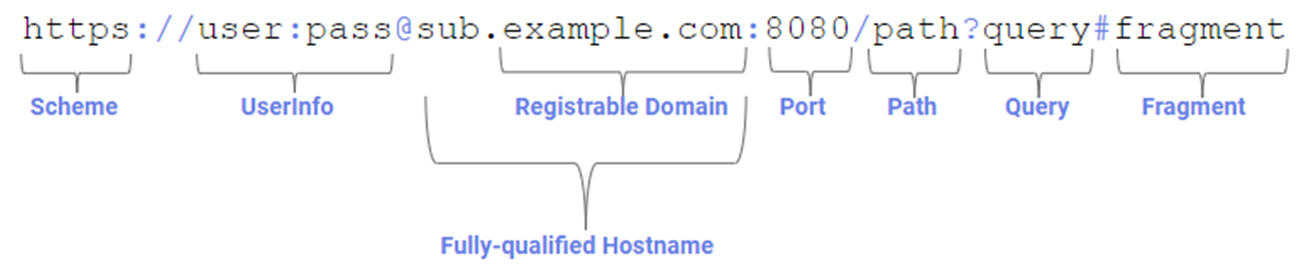
The Top Level Domain (TLD) is the final label in a fully-qualified domain name:

The most common TLD you’ll see is com, but you may be surprised to learn that there are 1479 registered TLDs today. This list can be subdivided into categories:

  • Generic TLDs (gTLD) like .com
  • Country Code TLDs (ccTLDs) like .uk, each of which is controlled by specific countries
  • Sponsored TLDs (sTLDs) like .museum, which are designed to represent a particular community
  • … and a few more esoteric types

Some TLD owners will rent domain names under the TLD to any buyer (e.g. anyone can register a .com site), while others impose restrictions:

  • a ccTLD might require that a registrant have citizenship or a business nexus within their country to get a TLD in their namespace; e.g. to get a .ie domain name, you have to prove Irish citizenship
  • a sTLD may require that the registrant meet some other criteria; e.g. to register within the .bank TLD, you must hold an active banking license and meet other criteria

Zip and Mov

Recently, there’s been some excitement about the relatively-new .ZIP and .MOV top-level domains.

Why?

Because .zip and .mov are longstanding file extensions used to represent ZIP Archives and video files, respectively.

The argument goes that allowing .zip and .mov TLDs means that there’s now ambiguity: if a human or code encounters the string "example.zip", is that just a file name, or a bare hostname?

Alert readers might immediately note: “Hey, that’s also true of .com, the most popular TLD– COM files have existed since the 1970s!” That’s true, as far as it goes, but it is fair to say that .com files are rarely seen by users any more; on Windows, .com has mostly been supplanted by .exe except in some exotic situations. Thanks to the popularity of the TLD, most people hearing dotcom are going to think “website” not “application”.

(The super-geeks over on HackerNews point out that name collisions also exist for popular source code formats: pl is the extension for Perl Scripts and the ccTLD for Poland, sh is the extension for bash scripts and the ccTLD for St. Helena, and rs is the extension for Rust source code and the ccTLD for the Republic of Serbia.)

Okay, so what’s the badness that could result?

Automatic Hyperlinking

In poking the Twitter community, the top threat that folks have identified is concern about automatic hyperlinkers: If a user types a filename string into an email, or their blog editor, or twitter, etc, it might be misinterpreted as a URL and automatically converted into one. Subsequently, readers might see the automatically-generated link, and click it under the belief that the author intended to include a URL, effectively an endorsement.

This isn’t a purely new concern– for instance, folks mentioning the ASP.NET platform encounter the automatic linking behavior all the time, but that is a fairly constrained scenario, and the https://asp.net website is owned by the developers of ASP.NET, so there’s no real harm.

However, what if I sent an email to my family saying, “hey, check out VacationPhotos.zip” with a ZIP file of that name attached to my email, but the email editor automatically turned VacationPhotos.zip into a link to https://VacationPhotos.zip/.

I concede that this is absolutely possible, however, it does not seem terribly exciting as an attack vector, and I remain unconvinced that normal humans type filename extensions in most forms of communication.

Having said that, I would agree that it probably makes sense to exclude .mov and .zip from automatic hyperlinkers. Many (if not most) such hyperlinkers do not automatically link any string that contains every individual instance of the 1479 current TLDs, and I don’t think introducing autolinking for these two should be a priority for them either.

Google’s Gmail automatically hyperlinks 534 TLDs.

(As an aside, if I was talking to an author of an automatic hyperlinker library, my primary concern would be the fact that almost all such libraries convert example.com into a non-secure reference to http://example.com instead of a secure https://example.com URL.)

User Confusion

Another argument goes that URLs are already exceedingly confusing, and by introducing a popular file extension as a TLD, they might become more so.

I do not find this argument compelling.

URLs are already incredibly subtle, and relying on users to mentally parse them correctly is a losing proposition in multiple dimensions.

There’s no requirement that a URL contain a filename at all. Even before the introduction of the ZIP TLD, it was already possible to include .zip in the Scheme, UserInfo, Hostname, Path, Filename, QueryString, and Fragment components of a URL. The fact that a fully-qualified hostname can now end with this string does not seem especially more interesting.

Omnibox Search

When Google Chrome was first released, one of its innovations was collapsing the then-common two input controls at the top of web browsers (“Address” and “Search”) into a single control, the aptly-named omnibox. This UX paradigm, now copied by basically every browser, means that the omnibox must have code to decide whether a given string represents a URL, or a search request.

One of the inputs into that equation is whether the string contains a known TLD, such that example.zi and example.zipp are treated as search queries, while example.zip is assumed to mean https://example.zip/ as seen here:

If you’d like to signal your intent to perform a search, you can type a leading question mark to flip the omnibox into its explicit Search mode:

If you’d like to explicitly indicate that you want a navigation rather than a search, you can do so by typing a leading prefix of // before the hostname.

As with other concerns, omnibox ambiguity is not a new issue: it exists for .com, .rs, .sh, .pl domains/extensions, for example. The omnibox logic is also challenged when the user is on an Intranet that has servers that are accessed via “dotless” (aka “plain”) hostnames like https://payroll, (leading to a Group Policy control).

General Skepticism

Finally, there’s a general skepticism around the introduction of new TLDs, with pundits proclaiming that they simply represent an unnecessary “money grab” on the part of ICANN (because the fees to get an official TLD are significant, and a brand that wants to get their name under every TLD will have to spend a lot).

“Why do we even need these?” pundits protest, making an argument that boils down to “.com ought to be enough for anybody.

This does not feel like a compelling argument for a number of reasons:

  1. COM was intended for “commercial entities”, and many domain owners are not commercial at all
  2. COM is written in English, a language not spoken by many of the world’s population
  3. The legacy COM/NET/ORG namespace is very crowded, and name collisions are common. For example, one of my favorite image editors is Paint.Net, but that domain name was, until recently, owned by a paint manufacturer. Now it’s “parked” while the owner tries to sell it (likely for thousands of dollars).

Other pundits will agree that new TLDs are generally acceptable, but these specific TLDs are unnecessarily confusing due to the collision with popular file extensions and the lack of an obviously compelling scenario (e.g. “why do we need a .mov TLD when we already have .movie TLD?“). It’s a reasonable debate.

Some pundits argue “Hey, domains under new TLDs are often disproportionately malicious”, pointing at .xyz as an example.

That tracks, insofar as the biggest companies tend to stick to the most common TLDs. However, most malicious registrations under non-.COM TLDs don’t happen because getting a domain in a newer TLD is “easier” or subject to fewer checks or anything of that sort. If anything, new TLDs are likely to have more stringent registration requirements than a legacy TLD. And if the bad guys want to identify themselves by hanging out in a low-reputation TLD neighborhood, that seems like a net good for security.

New TLDs Represent New, More Secure Opportunities

One very cool thing about the introduction of a new TLD is that it gives the registrar the ability to introduce new requirements of the registrants without the fear of breaking legacy usage.

In particular, a common case is HSTS Preloading: a TLD owner can add the TLD to the browser’s HSTS preload list, such that every link to every site within that namespace is automatically HTTPS, even if someone (a human or an automatic hyperlinker) specifies a http:// prefix. There are now 40 such TLDs: android, app, bank, chrome, dev, foo, gle, gmail, google, hangout, insurance, meet, page, play, search, youtube, esq, fly, eat, nexus, ing, meme, phd, prof, boo, dad, day, channel, hotmail, mov, zip, windows, skype, azure, office, bing, xbox, microsoft, notably including ZIP and MOV.

One especially fun fact about requiring HTTPS for an entire TLD is that it means that every site within that TLD requires a HTTPS certificate. To get a HTTPS certificate from a public CA requires that the certificate be published to Certificate Transparency, a public ledger of every certificate. Security software and brand monitors can watch the certificate transparency logs and get immediate notification when a suspicious domain name appears.

Beyond HSTS-preload, some TLDs have other requirements that can reduce the likelihood of malicious behavior within their namespace; for example, getting a phony domain under bank or insurance is harder because of the registration requirements that demand steps that can lead to real-world prosecution.

Unfortunately, software today does little to represent a TLD’s protections to the end-user (there’s nothing in the browser that indicates “Hey, this is a .bank URL so it’s much more likely to be legitimate“), but a domain’s TLD can be used as an input into security software’s URL reputation services to help avoid false positives.

MakeA.zip

I decided to play around with the new TLD by registering a new site MakeA.zip which will point at a simple JavaScript program for creating ZIP files. The DNS registration is $15/year, and Cloudflare provides the required TLS certificate for free.

Now I just have to write the code. :)

-Eric

A Beautiful 10K

This morning was my second visit to the Austin Capitol 10K race. Last year’s run represented my first real race, then two months into my new fitness regime, and I only met my third goal (“Finish without getting hurt“) while missing the first two (“Run the whole way“, and “Finish in 56 minutes“). Last year, I finished in 1:07:38.

This year, I set out with the same goals and achieved all three: I ran without stopping, finishing in 52:25 (8:27/mile), just over 15 minutes faster than last year. I beat not only my 56 minute goal, but also my unstated “It’d be really nice to beat 54 minutes” goal, and while it wasn’t exactly easy, I think I could’ve gone harder and faster. Last year I beat at 66% of my gender/age group, while this year I beat 88%. I had some advantages: This year, I got six hours’ sleep (awoken early by an errant notification at 05:30), had a productive trip to the bathroom, and benefitted from being 20 pounds lighter and having run ~900 miles over the last year.

The weather was absolutely perfect: in the high 50s, a light breeze with clear skies and dry ground. We left the house at 6:50 or so and managed to snag one of the last five parking spots in my preferred lot in the park near the start of the race. Supposedly there were 17000 registrations, although the scoreboard shows 22058 finishers?

The start of the race was the hardest part, with a few significant hills. But none were as steep or as nearly long as I’d remembered from last year, and I had no trouble running them. Having started with a faster group, I didn’t have to dodge walkers on the hill, and I was inspired by the truly hardcore folks around me (a younger mom next to me was doing everything I was doing, faster, while pushing a stroller).

Still, the start felt slow, and avoided looking at my watch until the halfway point, figuring that I’d wait until then to assess the hole I was in and figure out how to react. I was delighted to discover that I hit the 5K mark at almost exactly 27 minutes (27 minutes on my watch, 26:37 on the “chip time”), exactly on track for my “secret” goal of 54 minutes. But now I was excited– could I run a negative split with the second half faster than the first?

Fortunately, running in the “A” group this time yielded two benefits: first, less weaving and dodging at the start of the race (although there were definitely some folks who were not running at a pace that would qualify for the A group) and second, it gave me a whole group of runners at a solid pace to try to meet and beat. Toward the end of the race, as my enthusiasm started to wane, this was especially important– I’d focus on someone thirty or forty feet away and think “I’ll just catch up and go finish with them.” This repeated a half dozen times over the last two miles.

I had three caffeinated Gu energy blocks throughout the race: One at the start, one somewhere around mile 2, and one at mile 5– the last I hadn’t finished by the sprint at the end and I regretted having put it in my mouth at all. I barely drew on my little water bottle and finished the race with more than half of it left. I brought my Amazon Fire phone for music, but discovered that my “fully charged” cheapo Bluetooth headphone was completely dead. I suspect it’s broken. While I was slightly bummed, I figured running for less than an hour without music wouldn’t be bad, and it wasn’t.

My heart rate was under control for almost the entire race, peaking at 176 beats per minute but mostly hovering comfortably just below 160:

My fancy new Hoka Clifton 9 running shoes were amazing, and provide the right amount of cushion for real-world running (they feel almost too cushy on the treadmill):

I was a bit worried because I had tied them too tight before a 9 mile treadmill run earlier in the week and bruised just below my left ankle, but that tenderness didn’t bother me much on the run. My knees felt great.

Update: It was years before I realized how great this KQ result was.

My first kilometer was my slowest and the last my fastest:

I started running harder as I crossed the bridge near the finish line and poured on even more speed as I turned the last corner with a tenth of a mile left to go. I heard my older son shout out “Go, Dad, Go!” and started looking for him. I then heard my younger son chime in, hollering “Go, Dad!” and I was so happy — he’s usually quiet and it was so motivational to hear that he was so into it.

After cruising through the finish line (pain free, unlike my hobbling sprint at the end of the Galveston half) while thinking “I could’ve gone a bit faster, and a bit sooner,” I collected my finisher’s medal and headed back to where my kids were waiting.

Except, they weren’t there. When we did finally met up, I learned that they never were (due to an ill-timed bathroom break), and I’d hallucinated my whole cheering section. 🤣

We all waited for my housemate to finish his run and I loudly cheered on all of the other runners, (unintentionally) egged on by my 9yo who endlessly whined “Dad, be quiet! You don’t know any of these people! You’re embarrassing me!” 🤣

This is my final race before Kilimanjaro at the end of June. After summers’ end, I’ll again run the “Run for the Water” 10 miler in November, then do my second Austin 3M Half in January 2024. Then, I’ll be doing this race again on April 7, 2024.

-Eric

(The Futility of) Keeping Secrets from Yourself

Many interesting problems in software design boil down to “I need my client application to know a secret, but I don’t want the user of that application (or malware) to be able to learn that secret.

Some examples include:

  • Digital Rights Management encryption keys
  • Passwords stored in a Password Manager
  • API keys to use web services
  • Private keys for local certificate roots
  • Configuration options (e.g. exclusions) for security software

…and likely others.

In general, if your design relies on having a client protect a secret from a local attacker, you’re doomed. As eloquently outlined in the story “Cookies” in 1971’s Frog and Toad Together, anything the client does to try to protect a secret can also be undone by the client:

For example, a user can easily read passwords filled by a password manager out of the browser’s DOM, or malware can read it out of the encrypted storage when it runs inside the user’s account with their encryption key. An attacker can read keys by viewing or debugging a binary that contains them, or it can watch API keys flow by in outbound HTTPS traffic. A “sufficiently/extremely motivated” attacker with physical access to a device can steal hardware-stored encryption keys directly off the hardware. Etc.

However, just because a problem cannot be solved does not mean that developers won’t try.

“Trying” isn’t entirely madness — believing that every would-be attacker is “sufficiently motivated” is as big a mistake as believing that your protection scheme is truly invulnerable. If you can raise the difficulty level enough at a reasonable cost (complexity, performance, etc), it may be entirely rational to do so.

Some approaches include:

  • Move the encryption key off the client. E.g. instead of having your client call the service provider’s web-service directly, have it call a proxy on your own website that adds the key before forwarding along the request. Of course, an attacker might still masquerade as your application (or automate it) to hit the service through your proxy, but at least they will be constrained in what calls they can make, and you can apply rate-limits, IP reputation, etc to mitigate abuse.
  • Replace the key with short-lived tokens that are issued by an authenticated service. E.g. the Microsoft Edge VPN feature requires that the user be logged in with their Microsoft account (MSA) to use the VPN. The feature uses the user’s credentials to obtain tokens that are good for 1GB of VPN traffic quota apiece. An attacker wishing to abuse the VPN service has to generate fake Microsoft accounts, and there are robust investments in making that non-trivially expensive for an attacker.
  • Use hardware to make stealing secrets more difficult. For example, you can store a private key inside a TPM which makes it very difficult to steal and move to a different device. Keep in mind that locally-running malware could still use the key by treating the compromised device as a sock puppet.
  • Similarly, you can use a Secure Enclave/Virtual Secure Mode (available on some devices) to help ensure that a secret cannot be exported and try[1] to establish controls on what processes can request the enclave use the key for some purpose. For example, Windows 11’s Enhanced Phishing Protection stores a hashed version of the user’s Login Password inside a secure enclave so that it can evaluate whether recently typed text contains the user’s password, without exposing that secret hash to arbitrary code running on the PC.
  • Derive protection from other mechanisms. For instance, there’s a Microsoft Web API that demands that every request bear a matching hash of the request parameters. An attacker could easily steal the hash function out of the client code. However, Microsoft holds a patent on the hash function. Any application which contains this code contains prima facie evidence of patent infringement, and Microsoft can pursue remedies in court. (Assuming a functioning legal system in the target jurisdiction, etc, etc).
  • If the threat is from a compromised device but not a malicious user, enlist the user in helping to protect the secret. For example, reencrypt the data with a “main password” known only to the user, require off-device confirmation of credential use, etc. Locally-running malware will then have a limited opportunity to abuse the secret because it’s not always exposed.

-Eric

[1] try is the operative word here. From inside a VTL1 enclave, it’s very difficult to determine the identity of the calling process. Even if you can do so, it’s also non-trivial to ensure that the code running in the expected calling process wasn’t injected by malware. Stated differently, the API exposed by an enclave must be designed in such a way as to assume that it will be called by malicious VTL0 code. Using enclaves properly is tricky.

Auth Flows in a Partitioned World

Back in 2019, I explained how browsers’ cookie controls and privacy features present challenges for common longstanding patterns for authentication flows. Such flows often rely upon an Identity Provider (IdP) having access to its own cookies both on top-level pages served by the IdP and when the IdP receives a HTTP request from an XmlHttpRequest/fetch or frame embedded in a Relying Party (RP)‘s website:

These auth flows will fail if the IdP’s cookie is not accessible for any reason:

  1. the cookie wasn’t set at all (blocked by a browser privacy feature), or
  2. the cookie isn’t sent from the embedded context is blocked (e.g. by the browser’s “Block 3rd Party Cookies” option)
  3. the cookie jar is not shared between a top-level IdP page and a request to the IdP from the RP’s page (e.g. Cookie Partitioning)

While Cookie Partitioning is opt-in today, in late 2024, Chromium plans to start blocking all non-partitioned cookies in a 3rd Party context, meaning that authentication flows based on this pattern will no longer work. The IdP’s top-level page will set the cookie, but subframes loaded from that IdP in the RP’s page will use a cookie jar from a different partition and not “see” the cookie from the IdP top-level page’s partition.

What’s a Web Developer to do?

New Patterns

Approach 1: (Re)Authenticate in Subframe

The simplistic approach would be to have the authentication flow happen within the subframe that needs it. That is, the subframe to the IdP within the RP asks the user to log in, and then the auth cookie is available within the partition and can be used freely.

Unfortunately, there are major downsides to this approach:

  1. Every single relying party will have to do the same thing (no “single-sign on”)
  2. If the user has configured their browser to block 3rd party cookies, Chromium will not allow the subframe to automatically/silently send the user’s Windows credentials. (TODO: I don’t remember if clientcert auth is permitted).
  3. Worst of all, the user will have to be accustomed to entering their IdP’s credentials within a page that visually has no relationship to the IdP, because only the RP’s URL is shown in the browser’s address bar. (Many IdP’s use X-Frame-Options or Content-Security-Policy: frame-ancestors rules to deny loading inside subframes).

I would not recommend anyone build a design based on the user entering, for example, their Google.com password within RandomApp.com.

If we take that approach off the table, we need to think of another way to get an authentication token from the IdP to the RP, which factors down to the question of “How can we pass a short string of data between two cross-origin contexts?” And this, fortunately, is a task which the web platform is well-equipped to solve.

Approach 2: URL Parameter

One approach is to simply pass the token as a URL parameter. For example, the RP.com website’s login button does something like:

window.open('https://IdP.com/doAuth?returnURL=https://RP.com/AuthSuccess.aspx?token=$1', 'blank');

In this approach, the Identity Provider conducts its login flow, then navigates its tab back to the caller-provided “return URL”, passing the authentication token back as a URL parameter. The Relying Party’s AuthSuccess.aspx handler collects the token from the URL and does whatever it wants with it (setting it as a cookie in a first-party context, stores it in HTML5 sessionStorage, etc). When the token is needed to call an service requiring authentication, the Relying Party takes the token it stored and adds it to the call (inside an Auth header, as field in a POST body, etc).

One risk with this pattern is that, from the web browser’s perspective, it is nearly indistinguishable from bounce tracking, whereby trackers may try to circumvent the browser’s privacy controls and continue to track a user even when 3rd party cookies are disabled. While it’s not clear that browsers will ever fully or effectively block bounce trackers, it’s certainly an area of active interest for them, so making our auth scheme look less like a bounce tracker seems useful.

Approach 3: postMessage

So, my current recommendation is that developers communicate their tokens using the HTML5 postMessage API. In this approach, the RP opens the IdP and then waits to receive a message containing the token:

// rp.com
window.open('https://idp.com/doAuth?', '_blank');

window.addEventListener("message", (event) => {
    if (event.origin !== "https://idp.com") return;
    finalizeLoginWithToken(event.data.authToken);
    // ...
  },
  false
);

When the authentication completes in the popup, the IdP sends a message to the RP containing the token:

// idp.com
function returnTokenToRelyingParty(sRPOrigin, sToken){
    window.opener.postMessage({'authToken': sToken}, sRPOrigin);
}

Approach 4: Broadcast Channel (Not recommended)

Similar to the postMessage approach, an IdP site can use HTML5’s Broadcast Channel API to send messages between all of its contexts no matter where they appear. Unlike postMessage (which can pass messages beween any origins), a site can only use Broadcast Channel to send messages to its own origin. BroadcastChannel is widely supported in modern browsers, but unlike postMessage, it is not available in Internet Explorer.

While this approach works well today:

  • it doesn’t work in Safari (whether cross-site tracking is enabled or not)
  • it doesn’t work in Firefox 112+ with Enhanced Tracking Protection enabled
  • Chromium plans to break it soon; preview this by Enabling the chrome://flags/#third-party-storage-partitioning flag.

Approach 5: localStorage (Not recommended)

HTML5 localStorage behaves much like a cookie, and is shared between all pages (top-level and subframe) for a given origin. The browser fires a storage event when the contents of localStorage are changed from another context, which allows the IdP subframe to easily detect and respond to such changes.

However, this approach is not recommended. Because localStorage is treated like a cookie when it comes to browser privacy features, if 3P Cookies are disabled or blocked by Tracking Prevention, the storage event never fires, and the subframe cannot access the token in localStorage.

Furthermore, while this approach works okay today, Chromium plans to break it soon. You can preview this by Enabling the chrome://flags/#third-party-storage-partitioning flag.

Approach 6: FedCM

The Federated Credentials Management API (mentioned in 2022) is a mechanism explicitly designed to enable auth flows in a world of privacy-preserving lockdowns. However, it’s not available in every browser or from every IdP.

Demo

You can see approaches #3 to #5 implemented in a simple Demo App.

Click the Log me in! (Partitioned) button in Chromium 114+ and you’ll see that the subframe doesn’t “see” the cookie that is present in the WebDbg.com popup:

Now, click the postMessage(token) to RP button in that popup and it will post a message from the popup to the frame that launched it, and that frame will then store the auth token in a cookie inside its own partition:

We’ve now used postMessage to explicitly share the auth token between the two IdP contexts even though they are loaded within different cookie partitions.

Shortcomings

The approaches outlined in this post avoid breakage caused by various current and future browser settings and privacy lockdowns. However, there are some downsides:

  1. Updates require effort on the part of the relying party and identity provider.
  2. By handling auth tokens in JavaScript, you can no longer benefit from the httponly option for cookies that helps mitigate XSS attacks.

-Eric