Coding at Google

I wrote this a few years back, but I’ve had occasion to cite it yet again when explaining why engineering at Google was awesome. To avoid it getting eaten by the bitbucket, I’m publishing it here.

Background: From January 2016 to May 2018, I was a Senior SWE on the Chrome Enamel Security team.

Google culture prioritizes developer productivity and code velocity. The internal development environment has been described (by myself and others) as “borderline magic.” Google’s developer focus carried over to the Chrome organization even though it’s a client codebase, and its open-source nature means that cannot depend upon Google-internal tooling and infrastructure.

I recounted the following experience after starting at Google:

When an engineer first joins Google, they start with a week or two of technical training on the Google infrastructure. I’ve worked in software development for nearly two decades, and I’ve never even dreamed of the development environment Google engineers get to use. I felt like Charlie Bucket on his tour of Willa Wonka’s Chocolate Factory—astonished by the amazing and unbelievable goodies available at any turn. The computing infrastructure was something out of Star Trek, the development tools were slick and amazing, the process was jaw-dropping.

While I was doing a “hello world” coding exercise in Google’s environment, a former colleague from the IE team pinged me on Hangouts chat, probably because he’d seen my tweets about feeling like an imposter as a SWE.  He sent me a link to click, which I did. Code from Google’s core advertising engine appeared in my browser in a web app IDE. Google’s engineers have access to nearly all of the code across the whole company. This alone was astonishing—in contrast, I’d initially joined the IE team so I could get access to the networking code to figure out why the Office Online team’s website wasn’t working.

Neat, I can see everything!” I typed back. “Push the Analyze button” he instructed. I did, and some sort of automated analyzer emitted a report identifying a few dozen performance bugs in the code. “Wow, that’s amazing!” I gushed. “Now, push the Fix button” he instructed. “Uh, this isn’t some sort of security red team exercise, right?” I asked. He assured me that it wasn’t. I pushed the button. The code changed to fix some unnecessary object copies. “Amazing!” I effused. “Click Submit” he instructed. I did, and watched as the system compiled the code in the cloud, determined which tests to run, and ran them.

Later that afternoon, an owner of the code in the affected folder typed LGTM (Googlers approve changes by typing the acronym for Looks Good To Me) on the change list I had submitted, and my change was live in production later that day. I was, in a word, gobsmacked. That night, I searched the entire codebase for misuse of an IE cache control token and proposed fixes for the instances I found.

-Me, 2017

The development tooling and build test infrastructure at Google enable fearless commits—even a novice can make contributions into the codebase without breaking anything—and if something does break, culturally, it’s not that novice’s fault: instead, everyone agrees that the fault lies with the environment – usually either an incomplete presubmit check or missing test automation for some corner case. Regressing CLs (changelists) can be quickly and easily reverted and resubmitted with the error corrected. Relatedly, Google invests heavily in blameless post-mortems for any problem that meaningfully impacts customer experience or metrics. Beyond investing in researching and authoring the post-mortem in a timely fashion, post-mortems are broadly-reviewed and preventative action items identified therein are fixed with priority.

Google makes it easy to get started and contribute. When ramping up into a new space, the new engineer is pointed to a Wiki or other easily-updated source of step-by-step instructions for configuring their development environment. This set of instructions is expected to be current, and if the reader encounters any problems or changes, they’re expected to improve the document for the next reader (“Leave it better than you found it”). If needed, there’s usually a script or other provisioning tool used to help get the right packages/tools/dependencies installed, and again, if the user encounters any problems, the expectation is that they’ll either file a bug or commit the fix to the script.

Similarly, any ongoing Process is expected to have a “Playbook” that explains how to perform the process – for example, Chrome’s HSTS Preload list is compiled into the Chrome codebase from snapshots of data exported from HSTSPreload.org. There’s a “Playbook” document that explains the relevant scripts to run, when to run them, and how to diagnose and fix any problems. This Playbook is updated whenever any aspect of the process changes as a part of whatever checkin changes the process tooling.

As a relatively recent update, the Chromium project now offers a very lightweight contribution experience that can be run entirely in a web browser, which mimics the Google internal development environment (Cider IDE with Borg compiler backend).

Mono-repo, no team/feature branches, Google internally uses a mono-repo into which almost all code (with few exceptions, including Chrome) is checked in, and the permissions allow any engineer anywhere in the company to read it, dramatically simplifying both direct code reuse as well as finding expertise in a given topic. Because Chrome is an open-source project, it uses its own mono-repo containing approximately 25 million lines of code. Chrome does not, in general, use shared branches for feature development, only to fork for the release branches (e.g. Canary is forked in order to create the Dev branch, and there are firm rules about cherry-picking from Main into those branches).

An individual developer will locally create branches for each fix that he’s working on, but those branches are almost never seen by anyone else; his PR is merged to HEAD at which point everyone can see it. As a consequence, landing non-trivial changes, especially in areas where others are merging, often results in many commits and a sort of “chess game” where you have to anticipate where the code will be moving as your pieces are put in. This strongly encourages developers to land code in many small CLs that coax the project toward the desired end-state, each with matching automated tests to ensure that you’re protected against anyone else landing a change that regresses your code. Those tests end up defending your code for years to come.

Because all work is done in Main, there’s little in the way of cross-team latency, because you need not wait for an RI/FI (reverse-integrate, forward-integrate) to bring features around to/from other branches.

Cloud build. Google uses cloud build infrastructure (Borg/Goma) to build its projects so developers can work on relatively puny workstations but compile with hundreds to thousands of cores. A clean build of Chrome for Windows that took 46 minutes on a 48 thread Xeon workstation would take 6 minutes on 960 Goma cores, and most engineers are not doing clean builds very often.

This Cloud build infrastructure is heavily leveraged throughout the engineering system—it means that when an engineer puts a changelist up for review, the code is compiled for five to ten different platforms in parallel in the background and then the entire automated test suite is run (“Tryjob”) such that the engineer can find any errors before another engineer even begins their code review. Similarly, artifacts from each landed CL’s compilation are archived such that there’s a complete history of the project’s binaries, which enables automated tooling to pinpoint regressions (performance via perfbots, security via ClusterFuzz, reliability via their version of Watson) and engineers to quickly bisect other types of regressions.

Great code search/blame. Google’s Code Search features are extremely fast and, thanks to the View-All monorepo and lack of branches, it’s very easy to quickly find code from anywhere in the company. Cross-references work correctly, so things like “Find References” will properly find all callers of a specific function rather than just doing a string search for that name. Viewing Git history and blame is integrated, so it’s quick and easy to see how code evolved over time.

24-hour Code Review Culture. Google’s engineering team has a general SLA of 24 hours on code-review. The tools help you find appropriate reviewers, and the automation helps ensure that your CL is in the best possible shape (proper linting, formatting, all tests pass, code coverage %s did not decline) before another human needs to look at it. The fast and simple review tools help reviewers concentrate on the task at hand, and the fact that almost all CLs are small/tiny by Microsoft standards help keep reviews moving quickly. Similarly, Google’s worldwide engineering culture mean that it’s often easy to submit a CL at the end of the day Pacific time and then respond to review feedback received overnight from engineers in Japan or Germany.

Opinionated and Enforced Coding Standards. Google has coding standards documents for each language (e.g. C++) that are opinionated and carefully revised after broad and deep discussions among practitioners interested in participating. These coding standards are, to the extent possible, enforced by automated tooling to ensure that all code is written to the standard, and these standards are shared across teams by default, with any per-project exceptions (e.g. Chrome’s C++) treated as an overlay.

Easily Discovered Area Interest/Ownership Google has an extremely good internal “People Directory” – it allows you to search for any employee based on tags/keywords, so you can very quickly find other folks in the company that own a particular area. Think “Dr Whom/Who+” with 100ms page-load-times, and backed by a work culture where folks keep their own areas of ownership and interest up-to-date because it’s both simple and because if they fail to do so, they’re going to keep getting questions about things they no longer own. Similarly, the OWNERS system within the codebases are up-to-date because they are used to enforce OWNERS review of changes, so after you find a piece of code, it’s easy to find both who wrote it (fast GIT BLAME) and who’s responsible for it today. Company/Division/Team/Individual OKRs are all globally visible, so it’s easy to figure out what is important to a given level of the organization, no matter how remote.

Simple/fast bug trackers. Google’s bug tracker tools are simple, load extremely quickly, and allow filing/finding bugs against anything very quickly. There’s a single internal tracker for most of Google, and a public tracker (crbug.com) for the Chromium OSS project.

Simple/fast telemetry/data science tools. Google’s equivalent of Watson is extremely fast and has code to automatically generate stack information, hit counts, recent checkins near the top-of-stack functions, etc. Google’s equivalent of SQM/OCV is extremely fast and enables viewing of histograms and answering questions like “What percentage of page loads result in this behavior” without learning a query language, getting complicated data access permissions, or suffering slow page loads. These tools enable easy creation of “notifications/subscriptions” so developers interested in an area can get a “chirp” email if a metric moves meaningfully.

Sheriffs and Rotations. Most recurring processes (e.g. bug triage) have both a Sheriff and a Deputy and Google has tools for automatically managing “rotations” so that the load is spread throughout the team. For some expensive roles (e.g. a “Build Sheriff”) the developer’s primary responsibility while sheriff becomes the process in question and their normal development work is deferred until their rotation ends; the rotation tool shows the schedule for the next few months, so it is relatively easy to plan for this disruption in your productivity.

Intranet Search that doesn’t suck While Google tries to get many important design docs and so forth into the repo directly there’s still a bunch of documentation and other things on assorted wikis and Google Docs, etc. As you might guess, Google has an internal search engine for this non-public content that works quite well, in contrast to other places I’ve worked.


Fall 2023 Races

While I’ve been running less, I haven’t completely fallen out of the habit, and I still find spending an hour on the treadmill to be the simplest way to feel better for the rest of the day. Real-world racing remains appealing, for the excitement, the community, and for the forcing function to get on the treadmill even on days when I’m not “feeling it.”

Alas, I’m not very proud of any of my fall race times, but I am glad that I’ve managed to keep up running after the motivation of Kilimanjaro has entered the rear-view mirror, and I’m happy that I recently managed to sneak up on running my longest-by-far distance.

Daisy Dash 10K – 10/22

I had lucky bib #123 for this run. The course wasn’t much to look at, but was pleasant enough, looping around a stadium and a few shopping centers in “Sunset Valley” on the south side of Austin. I was worried going out that my lower back had been sore for a few days, and my belly felt slightly grumbly, but once I started running, neither bothered me at all for the next few hours. Thanks, body!

It was a 68 and breezy; a bit humid, but not nearly as bad as the Galveston Half I ran 9 months ago. I brought along an iPhone and Bluetooth earbuds and for my second race without music, after having stupid technical problems. In Galveston, my earbud died, and this time, I’d failed to download any music. Doh!

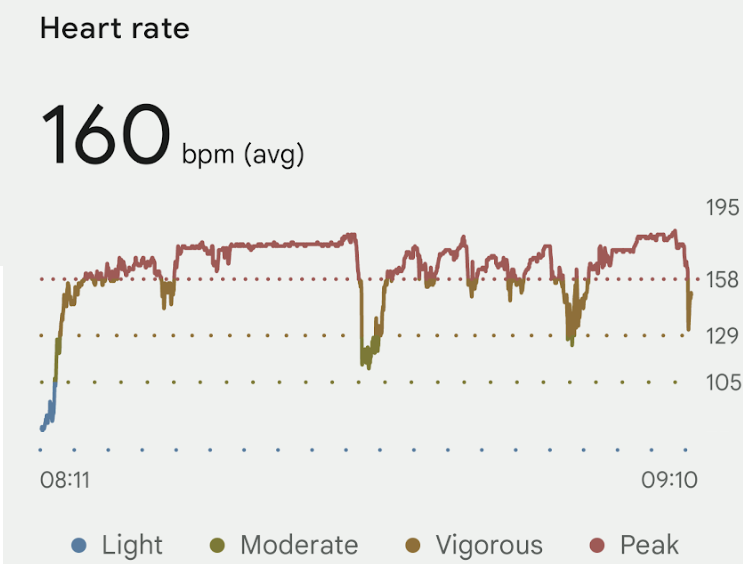
I burned 910 calories, and while my heart rate wasn’t awesome, it recovered quickly whenever my pace dropped.

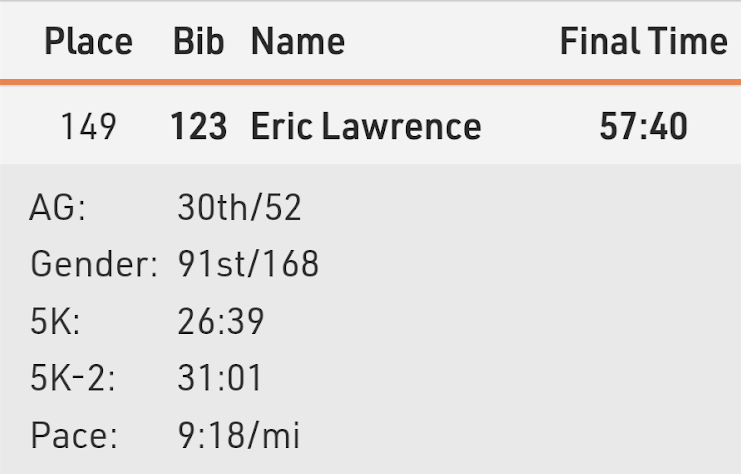
I started out reasonably strong, finishing the first 5K in 26:39. I was wearing my Fitbit watch, but immediately abandoned any attempt to use it to monitor my pace during the run. I’m pleasantly surprised to find that I naturally settled into the exact 7mph pace that is my most common treadmill default.

Sadly, after the first 5K, I was panting and started taking 30 to 90 second walking breaks every three quarters of a mile or so, dropping my pace significantly in the back half of the race.

I tried to psych myself up with thoughts of Kilimanjaro and how short this race was (only 10K! I keep thinking), but I never got into that heavenly rhythm where the minutes just slide by for a while.

Still, I vowed to finish in under an hour, and in the last mile I was excited that I might beat 58 minutes, putting me about 5 minutes behind my second Cap10K in the spring, and still 10 minutes faster than my first real-world 10K.

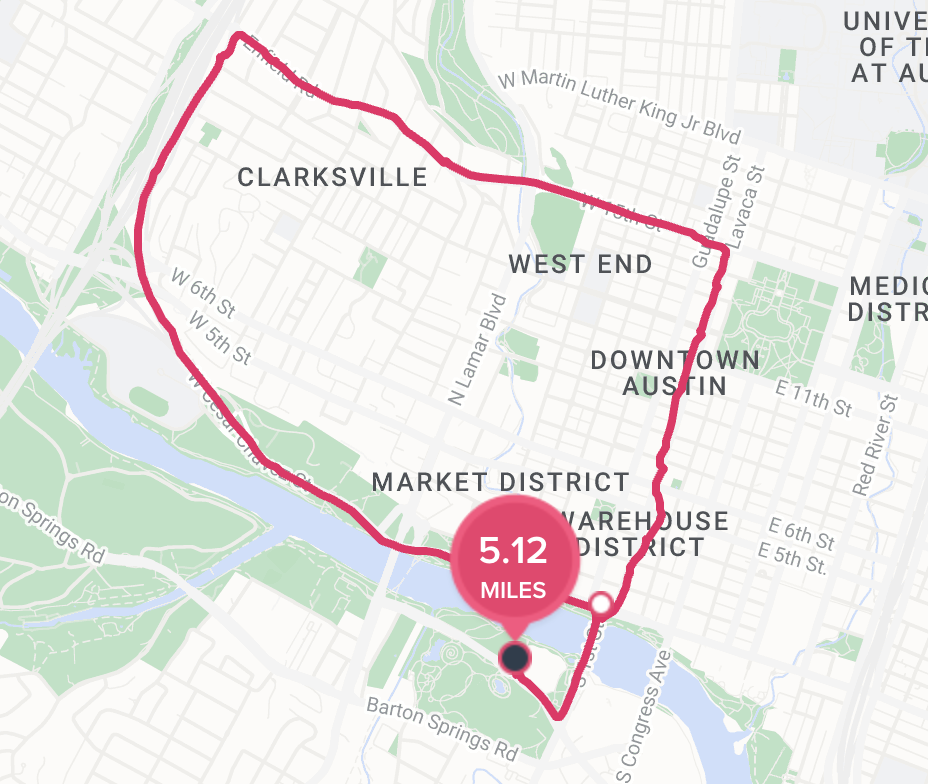
Ultimately, I finished in 57:40:

While my arches felt a bit sore after the race (pavement is clearly much harder on me than my treadmill), I felt like running an extra four miles wouldn’t’ve been a nightmare… good news for the “Run for the Water” 10 miler coming up in two short weeks. But first, a charity 5K.

Microsoft Giving Campaign 5K – 10/27

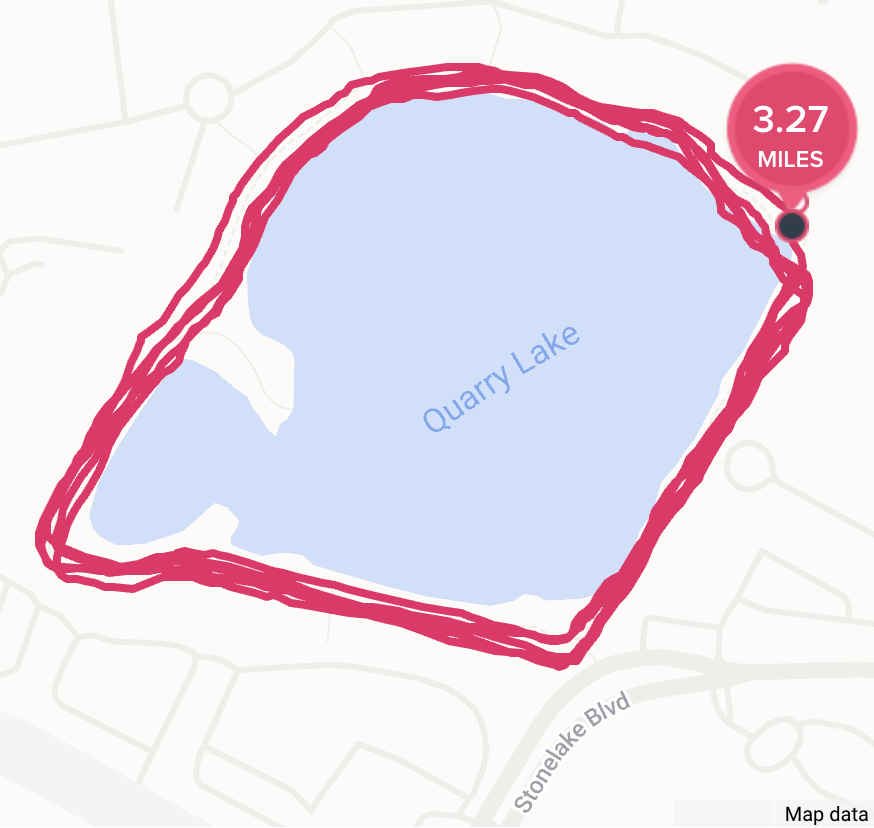
The Microsoft Giving Campaign’s charity 5K consisted of five laps around a small lake near Microsoft’s north Austin office. It was fun to meet other Microsoft employees (many of whom started during the pandemic) and go for a fun run around the private Quarry Lake trail.

Alas, I had a hard time with my pacing and less fun than I’d expecting dodging the mud puddles.

In total, it took me 32:41 to run the slightly-extended (3.27) course.

Last year’s 5K was on a different course and I’d gone out too fast, ultimately needing to walk in the third mile, such that when I finished it, I turned around and ran the full course again, this time at a steady pace. While I don’t seem to have recorded my times anywhere, I think both runs were around 27 minutes.

Run for the Water – 10 Miler 11/5

The weather for the race was nearly perfect. I was nervous, having remembered last year’s race, but excited to revisit this race with another year’s worth of running under my belt.

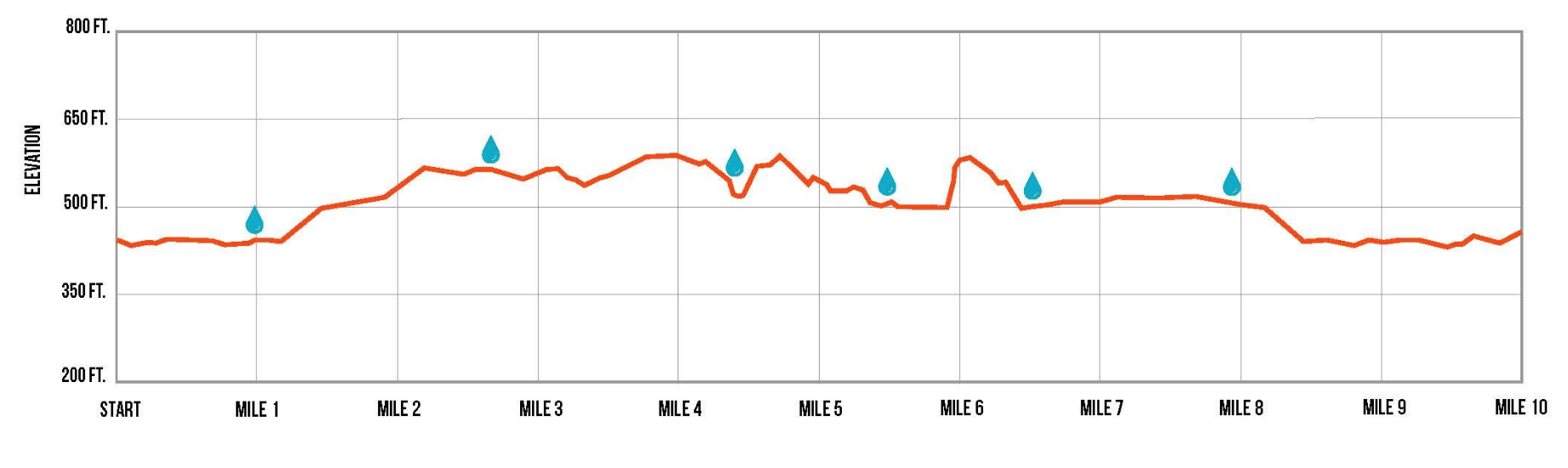
I managed the steep hill at mile 5.5 well, but fell off pace at miles 8 and 9.

Sprinting at the end, my sunglasses went flying off my shirt; embarrassingly, I had to loop back into the finishers’ chute after crossing the finish line to collect them.

I finished in 1:38:05, a pace of 9:48, a somewhat-disappointing 9:08 slower than last year‘s race. Ah well.

Turkey Trot 5-Miler 11/23

I arrived for the Thanksgiving day race very early and ended up spending almost an hour outside before the race began, getting a bit colder than I’d’ve liked. I warmed up quickly when the run began.

I finished in 45:45, a pace of 9:09, a bit (1:39) slower than last year.

Shortly before the race started, I made the poor decision to eat a free granola bar and it didn’t sit well during the run. After sprinting through the finishers chute, I spent a panicked half-minute trying to find a convenient place to throw up amongst the thousands of bystanders until my heart calmed down and the urge subsided.

Virtual Decker Challenge Half 12/9

Having surveyed the boring Decker Challenge course last year while driving by during my missed half, I decided to sign up for the virtual option this year. The 2022 shirt (made by Craft) has become one of my favorites, and I wore it constantly on Kilimanjaro, including on summit day. I registered for the Virtual event to collect this years’ shirt, but alas, it turned out to be a disappointing no-name black long-sleeve tech shirt. There were basically no other perks to the virtual race — no medal, and nowhere even to report your virtual results. Bummer.

For the race itself, I chose to repeat the Jackson Hole half that I ran last year, beating last year’s time by almost 4 minutes, with a time of 2:00:20. This wasn’t a great time, but I was grateful for it: I’d had quite a bit of wine with dinner on Friday night, but had to run on Saturday morning because on Sunday I was taking my eldest to the Eagles/Cowboys game.

Virtual London Marathon 12/17

On this last weekend before the holidays, with my kids partying at their mom’s and my housemate out of town on a cruise, I was bored and starting to feel a bit stir crazy. I decided I’d run a marathon on my treadmill, picking 2021 London with Casey Gilbert. Unfortunately, the race was broken up into segments, so each time I had to switch to the next segment ended up being an “aid station” where I’d refill my water bottle or grab another stroopwafel.

The first half went great– I ran at a constant pace and finished in 1:55, feeling good and ready to keep going; my relatively slow pace kept my heart rate down. I finished the first twenty miles in a respectable 3:04:30, starting to worry that finishing in under 4 hours was going to be tough, but achievable. Unfortunately, things fell apart in miles 21 to 25, and my pace dropped dramatically; even though my heart rate was well under control, my legs were tired and I was beat. I rallied for the final three quarters of a mile back to 7mph, finishing with a somewhat disappointing but perhaps unsurprising 4:20:10.

Still, I’m proud of this race– while it was undoubtably much easier on the body than a real-world marathon, it was in no way easy and I never gave up.

After cooling down, I showered, ate, and caught “Love Actually” at the Alamo Drafthouse for the afternoon. My FitBit reported that I cracked 45000 steps for the day. My intake of three running stroopwafels, two bananas, a leftover fajita, a salad, a steak and vegetables probably did not cover the 4000+ calories I burned in the run.

Two days later, I’m still sore, although all three blisters have mostly faded away.

Early 2024 Races

I’ve got a good slate for early 2024, running the 3M Half again in January, the Galveston Half in February, and the Capitol 10K in April. I really hope to beat last year’s times in the Half Marathons (slow and steady ftw!), but don’t expect I’ll be able to beat my 2023 Cap10K time of 52:25.

Defense Techniques: Blocking Protocol Handlers

Application Protocols represent a compelling attack vector because they’re the most reliable and cross-browser compatible way to escape a browser’s sandbox, and they work in many contexts (Office apps, some PDFs handlers, some chat/messaging clients, etc).

Some protocol handlers are broadly used, while others are only used for particular workflows which may not be relevant in the user or company’s day-to-day workflows.

The Edge team can already block known-unsafe protocol schemes via a browser Component Update, but that only likely to happen if the scheme is broadly exploited across the ecosystem.

An organization or individual may wish to reduce attack surface by blocking the use of unwanted protocol handlers.

To block access to a given protocol handler from browsers, you can set the URLBlocklist policies in Chrome and Edge to prevent access to those protocols from within the browser.

For example, in 2022, the ms-appinstaller handler had a security bug and many organizations that did not need this handler for their environments wished to disable it. They can set the policies:

REG ADD "HKEY_LOCAL_MACHINE\SOFTWARE\Policies\Microsoft\Edge\URLBlockList" /v "1" /t REG_SZ /d "ms-appinstaller:*" /f

REG ADD "HKEY_LOCAL_MACHINE\SOFTWARE\Policies\Google\Chrome\URLBlockList" /v "1" /t REG_SZ /d "ms-appinstaller:*" /f

After the policy is set, attempt to navigate the browser to the protocol will show an error page:


After the 2022 incident, the App Installer team also created a specific group policy to disable the MS-AppInstaller scheme within the handler itself:

REG ADD "HKEY_LOCAL_MACHINE\SOFTWARE\Policies\Microsoft\Windows\AppInstaller" /v "EnableMSAppInstallerProtocol" /t REG_DWORD /d "0" /f

When the App Installer protocol is disabled within the handler itself, invoking the protocol simply shows an error message:

Stay safe out there!

-Eric

PS: On Windows 11 today, unfortunately, there’s not always a simple way to block an arbitrary scheme for the system as a whole, unless the protocol handler application can be uninstalled entirely.

The Windows Set a default for a link type settings pane only allows you to choose a different Microsoft Store app that offers to support the protocol scheme, preventing you from unsetting the scheme entirely or pointing it to a harmless non-handler (e.g. Calculator).

To address this, we have to tell Windows that our generic little executable (saved to C:\windows\alert.exe) knows how to handle the ms-appinstaller protocol scheme, by listing it in the RegisteredApplications key with a URLAssociations key professing support:

Windows Registry Editor Version 5.00

[HKEY_CLASSES_ROOT\com.bayden.alert]

[HKEY_CLASSES_ROOT\com.bayden.alert\shell]

[HKEY_CLASSES_ROOT\com.bayden.alert\shell\open]

[HKEY_CLASSES_ROOT\com.bayden.alert\shell\open\command]
@="\"C:\\windows\\alert.exe\" \"%1\""

[HKEY_CURRENT_USER\Software\RegisteredApplications]
"BaydenAlert"="SOFTWARE\\Bayden Systems\\Alert\\Capabilities"

[HKEY_CURRENT_USER\Software\Bayden Systems\Alert]

[HKEY_CURRENT_USER\Software\Bayden Systems\Alert\Capabilities]

[HKEY_CURRENT_USER\Software\Bayden Systems\Alert\Capabilities\URLAssociations]
"ms-appinstaller"="com.bayden.alert"

After we do this, we can change the protocol handler app from the real one to our stub:

…such that subsequent attempts to invoke the handler are harmlessly displayed:

Attack Techniques: Steganography

Attackers are incentivized to cloak their attacks to avoid detection, keep attack chains alive longer, and make investigations more complicated.

One type of cloaking involves steganography, whereby an attacker embeds hidden data inside an otherwise innocuous file. For instance, an attacker might embed their malicious code inside an image file, not in an attempt to exploit a vulnerability in image parsers, but instead just as a convenient place to stash malicious data. That malware-laden image file may then be hosted anywhere that allows image uploads. There are plenty of such places on the public internet, because image file types are generally not considered dangerous.

In the recent Diamond Sleet attack, the attackers embedded the second stage of the attack as data inside of a PNG file and hosted that file on three unwitting web services, including the popular Imgur and GitHub services. The first stage of the attack code reaches out to one of three URLs, downloads the image, extracts the attack code, decrypts it, and runs the resulting malware.

When parsing the malicious PNG file, we see that the attackers got lazy– they shoved their data in the middle of the file after the end of its final IDAT chunk and before the IEND chunk.

In this case, the attackers didn’t bother formatting their attack as a valid PNG chunk; even though the malicious data is only 498,176 bytes long, the bytes 1518E13A at the front of the malicious content would suggest to a PNG parser to expect almost 354MB of data in the chunk.

But none of that matters to the attacker’s code — they don’t need to parse the file as if it were legitimate, they just grab the part of the file they care about and ignore the rest.

Developers of malicious browser extensions have been using this approach for years, because they learned from experience that the JavaScript files inside extension uploads get more scrutiny from browsers’ web stores’ security reviewers than the other files in the extension packages.

Defenders who want to detect hidden code can try to look for anything suspicious: malformed chunks, unknown chunk types, trailing data, and suspiciously inefficient files (e.g. much larger than the pixel count would suggest). But ultimately, there’s no way to guarantee that you’ll ever detect embedded messages.

A sufficiently motivated attacker could encrypt their malware and then encode it as legitimate pixel data (say, the “random” pixels of the stars in the sky) and there’s no way for a researcher to detect it without knowing the decryption routine. That said, finding an image’s URL inside a captured copy of the first stage or its network traffic is typically a pretty strong indication that there’s something malicious embedded in the file, because attackers tend not to bother downloading data they don’t need.

-Eric

Troubleshooting Edge (or Chrome) Broken UI

Last time, we looked at how to troubleshoot browser crashes. However, not all browser problems result in the tab or browser crashing entirely. In some cases, the problem is that some part of the browser UI doesn’t render correctly.

This most commonly occurs with parts of the UI that are written in HTML and JavaScript. In Chromium-based browsers, that includes the F12 Developer Tools and the pages served from chrome:// or edge:// urls.

Within Microsoft Edge, HTML-based UI also includes many of the new UI elements including the History/Favorites/Download Manager “Hubs”/bubbles and the sidebar on the right.

Debugging Built-in Pages

Sometimes, a built-in page will fail to function or render correctly, or might not show any content at all. For example, performing a search inside edge://settings might result in the page content disappearing entirely.

When this happens, you can simply hit F12 to open the browser’s F12 Developer Tools. The Console tab of the tools will show the JavaScript error that caused the problem. If you report the bug (Alt+Shift+I), including the Console tab’s content in your screenshot will make it simpler for the engineers to figure out what went wrong.

Debugging Developer Tools

Sometimes, one or more tabs in the F12 Developer Tools does not load as expected. For example, here’s a case where the Application tab doesn’t load:

Fortunately, you can use a second instance of the Developer Tools to debug the Developer Tools!

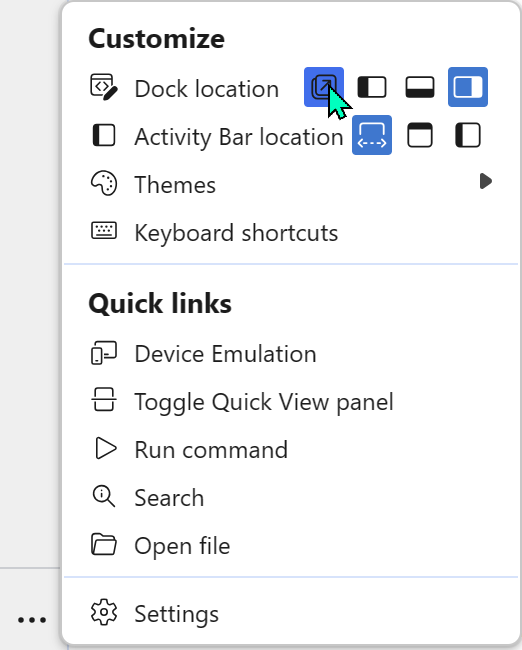
First, undock the DevTools into their own window by clicking the menu inside the tools, then set the Dock location to undocked.

Next, use the Developer Tools to debug the Developer Tools by clicking into the DevTools window and hitting the Ctrl+Shift+I keyboard shortcut. A second instance of the DevTools will appear, debugging the first instance of the DevTools:

The Console tab of the second Developer Tools instance will show any script errors from the first:

Debugging Hubs

Within Edge, various flyouts from the toolbar are implemented as small HTML content areas that appear when you click various toolbar buttons. To debug these flyouts:

  1. Open a second Edge window and navigate it to edge://inspect.
  2. Click the Pages link on the left-hand side.
  3. In the first window, open the problematic Hub UI (e.g. hit Ctrl+H to open the History hub).
  4. Click the Inspect link under the page that appears in the Pages list:

Alternatively, you could try loading the Hub as a top-level page by using its undocumented URL (e.g. navigate to edge://downloads/hub to open the Edge Downloads page in its Hubs mode).

Using DevTools to debug the browser itself feels like a super-power.

-Eric