Troubleshooting Edge (or Chrome) Browser Crashes

In the modern browser world, there are two types of crashes: browser crashes and renderer crashes.

In a browser crash, the entire browser window with all of its tabs simply vanishes, either on startup, or at some point afterward. The next time the browser starts, it should recognize that the last time it exited was unexpected and offer to recover the tabs that were open at the time of the crash:

Crash recovery prompt shown after restart

In contrast, in a renderer crash, one (or more) tabs will show a simple crash page with a "This page is having a problem" error message:

Edge’s Renderer Crash notification page

The Error code mentioned at the bottom of the page might help point to the cause of the problem. Sometimes if you search for this code on Twitter or Reddit you might see a recent set of complaints about it and learn what causes it.

Automatic Crash Reporting

Microsoft Edge uses a Microsoft crash-reporting system called Watson (after Sherlock Holmes’ famous assistant). When your browser or one of its tabs crashes, the system collects information useful for engineers to diagnose and fix the problem and uploads it to Microsoft’s servers for analysis. (Chrome includes a similar system, called CrashPad, which sends Chrome crash reports to Google).

Backend systems automatically sort crash reports into buckets, count them, and surface information for the browsers’ reliability engineers to investigate in priority order. These engineers constantly monitor the real-world crashes worldwide and work to send fixes out to users via updated versions (“respins“) as quickly as possible.

In the vast majority of cases, you don’t need to do anything to get a browser update beyond just waiting. Visiting about:help will kick off a version update check:

…but even if you cannot do that (e.g. because the browser crashes on startup such that you cannot navigate anywhere), Edge’s background updater will check for updates every few hours and silently install them. If you want to hurry it along, you can do so from the command-line.

about:crashes

You can see information about recent crashes by visiting the about:crashes page in the browser. If you end up talking to an engineer about a crash or post a question in a forum asking for help, posting the CAB ID and Bucket ID information from Edge’s crash report (or the Uploaded Crash Report ID from Chrome’s crash report) will allow browser engineers the ability to easily pull up the data from your crash.

ProTip: When sharing these ID values, please share them as text, not a screenshot; no one wants to try to retype 32 digit hexadecimal numbers from your grainy JPEGs.

Screenshot for this explanation only. Share text, not screenshots!

Bucket and CAB IDs often greatly enhances engineers’ ability to help you understand what’s going on.

If you’d like, you can click the Submit feedback button next to a crash and provide more information about what specifically you were doing that led to the crash. In most cases, this isn’t necessary, but it can be useful if you have a reproducible crash (e.g. it happens every time), and you were doing something that might otherwise be hard to reproduce (e.g. loading a non-public web page).

Self-Troubleshooting

What if the entire browser crashes on startup, such that you cannot visit the about://crashes page? Or you want to see whether you can change something about your browser to avoid the crash. In such cases, you might want to explore the following troubleshooting steps.

Troubleshooting: Try a new Profile

Some crashes are profile-dependent– a setting or extension in your profile might be the source of a problem. If you have multiple different browser profiles already, and you’re hitting a renderer crash, try switching to a different profile and see whether the problem recurs.

If you’re hitting a browser crash (which prevents you from easily switching profiles), try starting Edge with a new profile:

  1. Close all Edge instances; ensure that msedge.exe is not running in Task Manager. (Sometimes, Edge’s Startup Boost feature means there may be one or more hidden processes running.)
  2. Click Start > Run or hit Windows+R and enter msedge.exe –profile-directory=Rescue

If Edge opens and browses without crashing, the problem was likely related to something in your profile — whether a buggy extension, an experiment, or some other setting.

Troubleshooting: Change Channels

If you’re crashing in a pre-release channel (Canary, Dev, or Beta) try retreating to a more stable channel. The pre-release channels are expected to have crashes from time-to-time (especially Dev and Canary) — the whole point of publishing these channels is to allow the team to capture crash reports from the wild before those bugs make it into the Stable release.

If you’re crashing in the Stable channel, try the Dev channel instead– while the team generally tries to pull all fixes into the Stable channel, sometimes those fixes might make it into the Canary/Dev builds first.

Troubleshooting: Try disabling extensions

Generally, a browser extension should not be able to crash a tab or the browser, but sometimes browser bugs mean that they might. If you’re encountering renderer (tab) crashes, try loading the site in InPrivate/Incognito mode to see if the crash disappears. If it does, the problem might be one of your browser extensions (because extensions, by default, do not load in Private mode).

You can visit about:extensions to see what browser extensions are installed and disable them one-by-one to see whether the problem goes away.

Troubleshooting: Try running without extensions at all

In rare cases, a browser bug tickled by extensions might cause the browser to crash on startup such that you cannot even visit the about:extensions page to turn off extensions.

To determine whether a browser crash is related to extensions, follow these steps:

  1. Close all Edge instances; ensure that msedge.exe is not running in Task Manager. (Sometimes, Edge’s Startup Boost feature means there may be one or more hidden processes running.)
  2. Click Start > Run or hit Windows+R and enter msedge.exe –disable-extensions
  3. Verify that Edge opens correctly
  4. Visit edge://crashes and get the CABID/BucketID information from the uploaded crash report

Unfortunately, while in the “Extensions disabled” mode, you cannot visit the about:extensions page to manually disable one or more of your extensions — in this mode, the browser will act as if it has no extensions at all.

Troubleshooting: Check for Accessibility Tools

Sometimes, Chromium tabs might crash due to buggy handling of accessibility messages. You can troubleshoot to see whether Accessibility features are unexpectedly enabled (and try disabling them) to see whether that might be the source of the problem. See Troubleshooting Accessibility.

Troubleshooting: Check for incompatible software

If all of the browser’s tabs crash, or you see many different tab crashes across many different sites, it’s possible that there’s software on your PC that is interfering with the browser. Read my post about how to use about:conflicts page to discover problematic security or utility software that may be causing the problem.

Troubleshooting: Check Device for Errors

While it’s rare that a PC that worked fine one day abruptly stops working the next due to a hardware problem, it’s not impossible. That’s particularly true if the crash isn’t just a browser crash but a bluescreen of death (aka bugcheck) that crashes the whole computer.

In the event of a bluescreen or if the error code is STATUS_ACCESS_VIOLATION, consider running the Windows Memory diagnostic (which tests every bit of your RAM) to rule out faulty memory. You can also right-click on your C: drive in Explorer, choose Properties > Tools > Error Checking to check for disk errors.

If the crash is a bluescreen, you should also try updating any drivers for your graphics card and other devices, as many bluescreens are a result of driver bugs.

Advanced Troubleshooting: Try a different flavor

If you’re a software engineer and want to help figure out whether the crash is in Chromium itself, or just in Chrome or Edge, try running the equivalent channel of the other browser (e.g. if Chrome Dev crashes, try Edge Dev on the same URL).

Advanced Troubleshooting: Examine Dumps

Software engineers familiar with using debuggers might be able to make sense of the minidump files collected for upload to the Watson service. These .dmp files are located within a directory based on the browser’s channel.

For example, crashes encountered in Edge Stable are stored in the %LOCALAPPDATA%\Microsoft\Edge\User Data\Crashpad\reports\ directory.

-Eric

PS: Want to see what crash experiences look like for yourself?

To simulate a browser crash in Edge or Chrome, go to the address bar and type about://inducebrowsercrashforrealz and hit enter. To simulate a tab crash, enter about://crash instead.

Driving Electric – One Year In

One year ago, I brought home a new 2023 Nissan Leaf. I didn’t really need a car, but changing rules around tax credits meant that I pretty much had to buy the Leaf last fall if I wanted to save $7500. It was my first new car in a decade, and I’m mostly glad I bought it.

Quick Thoughts

The Leaf is fun to drive. Compared to my pokey 2013 CX-5 with its anemic 155 horsepower, the Leaf accelerates like a jet on afterburner. While the CX-5 feels a bit more stable on the highway at 80mph, the Leaf is an awesome city car — merging onto highways is a blast.

That said, the car isn’t without its annoyances.

  • The nominal 160 mile range is a bit too short for comfort, even for my limited driving needs; turning on the A/C (or worse, the defroster) shaves ~5-10% of miles off.
  • When the car is off, you cannot see the current charge level and predicted range unless you have the key and “start” the car. (While plugged in, three lights indicate the approximate charge progress.)
  • My Wallbox L2 charger has thrice tripped the 30A breaker, even when I lower the Wallbox limit to 27 amps.
  • The back seat is pretty small– while technically seating 3, I’d never put more than 2 kids back there for a ride of any length, and even my 10yo is likely to “graduate” to the front seat before long.
  • The trunk is surprisingly large though. I only need the CX-5 for long road trips, 5+ passengers, or when I’ve got a ladder or a dog to move.

Miles and Power

In my first year, I’ve put 6475 miles on my Leaf (Update: I hit 15000 miles the month of its second birthday), with 1469kWh coming from my Wallbox L2 wall charger (~6.4kWh/h), perhaps 120kWh from the slow 120V charger (1.8kWh/h), and 6kWh from a 40kWh/h DC charger, for a total of 1595kWh of electricity.

This represents almost exactly 40 “fillups” of the 40kWh battery (though I rarely charged to over 90%), and an energy cost of somewhere around $150 for the year. (My actual cost is somewhat harder to measure, since I now have solar panels). By way of comparison, my CX-5 real-world driving is ~28mpg, and the 231 gallons of gas I would have used would’ve cost me around $700.

One of the big shortcomings for the Leaf is that it uses the standards-war loser CHAdeMO fast-charger standard, which means that fast-chargers are few and far between. Without a fast charger (which would allow a full fill-up in about an hour), taking roadtrips beyond 80 miles is a dicey proposition.

For most of the year, I had thought that Austin only had two CHAdeMO chargers (one at each of the malls) but it turns out that there are quite a few more on the ChargePoint network, including one at the Austin Airport. Having said that, my one trial of that fast charger cost a bit more than the equivalent in gasoline — I spent $3.74 to fill 6kW (~27 miles) in 17 minutes, at a pace that was around half what the charger should be able to attain– annoying because the charger bills pay-per-minute rather than by kWh. But it’s nice to know that maybe I could use the Leaf for a road trip with careful planning.

Conclusions

I like the Leaf, I like the price I paid for it, and I like that it’s better for the environment. That said, if I were to buy an electric today, it’d almost certainly be a Tesla Model Y.

In a year or two, it’s possible that I’ll swap the Leaf for a more robust electric SUV, or that I’ll trade the Mazda up for a plug-in hybrid.

-Eric

Protecting Auth Tokens

Authenticating to websites in browsers is complicated. There are numerous different approaches:

  • the popular “Web Forms” approach, where username and password (“credentials”) are collected from a website’s Login page and submitted in a HTTPS POST request
  • credentials passed in all requests via standard WWW-Authenticate HTTP headers
  • TLS handshakes augmented by client certificates
  • crypto-backed FIDO2/Passkeys via the WebAuthN API

Each of these authentication mechanisms has different user-experience effects and security properties. Sometimes, multiple systems are used at once, with, for example, a Web Forms login being bolstered by multifactor authentication.

In most cases, however, Authentication mechanisms are only used to verify the user’s identity, and after that process completes, the user is sent a “token” they may send in future requests in lieu of repeating the authentication process on every operation.

These tokens are commonly opaque to the client browser — the browser will simply send the token on subsequent requests (often in a HTTP cookie, a fetch()-set HTTP header, or within a POST body) and the server will evaluate the token’s validity. If the client’s token is missing, invalid, or expired, the server will send the user’s browser through the authentication process again.

Threat Model

Notably, the token represents a verified user’s identity — if an attacker manages to obtain that token, they can send it to the server and perform any operation that the legitimate user could. Obviously, then, these tokens must be carefully protected.

For example, tokens are often stored in HTTPOnly cookies to help limit the threat of a cross-site scripting (XSS) Attack — if an attacker manages to exploit a script injection inside a victim site, the attacker’s injected script cannot simply copy the token out of the document.cookie property and transmit it back to themselves to freely abuse. However, HTTPOnly isn’t a panacea, because a script injection can allow an attacker to use the victim’s browser as a sock puppet wherein the attacker simply directs the victim’s own browser to issue whatever requests are desired (e.g. “Transfer all funds in the account to my bitcoin wallet <x>“).

Beyond XSS attacks conducted from the web, there are two other interesting threats: local malware, and insider threats. Protecting against these threats is akin to trying to keep secrets from yourself.

In the malware case, an attacker who has managed to get malicious software running on the user’s PC can steal tokens from wherever they are stored (e.g. the cookie database, or even the browser processes memory at runtime) and transmit them back to themselves for abuse. Such attackers can also usually steal passwords from the browser’s password manager. However, stolen tokens could be more valuable than stolen passwords, because a given site may require multi-factor authentication (e.g. confirmation of logins from a mobile device) to use a password whereas a valid token represents completion of the full login flow.

In the insider threat scenario, an organization (commonly, a financial services firm) has employees that perform high value transactions from machines which are carefully secured, audited, and heavily monitored to ensure employee compliance with all mandated security protocols. In the case of an insider threat, whereby a rogue employee hopes to steal from their employer, the attacker may steal their own authentication token (or, better yet, a token from a colleague’s unlocked PC), and take that token to use on a different client that is not secured and monitored by the employer. By abusing the auth token from a different device, the attacker may evade detection long enough to abscond with their ill-gotten gains.

SaaS Expanded the Threat

In the old days of the 1990/2000s’ corporate environments, an attacker who stole a token from an Enterprise user had a limited ability to use it, because the enterprise’s servers were only available on the victim’s Intranet, not reachable from the public internet. Now, however, many enterprises mostly rely upon 3rd party software sold as a “service” that is available from anywhere on the Internet. An attacker who steals a token from a victim can abuse that token from anywhere in the world.

Root Cause

All of these threats have a common root cause: nothing prevents a token from being used in a different context (device/location) than the one in which it was issued.

Browser changes to raise the bar against local theft of cookies are (necessarily) of limited effectiveness, and always will be.

While some sites attempt to implement theft detection for their tokens (e.g. requiring the user reauthenticate and obtain a new token if the client’s IP address or geographic location changes), such protections are complex to implement and can result in annoying false positives (e.g. when a laptop moves from the office to the coffee shop or the like).

Similarly, organizations might use Conditional Access or client certificates to prevent a stolen token from being used from a machine not managed by the enterprise, but these technologies aren’t always easy to deploy. However, conditional access and client certificates point at an interesting idea: what if a token could be bound to the client that received it, such that the token cannot be used from a different client?

A Fix?

Update: The Edge team has decided to remove Token Binding starting in Edge 130.

Token binding, as a concept, has existed in multiple forms over the years, but in 2018, a set of Internet Standards was finalized to allow binding cookies to a single client. While the implementation was complex, the general idea is simple:

  1. Store a secret key on a client in a storage area that prevents it from being copied (“non-exportable”).
  2. Have the browser “bind” received cookies to that secret key, such that the cookies will not be accepted by the server if sent from another client.

Token binding had been implemented by Edge Legacy (Spartan) and Chromium, but unfortunately for this feature, it was ripped out of Chrome right around the time that the Standards were finalized, just as Microsoft replatformed Edge atop Chromium.

As the Edge PM for networking, I was left in the unenviable position of trying to figure out why this had happened and what to do about it.

I learned that in Chromium’s original implementation of token binding, the per-site secret was stored in a plain file directly next to the cookie database. This design would’ve mitigated the threat of token theft via XSS attack, but provided no protection against malware or insiders, which could steal the secrets file just as easily as stealing the cookie database itself.

To provide security against malware and insiders, the secret must be stored somewhere where it cannot be taken off the machine. The natural way to do that would be to use the Trusted Platform Module (TPM) which is special hardware designed to store “non-exportable” secrets. While interacting with the TPM requires different code on each OS platform, Chromium surmounts that challenge for many of its features. The bigger problem was that it turns out that some TPMs offer very low performance, and some pages could delay page load for dozens of seconds while communicating with the TPM.

Ultimately, the Edge team brought Token Binding back to the new Chromium-based Edge browser with two major changes:

  1. The secrets were stored using Windows 10’s Virtual Secure Mode, offering consistently high-performance, and
  2. Token-binding support is only enabled for administrator-specified domains via the AllowTokenBindingForUrls Group Policy

This approach ensured that Token Binding would be supported with high performance, but with the limitations that it was only supported on Win10+, and not as a generalized solution any website could use.

Even when these criteria are met, Token Binding provides limited protection against locally-running malware– while the attacker can no longer take the token off the box to abuse elsewhere, they can still use the victim PC as a sock puppet, driving a (hidden) browser instance to whatever URLs they like, abusing the bound token locally.

Beyond those limitations, Token Binding has a few other core challenges that make it difficult to use. First is that the web server frontend must include support for TB, and many did not. Second is that Token Binding binds the authentication tokens to the TLS connection to the server, making it incompatible with TLS-intercepting proxy servers (often used for threat protection). While such proxy servers are not very common, they are more common in exactly the sorts of highly-regulated environments where token binding is most desired. (An unimplemented proposal aimed to address this limit).

While token binding is a fascinating primitive to improve security, it’s very complex, especially when considering the deployment requirements, narrow support, and interactions with already-extremely-complicated changes on the way for cookies.

Update: The Edge team has decided to remove Token Binding starting in Edge 130.

What’s Next?

The Chrome team is experimenting with a new primitive called Device Bound Session Credentials. Read the explainer — it’s interesting! The tl;dr of the proposal is that the client will maintain a securely stored (e.g. on the TPM) private key, and a website can demand that the client prove its possession of that private key.


-Eric

PS: I’ve personally always been more of a fan of client certificates used for mutual TLS authentication (mTLS), but they’ve long been hampered by their own shortcomings, some of which have been mitigated only recently and only in some browsers. mTLS has made a lot of smart and powerful enemies over the decades. See some criticisms here and here.

ServiceWorkers vs. Network Filtering

In a recent post, I explored how the design of network security features impact the tradeoffs of the system.

In that post, I noted that integrating a URL check directly into the browser provides the security check with the best context, because it allows the client to see the full URL being checked and if a block is needed, a meaningful error page can be shown.

Microsoft Defender SmartScreen and Network Protection are directly integrated into the Edge browser, enabling it to block both known-malicious URLs and those sites that the IT administrator wishes to prohibit in their environment. When a site is blocked from loading in Chrome (or Brave, Firefox, etc) by the lower-level integration into the networking stack, Defender instead shows a Windows toast notification and the main content area of the browser will usually show a low-level networking error (e.g. ERR_SSL_VERSION_OR_CIPHER_MISMATCH).

The team has received a number of customer support requests from customers who find that creating a Microsoft Defender Network Protection custom block for a site doesn’t work as expected in non-Edge browsers. When navigating to the site in Edge, the site is blocked, but when loaded in Chrome, Brave or Firefox, it seems to load despite the block.

What’s happening?

Upon investigating such cases (using Fiddler or the browser’s F12 Network tab), we commonly find that the browser isn’t actually loading the website from the network at all. Instead, the site is being served from within the user’s own browser using a ServiceWorker. You can think of a ServiceWorker (SW) as a modernized and super-powered version of the browser’s cache — the SW can respond to any network request within its domain and generate a response locally without requiring that the request ever reach the network.

For example, consider https://squoosh.app, a site that allows you to see the impact of compressing images using various tools and file formats. When you first visit the site, it provides a hint that it has installed a ServiceWorker by showing a little “Ready to work offline” toast:

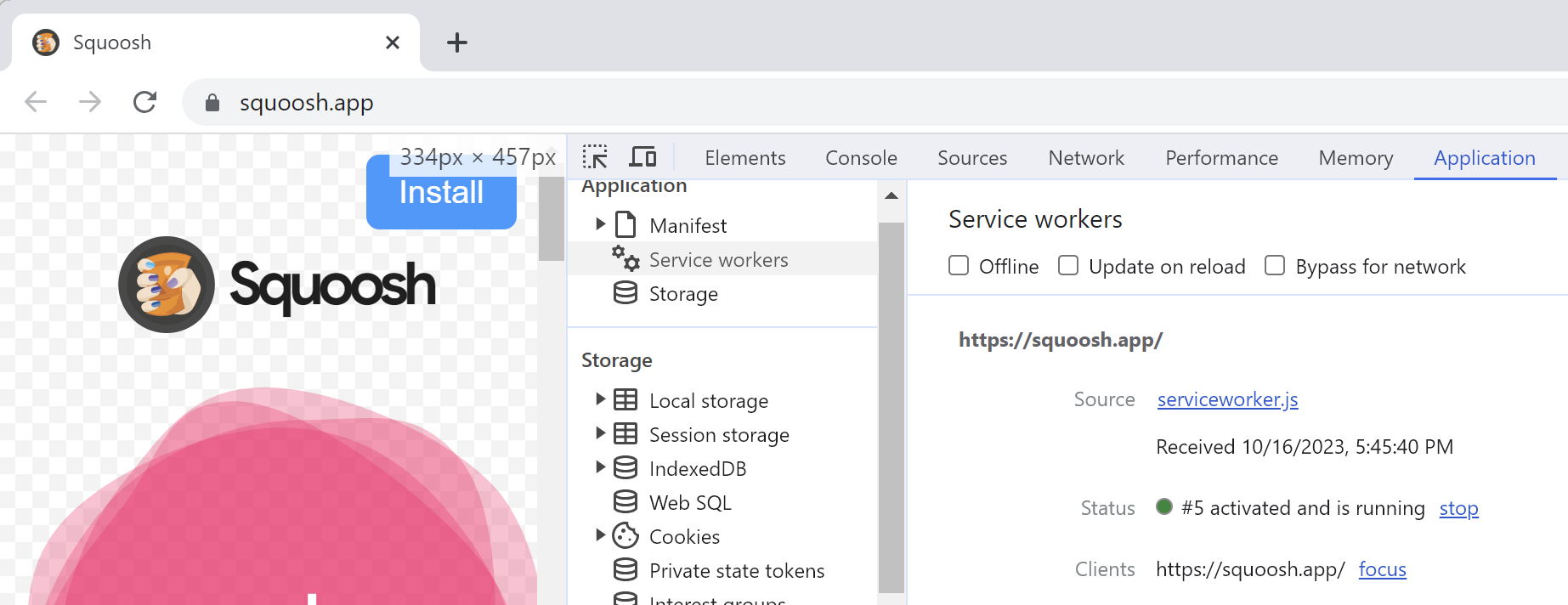
This offline-capable notice is something the site itself chooses to show– normally, the browser provides no visible hint that a ServiceWorker is in use unless you open the F12 Developer Tools and choose the Application tab:

Application tab reveals that the current site is using a ServiceWorker

Importantly, after the ServiceWorker has been installed, if you then turn off your WiFi or pull your ethernet cable, you can see that the Squoosh app will continue to work properly. Even if you close your browser and then restart it while offline, you can still visit the Squoosh app and use it.

Because the Squoosh app isn’t loading from the network, network-level blocking by a feature like Network Protection or a block on your corporate gateway or proxy server will not impact the loading of the app so long as its ServiceWorker is installed. Only if the user manually clears the ServiceWorker (e.g. hit Ctrl+Shift+Delete, set the appropriate timeframe, and choose Cookies and other site data):

…is the ServiceWorker removed. Without the ServiceWorker, loading the site results in forcing network requests that can be blocked at the network level by Defender Network Protection:

In contrast to the lower-level network stack blocking, SmartScreen/Network Protection’s integration directly into Edge allows it to monitor all navigations, regardless of whether or not those navigations trigger network requests.

Notably, many ServiceWorker-based apps will load but not function properly when their network requests are blocked. For example, GMail may load when mail.google.com is blocked, but sending and receiving emails will not work, because the page relies upon sending fetch() requests to that origin. When a network-level protection blocks requests, outbound email will linger in the GMail outbox until the blocking is removed. In other cases, like Google Drive, the backing APIs are not located on the drive.google.com origin, so failing to block those API origins might leave Google Drive in a working state even when its primary origin is blocked.

-Eric

Security: The Impact of Time

Two years ago, I wrote a long post about the importance of time, and how practical time machines can help reduce emergencies into more mundane workitems. Today, we revisit the same topic, with a focus on the Security impact of time.

Races

In many ways, the story of modern security is a story about races, with Attackers locked in an endless sprint to outpace Defenders. That’s especially true in the case of phishing and malware — attackers need to get their attack payloads to victims faster than defenders can recognize those payloads and block them.

Defenders work as fast as possible to minimize the time-to-block, but there are three key hurdles that they must leap to get there, each of which takes time:

  • Detection (false-negative reports from users, telemetry, or other sources)
  • Analysis/Grading (manual or automated steps to confirm phishing/malware, determine the scope/rollup of blocks, and reduce the likelihood of false positives)
  • Blocking (authoring and deployment of rules to block malicious content)

Attackers use cloaking and other techniques to try to slow down the process of detection and grading.

Google’s SafeBrowsing team recently claimed that 60% of phishing sites exist for under 10 minutes, giving defender’s precious little time to react before the attackers have moved to a new location and new victims.

Time-to-Check

Another key concern for security is the amount of time a security check requires, and this leads to many design constraints. Users are not willing to accept security solutions that make poor tradeoffs between usability and security, and slow performance can gravely impact usability. Security software must be able to return a verdict (e.g. block or allow) as quickly as possible to keep the user productive.

One common approach to dealing with performance challenges is to make checks asynchronous, such that the user’s activity isn’t blocked until/unless the security check reports a detection of malice. In some cases, this is a smart tradeoff– for example, Microsoft SmartScreen performs asynchronous reputation checks for phishing sites. While it may take a second or two for the online reputation check to complete, a potential-victim is safely navigated to the block page quickly enough that they don’t have the time to type sensitive data (e.g. passwords or credit card info) into the malicious site.

Unfortunately, asynchronous checks aren’t always appropriate. In the case of anti-malware scans or Network Protection checks, we cannot safely allow the malware to run or the malicious connection to be established because the damage could be done before the reputation check completes. So, in most cases, these checks need to be synchronous, which means that they pause the user’s requested activity until the check completes. This creates difficult performance constraints for security software, which otherwise might use relatively slow analysis mechanisms (e.g. “detonation” via sandboxed emulation) to detect malicious content.

These factors mean that security solutions must adopt designs that can meet the time requirements of the user-scenario. Consider Microsoft SmartScreen and Defender Network Protection, two features which are similar except in their time constraints. While SmartScreen performs many URL Reputation checks against the cloud, Network Protection cannot afford such checks. Instead, it consults a locally-cached and frequently updated bloom filter of potentially malicious sites. Only if there’s a match against the bloom filter is the time-expense of a (comparatively slow) online reputation check incurred.

DDoS

Most Distributed Denial of Service (DDoS) attacks (and many Denial of Service attacks in general) are based on attackers sending a huge flurry of requests in a short period of time, forcing legitimate services offline because there’s too much work arriving in too little time. If the attack weren’t concentrated within a short period, it wouldn’t work — the victim service could simply gradually scale up to cover the additional load without much impact.

Unfortunately for defenders, improving performance for legitimate scenarios can result in making attacks more efficient for attackers. A great recent example of this is the “HTTP/2 Rapid Reset” attack. This attack leverages features of the HTTP/2 protocol that were designed to significantly improve performance:

  • Tiny request sizes
  • The ability to layer dozens to hundreds of requests in a single TCP/IP packet
  • The ability to rapidly abandon/cancel requests

… to generate massive load on the recipient CDN or web server.

Crypto

Fireproof safes are rated by how many minutes they can protect their contents in the event of a fire. Most encryption algorithms are based on a similar concept: they aim to protect data longer than the attack lasts.

Given enough time, an attacker can brute force the encryption and discover the secret key that allows them to unscramble protected data. Crypto algorithms are designed to ensure that brute force attacks take impractically long amounts of time (decades or more).

For example, password’s hashes shouldn’t be stored using fast hashes (SHA256), but instead using hashes (Argo2, PBKDF2, BCrypt) that are deliberately designed to be slower.

Even then, defense-in-depth means that we strive to use crypto designs like forward secrecy to protect captured traffic well into the future.

Time Locks

Any interesting use of time is “time locks” whereby time itself is an important component of protection. A business may use a “time lock vaults” which aims to reduce the vulnerable period for a vault. A Time-based One-Time-Password, often used as a second-factor authenticator, uses a clock to generate a one-time-password that is only good for a short validity period.

Many lotteries and casino games depend upon the arrow of time to foil attacks — an attacker cannot steal the winning numbers because the drawing happens in the future and we don’t know of any way to communicate even simple digits to the past.

Cloaking Badness

Defenders routinely run sandboxed security tests on code (e.g. potential malware, potentially-malicious browser extensions, etc) to attempt to determine whether it’s malicious. This process is called detonation. Attackers know that defenders do this and sometimes include logic that attempts to hide bad behavior for longer than a sandboxed-analysis is expected to run. Analysis frameworks respond by doing tricks like advancing the clock, firing timers faster than real-world, etc, in an attempt to trick malware into revealing its misbehavior more quickly. It’s a cat-and-mouse game, and unfortunately, attackers have a distinct advantage, as there are any number of tricks they could use to defer misbehavior until later.

Trust vs. Age

Because defenders strive to kill attacks quickly, there’s a security benefit to treating younger entities (domains, files) with increased suspicion, as older entities are less likely to be undetectedly malicious.

For example, an attacker trying to launch a spear-phishing campaign is likely to register their attack domain (e.g. contoso-auth.xyz) and request its certificate as soon as possible before sending its lures to victims, lest the signals of the coming attack become visible before the attack even begins. For example, there are various monitors that watch for new domain name registrations, and entries into the Certificate Transparency logs that can flag an attack site before it’s even online. Attackers strive to reduce the window of exposure as much as possible to maximize the effective lifetime of their attacks.

To that end, Microsoft Defender’s Web Content Filtering feature offers administrators the option of blocking navigation to domains less than 30 days old, imposing hard constraints on attackers who hope to perform a rapid sneak attack.

Time is fundamental.

-Eric