Last Updated: June 3, 2022. The intent of this post is to capture a list of non-obvious features of the browser that might be useful to you.
Q: How do I find the tab playing audio? It’s cool that Microsoft Edge shows the volume icon in the tab playing music and I can click to mute it:
…but what if I have a bunch of Edge windows? I have to go into each window to find the icon?
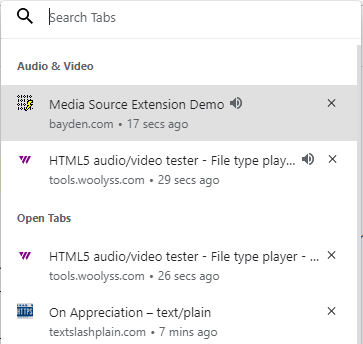
A: The Ctrl+Shift+A hotkey is your friend. It will show your open tabs to allow you to search across them, and those playing audio/video are listed in a group at the top:
Q: How can I move a few tabs out of the current window?
A: You can simply drag the tab’s button/title out of the tab strip to move it to a new window. Less obviously, you can Ctrl+Click *multiple* tabs and drag your selections out into a new window (unselected tabs temporarily dim). Use Shift+Click if you’d prefer to select a range of tabs.
Q: How can I duplicate a tab?
A: Hit Ctrl+Shift+K or use the “Duplicate Tab” command on the tabstrip’s context menu to duplicate the current tab. If you have a middle-mouse button, middle-click the Refresh button.
Less obviously, you can Ctrl+Click the back or forward arrow buttons to open the previous or next entry in the history in a new tab, or you can Shift+Click the buttons to open the page in a new window.
Q: How can I get back a tab I accidentally closed?
A: Hit Ctrl+Shift+T or use the “Reopen closed” option on the tabstrip’s context menu shown on right-click.
You also might be interested in the “Ask before closing a window with multiple tabs” option available inside the edge://settings page:
Q: On a desktop mouse, is middle-click useful for anything?
A: Middle-click a link to open it in a new tab. Middle-click a tab title button to close that tab rather than hunting for its [x] icon. Middle-click the refresh button to duplicate the tab.
Q: How can I easily open a given site in a different profile?
A: You can right-click a link in a page and choose “Open as” to open that link in a different profile:
If you already have the desired page open, you can right-click the tab title button and choose “Move Tab To” and pick the desired profile:
Move the current tab to a different profile
You can also use the options at edge://settings/profiles/multiProfileSettings to open particular sites using a particular profile, useful for splitting your “Work Sites” from your “Life Sites” and your “Ephemeral sites“.
Open AzDo in the Work Profile, and Hotmail in my Personal Profile
Q: How can I make any site act more like an “App” with its own window that isn’t cluttered with other tabs?
A: You can use the --app=url command line argument to give a any site its own standalone window that does not mix with your other sites. For example, if you run msedge.exe --app=https://outlook.live.com, the result looks like this:
This works great with command launchers like SlickRun, because you can then just type e.g. Mail to launch the standalone web app.
“My browser lost its cookies” has long been one of the most longstanding Support complaints in the history of browsers. Unfortunately, the reason that it has been such a longstanding issue is that it’s not the result of a single problem, and if the problem is intermittent (as it often is), troubleshooting the root cause may be non-trivial.
In this post, I’ll explain:
How cookies are stored,
What might cause cookies to go missing, and
How to troubleshoot missing cookies
Background: Session vs. Persistent
Before we get started, it’s important to distinguish between “Session” cookies and “Persistent” cookies. Session cookies are meant to go away when your browser session ends (e.g. you close the last window/tab) while Persistent cookies are meant to exist until you either manually remove them or a server-specified expiration date is reached.
In a default configuration, closing your browser is meant to discard all of your session cookies, unless you happen to have the browser’s “Continue where I left off” option set, in which case Session cookies are expected to live forever.
Chromium stores its persistent cookies as encrypted entries in a SQLite database file named Cookies, found within the profile folder:
Unfortunately, as a user it’s not trivial to understand whether a given cookie was marked Persistent and expected to survive browser shutdown. You have to look at either the 🔒 > Cookies > Cookies in use dialog:
…or the F12 Developer Tools’ Application tab:
If the cookie in question was set as a Persistent cookie, but it disappeared unexpectedly, there could be any of a number of root causes. Let’s take a look.
Culprit: User Settings
The most common causes of cookies going missing are not exactly a “bug” at all– the cookies are gone because the user either configured the browser to regularly clear cookies, or instructed it to do so on a one-time basis.
Microsoft Edge can be configured to clear selected data every time the browser is closed using the option at edge://settings/clearBrowsingDataOnClose:
This is a powerful feature useful for creating an “Ephemeral Profile“, but if you set this option on your main profile and forget you did so, it can be very frustrating. You can also use edge://settings/content/cookies to clear cookies on exit for specific sites:
That same page also contains an option to block all cookies in a 3rd party context, which can have surprising consequences if you set the option and forget it.
Culprit: User Actions
By hitting Ctrl+Shift+Delete or using the Clear browsing data button inside about://settings, you can clear either all of your cookies, or any cookie set within a particular date range:
Notably, the claim this will clear your data across all your synced devices does not apply to cookies. Because cookies are not synced/roamed, deleting them on one computer will not delete them on another.
You can also use the 🔒 > Cookies > Cookies in use dialog to remove cookies for just the currently loaded site, or use edge://settings/siteData to clear cookies for an individual site:
Culprit: Multiple Browsers/Profiles/Channels
For me personally, the #1 thing that causes me to “lose” cookies is the fact that I use 14 different browser profiles (8 in Edge, 4 in Chrome, 2 in Firefox) on a regular basis. Oftentimes when I find myself annoyed that my browser isn’t logged in, or otherwise is “missing” an expected cookie, the real reason is that I’m in a different browser/channel/profile than the last time I used the site in question. When I switch to the same browser+channel+profile I used last time, the site “magically” works as expected again.
In Fall 2023, users of Microsoft Edge on Mac found that each time their browser restarted, all of their persistent cookies were lost. Not long after, some Edge users on Windows reported the same problem.
Both of these problems shared a similar cause, reached differently.
In both cases, the source of the error could be seen in the about:histograms page; users would see an entry named Cookie.LoadProblem with a value of 3 (COOKIE_LOAD_PROBLEM_OPEN_DB), and an entry named Microsoft.SQLite.Database.OpenFailure with a value of 14 (SQLITE_CANTOPEN).
In both cases, the team immediately began investigating what went wrong.
In the case of Mac, the problem was related to a race condition in the initialization of an experimental feature (the Edge VPN). This race condition caused an Edge process to attempt to open the Cookies database too early, before the Network Process’ sandbox had been granted access to the database’s location within the file system. The problem was quickly eliminated by disabling the experiment from the Experimental Configuration Service (ECS) server until the race condition could be corrected.
On Windows, the direct cause was that at the end of July 2023, Chromium landed a change that meant that if the browser could not open its cookie database exclusively (with no other processes having it open simultaneously), the browser would not load the database at all. This meant that if any other process had already opened the cookie database for any reason, the new Edge session would start with with an empty cookie jar, losing all of its persistent cookies.
An alert Windows user reported the cookie loss problem and collected a SysInternals’ Process Monitor log of filesystem activity on the cookie file. Unfortunately, he didn’t manage to catch any unexpected processes opening the file, but he then used SysInternals’ Handle and found that a process named UpdateBrowserForApp.exe had the cookie database open.
He performed his own sleuthing and found that this process seemed to be correlated with the Bing Wallpaper app, and some users had found that removing the app caused the Edge problem to disappear.
We talked to the owners of UpdateBrowserForApp.exe and found that the intent of this utility was to set a cookie that would allow a website to detect that the Wallpaper app was installed so that it could stop offering the app to users who’d already installed it. The Edge team explained that this was not a safe practice– beyond the immediate problems caused by exclusive locks, Chromium’s SQLite cookie database format is not a stable extensibility point, and the schema can change in any browser update. Therefore, using any external utility to modify the cookie database is completely unsupportable. The Wallpaper team released an update (v2.0.0.5) to turn off the bad behavior.
Reliably and safely communicating between Websites and Apps is a challenging problem space post-IE days; I explore this area in depth in my post about Web-to-App (and App-to-Web) Techniques.
Culprit: 3rd-Party Cleanup Utilities
Sometimes, a user loses their cookies unexpectedly because they’ve run (or their computer automatically ran) any of a number of 3rd-party Privacy/Security/Cleanup utilities that include as a feature deletion of browser cookies. Because these tools run outside of the browser context, they can delete the cookies without the browser’s awareness or control.
Culprit: Website Changes
Websites can change their behavior from minute to minute (especially when they perform “A/B testing” to try out new fixes. Sometimes, a website will, knowingly or unknowingly, cause a cookie to be discarded or ignored when new website code is rolled out. Websites can even cause all of their cookies to be deleted (e.g. when a user clicks “Logout”) using the ClearSiteData API.
(Unlikely) Culprit: Lost Decryption Key
As I mentioned earlier, Chromium encrypts cookies (and passwords) using an encryption key that is stored in the browser profile, and which is itself encrypted using a key stored by the OS user account.
If the key in the Chromium profile is deleted or corrupted, Chromium will not be able to obtain the AES key required to decrypt passwords and cookies and will behave as if those data stores were empty.
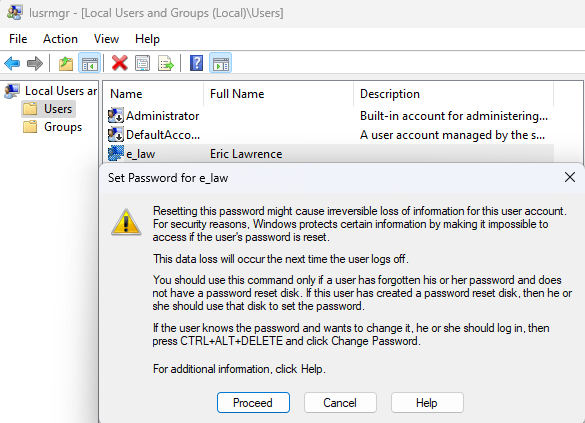
Similarly, the same loss is possible if the OS user account’s encryption key is lost or reset. This should be very rare, but prior to Windows 10 20H2 there was a bug where the key could be lost if the S4U task scheduler was in use. In 2022, a similar bug hit PCs with 3rd-party credential providers installed. Finally, if the user’s password is forgotten and “Reset”, the account’s encryption key is intentionally reinitialized, resulting in the “irreversible loss of information” mentioned at the top of the confirmation dialog box:
(Unlikely) Culprit: Data Corruption
Chromium has made significant technical investments in protecting the integrity of data and I’m not aware of any significant issues where cookie data was lost due to browser crashes or the like.
Having said that, the browser is ultimately at the mercy of the integrity of the data it reads off disk. If that data is corrupted due to e.g. disk or memory failure, cookie data can be irretrievably lost, and the problem can recur until the failing hardware is replaced.
Troubleshooting Steps
Check which browser/channel/profile you’re using and ensure that its the one you used last time.
Visit about://settings/clearBrowsingDataOnClose to ensure that you’re not configured to delete cookies on exit.
Visit about://settings/siteData to see whether all cookies were lost, or just some went missing.
Visit about://settings/content/cookies to see whether third-party cookies are allowed, and whether you have any rules to clear a site’s cookies on exit.
If cookies are missing after restart, visit about:histograms and look for an entry named Cookie.LoadProblem with a value of 3 (COOKIE_LOAD_PROBLEM_OPEN_DB), or an entry named Microsoft.SQLite.Database.OpenFailure with a value of 14 (SQLITE_CANTOPEN)
If you use the browser’s Password Manager, see whether your saved passwords went missing too, by visiting about://settings/passwords.
If they also went missing, you may have a problem with Local Data Encryption keys. Check whether any error values appear inside the about:histograms/OSCrypt page immediately after noticing missing data.
Visit Cookie/Storage test page, pick a color from the dropdown, and restart your browser fully. See whether the persistentCookie and localStorage values reflect the color previously chosen.
Use theWindows Memory Diagnostic in your Start Menu to check for any memory errors.
Use the Properties > Tools > Check for Errors option to check the system drive (usually C:) for corruption:
In this post, I talk a lot about Microsoft, but it’s not only applicable to Microsoft. Last update: 5 November 2024
It’s once again “Connect Season” at Microsoft, a biannual-ish period when Microsoft employees are tasked with filling out a document about their core priorities, key deliverables, and accomplishments over the past year, concluding with a look ahead to their goals for the next six months to a year.
The Connect document is then used as a conversation-starter between the employee and their manager. While this process is officially no longer coupled to the “Rewards” process, it’s pretty obviously related.
One of the key tasks in both Connects and Rewards processes is evaluating your impact— that is to say, what changed in the world thanks to your work?
We try to break impact down into three rings: 1) Your own accomplishments, 2) How you built upon the ideas/work of others, and 3) How you contributed to others’ impact. The value of #1 and #3 is pretty obvious, but #2 is just as important– Microsoft now strives to act as “One Microsoft”. This represents a significant improvement over what was once described to prospective employees as “A set of competing fiefdoms, perpetually at war” and drawn eloquently by Manu Cornet:
Old Microsoft, before “Building Upon Others” culture
By explicitly valuing the impact of building atop the work of others, duplicate effort is reduced, and collaboration enhances the final result for everyone.
While these rings of impact can seem quite abstract, they seem to me to be a reasonable framing for a useful conversation, whether you’re a new Level 59 PM, or a grizzled L67 Principal Software Engineer.
The challenge, of course, is that measurement of impact is often not at all easy.
Measures and Metrics
When writing the “Looking back” portion of your Connect, you want to capture the impact you achieved, but what’s the best way to measure and express that?
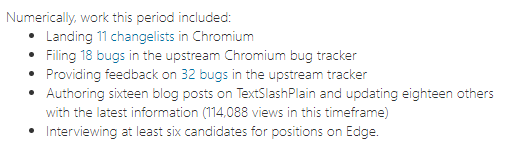
Obviously, numbers are great, if you can get them. However, even if you can get numbers, there are so many to choose from, and sometimes they’re unintentionally or intentionally misleading. Still, numbers are often treated as the “gold standard” for measuring impact, and you should try to think about how you might get some. Ideally, there will be some numbers which can be readily computed for a given period. For instance, my most recent Connect noted:
While this provides a cheap snapshot of impact, there’s a ton of nuance hiding there. For example, my prior Connect noted:
Does this mean that I was less than half as impactful this period vs. the last? I don’t think so, but you’d have to dig into the details behind the numbers to really know for sure.
Another popular metric is the number of users of your feature or product, because this number, assuming appropriate telemetry, is easy to compute. For example, most teams measure the number of “Daily Active Users” (DAU) or “Monthly Active Users” (MAU).
While I had very limited success in getting Microsoft to recognize the value of my work on my side project (the Fiddler Web Debugger), one thing that helped a bit was when our internal “grassroots innovation” platform (“The Garage”) added a simple web service where developers could track usage of any tool they built. I was gobsmacked to discover that Fiddler was used by over 35000 people at Microsoft, then more than one out of every three employees in the entire company.
Hard numbers bolstered anecdotal stories, like the time when Microsoft’s CTO/CSA called me at my desk to help him debug something. I was about to guide him into installing Fiddler only to have him inform me that he “uses it all the time.”
When Fiddler was later being scouted for acquisition by devtool companies, I quickly learned that they weren’t particularly interested in the code — they were interested in the numbers:
how many downloads (14K/day)
how many daily active users
any numbers that might reveal what users were doing with it (enterprise software developers monetize better than gem-farming web gamers).
A few years prior, my manager had walked into my office and noted “As great as you make Fiddler, no matter how many features you add or how well you build them, nothing you do will ever have as much impact as you have on Internet Explorer.” And there’s a truth to that– while Fiddler probably peaked at single-digit millions of users, IE peaked at over a billion. When I rewrote IE’s caching logic, the performance savings were measured in minutes individually and lifetimes in aggregate.
Unfortunately, there’s a significant risk to making “Feature Usage” a measure of impact– it means that there’s a strong incentive for every feature owner to introduce/nag/cajole as many people as possible into using a feature. This often manifests as “First Run” ads, in-product popups, etc. Your product risks suffering a tragedy of the commons effect whereby every feature team is individually incentivized to maximize user exposure to their feature, regardless of appropriateness or the impact to users’ satisfaction with the product as a whole.
When a measure becomes a target, it ceases to be a good measure.
To demonstrate business impact, the most powerful metric is your impact on profitability, measured in dollars. Sadly, this metric is often extremely difficult to calculate: distinguishing the revenue impact of a single individual’s work on a massive product is typically either wildly speculative or very imprecise. However, once in a great while there’s a clear measure: My clearest win was nearly twenty years ago, and remains on my resume today:
Saving $156,000 a year in costs (while dramatically improving user-experience– a much harder metric to measure) at a time when I was earning around half of that sum was an undeniably compelling feather in my cap. (Perhaps my favorite example of this ever was found in the OKRs of the inventor of Brotli compression (Jyrki Alakuijala), who computed the annual bandwidth savings for Google and then converted that dollar figure into the corresponding numbers of engineers based on their yearly cost. “Brotli is worth <x> engineers, every year, forever.”)
Encouraging employees to evaluate their Profit Impact is also somewhat risky– oftentimes, engineers are not interested in the business side of the work they do and consider it somewhat unseemly — “I’m here to make the web safe for my family, not make a quick buck for a MegaCorp.” Even for engineers who consciously acknowledge the deal(“I recognize that the only reason we get to spend hundreds of millions of dollars building this great product we give away for free is because it makes the company more money somewhere“) it can be very uncomfortable to try to generate a precise profitability figure– engineers like accuracy and precision, and even with training in business analysis, calculation of profit impact is usually wildly speculative. You usually end up with a SWAG (silly wild-ass guess) and the fervent hope that no one will poke on your methodology too hard.
A significant competitive advantage held by the most successful software companies is that they don’t need to bother their engineers with the business specifics. “Build the best software you can, and the business will take care of itself” is a simple and compelling message for artisans working for wealthy patrons. And it’s a good deal for the leading browser business: when the product at the top of your funnel costs you 9 digits per year and brings in 12 digits worth of revenue, you can afford not to demand the artisans think too much about anything so mundane as money.
Storytelling
Of course, numbers aren’t the only way to demonstrate impact. Another way is to tell stories about colleagues you’ve rescued, customers you’ve delighted, problems you’ve solved and disasters you’ve averted.
Stories are powerful, engaging, and usually more interesting to share than dry metrics. Unfortunately, they’re often harder to collect (customers and partners are often busy and it can feel awkward to ask for quotes/feedback about impact). Over the course of a long review period, they’re also sometimes hard to even remember. Starting in 2016, I got in the habit of writing “Snippets”, a running text log of what I’ve worked on each day. Google had internal tooling for this (mostly for aggregating and publishing snippets to your team) but nowadays I just have a snippets.txt file on my desktop.
Both Google and Microsoft have an employee “Kudos” tool that allows other employees to send the employee (and their manager) praise about their work, which is useful for both visibility as well as record-keeping (since you can look back at your kudos for years later). I also keep a Kudos folder in Outlook to save (generally unsolicited) feedback from customers and partners on the impact of my work. One thing I’ve heard some departing Microsoft employees note (and experienced myself) is that they often don’t hear about the breadth of their impact until the replies to their farewell emails start pouring in. When I left Microsoft in 2012, I got some extremely kind notes from folks that I never expected to even know my name (some were not even Fiddler users!).
Even when recounting an impact story, you should enhance it with numbers if you can. “I worked late to fix a regression for a Fortune 500 customer” is a story– “…and my fix unblocked deployment of Edge as the default browser to 30000 seats” is a story with impact.
A challenge with storytelling as an approach to demonstrating impact is that our most interesting stories tend to involve frantic, heroic, and extraordinary efforts or demonstrations of uncommon brilliance, but the reality is that oftentimes the impact of our labor is greater when competently performing the workaday tasks that head off the need for such story-worthy events. As I recently commented on Twitter:
We have to take care not to incentivize behaviors that result in great stories of “heroic firefighting” while neglecting the quiet work that obviates the need for firefighting in the first place. But quantifying the impact of the fire marshal can be difficult– how do you estimate the cost of a conflagration that didn’t happen? (This is one argument for investing in post-mortems— it allows for ballpark estimates of historical recovery costs, helping everyone understand that prevention is a relative bargain).
My most recent Connect praised me as having done “a great job of being our last line of defense” which I found quite frustrating– while I do get a lot of visibility for fixing customer problems that have no clear owners, my most valuable efforts are in helping ensure that we fix problems before customers even experience them.
Speed
Related to this is the relationship of speed to impact— the sooner you make a course-correcting adjustment, the smaller that adjustment needs to be. Flag an issue in the design of the feature and you don’t have to update the code. Catch a bug in the code before it ships and no customer will notice. Find a bug in Canary before it reaches Beta and developers will not need to cherry-pick the fix to another branch. Fix a regression in Beta before it’s promoted to Stable and you reduce the potential customer impact by very close to 100%.
Similarly, any investment in tools, systems, and processes to tighten the feedback loop will have broad impact across the entire product. Checking in a fix to a customer-reported bug quickly only delights if that customer can benefit from that fix quickly.
Unfortunately, because speed reduces effort (a faster fix is cheaper), it’s too easy to fall into the trap of thinking that it had lower impact.
Effort != Impact
A key point arises here– impact is not a direct function of effort. Effort is just one of the inputs into the equation.
A friend once lamented his promotion from Level 63 to 64, noting “It’s awful. I can’t work any harder!” and while I’ve felt the same way, we also both know that even the highest-levelled employees don’t have more than 24 hours in their day either, and most of them retain some semblance of work/life balance.
We’re not evaluated on our effort, but on our impact. Carefully selecting the right problems to attack, having useful ideas and subject matter expertise, working with the right colleagues, and just being lucky all have a role to play.
Senior Levels
At junior levels, the expectation is that your manager will assign you appropriate work to allow you to demonstrate impact commensurate with your level. If for some reason something out of your control happens (a PM’s developer leaves the team, so their spec is shelved) the employee’s “opportunity for impact” is deemed to be lower and taken into account in evaluations.
As you progress into the Senior band and beyond, however, “opportunity for impact” is implicitly deemed unlimited. The higher you rise, the greater the expectation that you will yourself figure out what work will have the highest impact, then go do that work. If there’s a blocker (e.g. a partner team declines to do needed work), you’re responsible for figuring out how to overcome that blocker.
Amid the Principal band, I’ve found it challenging to try to predict where the greatest opportunity for impact lies. For the first two years back at Microsoft, I was unexpectedly impactful, as (then) the only person on the team to have ever worked as a Chromium Developer– I was able to help the entire Edge team ramp up on the codebase, tooling, and systems. I then spent a year or so as an Enterprise Fixer, helping identify and fix deployment blockers preventing large companies from adopting Edge. Throughout, I’ve continued to contribute fixes to Chromium, investigate problems, blog extensively, and try to help build a great engineering culture. Many of these investments receive and warrant no immediate recognition– I think of them as seeds I’m optimistically planting in the hopes that one day they’ll bear fruit.
Many times I will take on an investigation or fix for a small customer, both in the hope that I’m also solving something for a large customer who just hasn’t noticed yet, and because there’s an immediate satisfaction in helping out an individual even if the process appears unscalable. While it cannot possibly be the most efficient method of maximizing impact, just helping, over and over, can bypass analysis paralysis or impactless naval gazing.
Do all the good you can, By all the means you can, In all the ways you can, In all the places you can, At all the times you can, To all the people you can, As long as ever you can.
Taking time to learn new technologies, skills, or even your own codebase does not typically have an immediate impact on the organization. But it’s an investment in the future, and it can pay off unexpectedly, or fairly reliably, depending on what you choose to learn.
The challenge with spending your time learning is that there is an infinite amount to learn, and learning, in and of itself, rarely has any impact at all, unless you contribute back to the learning resource. It is only upon putting your learning to use that the potential value turns into impact.
Teaching is an Investment
Similarly, sharing what you’ve learned is an investment– you’re betting that the overall value to the recipient or the organization will exceed the value of your preparation and presentation of information.
But beyond the value in teaching others, teaching is a great way to learn a topic more fully yourself, as gaps in your understanding are exposed, and the most dangerous class of ignorance (“Things you know that just ain’t so“) are pointed out to you. This is a major reason I blog and otherwise “Do it in public.”
Do things that Scale (and things that don’t)
When planting seeds, you don’t know which might bear fruit. Spending an hour mentoring a peer may have no obvious impact right away. But perhaps you will learn something to improve your own impact, or perhaps years down the line your mentee will pass along a cool role opportunity in another division. You never know.
Still, if you seek to maximize your impact, finding opportunities to scale is crucial. If fixing a problem has impact X, documenting the fix or creating a process to ensure it never happens again may have impact 10X. Debugging a developer’s error may have impact Y, while writing a tool to allow any developer to diagnose their own errors may have impact 1000Y. Showing a colleague how to do something may have impact Z, while writing a blog post, a book, or giving a conference talk may have impact 100Z.
Personally, I like to start by helping in ways that don’t scale, because it allows me to learn enough about the problem space to maximize the value of my contribution. It also allows me to discover whether my solution even needs to scale, and if it does, how best to build that scalable solution.
Management
As you move up the ranks, one popular way to increase your impact is to become a manager. As a manager, you are, in effect, deemed partly responsible for the output of your team, and naturally the impact of a team is higher than that of an individual.
Unfortunately, measuring your personal contribution to the team’s output remains challenging– if you’re managing a team of star performers, would they continue to be star performers without you overhead? On the other hand, if you’re leading a team of chronic underachievers, the team’s impact will be low, and there are limits to both the speed and scope of a manager’s ability to turn things around.
As a manager, your impact remains very much subject to the macro-environment– your team of high performers might have high attrition because you’re a lousy manager, or in spite of you being a great manager– because your team’s mission isn’t aligned with the employee’s values, because your compensation budget isn’t competitive with the industry, etc.
Beyond measuring your own impact, as a lead, you are responsible for the impact of your employees– assigning or guiding them toward the highest impact opportunities, and evaluating the impact of the outcomes. Crucially, you’re also responsible for explaining each employee’s impact to other leaders as a part of calibrating rewards across the team. Perhaps unfortunately for everyone, this activity is usually opaque to individual contributors (who are literally not in the room), leaving your ICs unable to determine how effectively you advocated on their behalf, beyond looking at their rewards outcomes.
Impact Alignment
One difficult challenge is that, “One Microsoft” aside, employee headcount and budgets are assigned by team. With the exception of some cross-division teams, most of your impact only “counts” for rewards if it accrues to your immediate peers, designated partner teams, or customers.
It is very hard to get rewarded for impact outside of that area, even if it’s unquestionably valuable to the organization as a whole.
Around 2009 or so, my manager walked into my office and irreverently asked “You’re an idiot, you know that right?” I conceded that was probably true, but asked “Sure, but why specifically?” He beckoned me over to the window and pointed down at the parking lot. “See that red Ferrari down there?” I nodded. He concluded “As soon as you thought of Fiddler, you should’ve quit, built it, and had Microsoft buy you out. Then you’d be driving that instead of a 2002 Corolla.” I laughed and noted “I’m no Mark Russinovich, and Microsoft clearly doesn’t want Fiddler anyway.” But this was a problem of organizational alignment, not value– Microsoft was using Fiddler extremely broadly and very intensely, but because it was not well-aligned with any particular product team, it received almost no official support. I’d offered it to Visual Studio, who made some vague mention of “investing in this area in some future version” and were never heard from again. I offered to write an article for MSDN Magazine, who rejected me on the grounds that the tool was “Not a Microsoft product” and thus not within their charter, despite its broad use exclusively by developers on Windows. Over the years, several leads strongly implied that my work on Fiddler was evidence that I could be “working harder at my day job.”
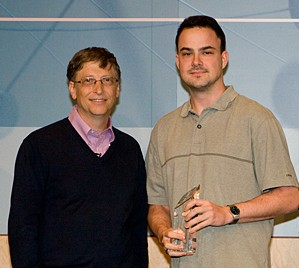
Nevertheless, in 2007, I won an Engineering Excellence award for Fiddler, for which I got a photo with Bill Gates, a crystal spike, an official letter of recognition, and $5000 for a morale event for my “team.” Lacking a team, I went on a Mediterranean cruise with my girlfriend.
Of course, there have been many non-official rewards for years of effort (niche fame, job opportunities, friendships) but because of this lack of alignment with my team’s ownership areas, even broad impact was hard for Microsoft to reward.
Karma
Our CEO once famously got in trouble for suggesting that employees passed over for promotion should be patient and “karma” would make things right. While the timing and venue for this observation were not ideal, it’s an idea that has been around at the company for decades. Expressed differently, reality has a way of being discovered eventually, and if you’re passed over for a deserved promotion, it’s likely to get fixed in the next cycle. In the other direction, one of the most painful things that can happen is a premature promotion, whereby you go from being a solid performer with level-appropriate impact to underachieving against higher expectations.
I spent six long years in the PM2 band before we had new leaders who joined the team and recognized the technical impact I’d been delivering for years; I was promoted from level 62 to 63 in five months.
In hindsight, I was too passive in evaluating and explaining my impact to leaders during those long years, and I probably could have made my case for greater rewards earlier if I’d spent a bit more energy on doing so. I had a pretty dismissive attitude toward “career management” and while I thought I was making things easier on my managers, the net impact was nearly disastrous– quitting in disgust because “they just don’t get it.”
How do you [maximize|measure|explain] your impact?
-Eric
Bonus Content – Career Advice
Back in 2015, I gave a talk about what I’d learned in my career thus far. You can find the recording and deck of Lucking In on GitHub; most of the key points ultimately come down to maximizing impact.
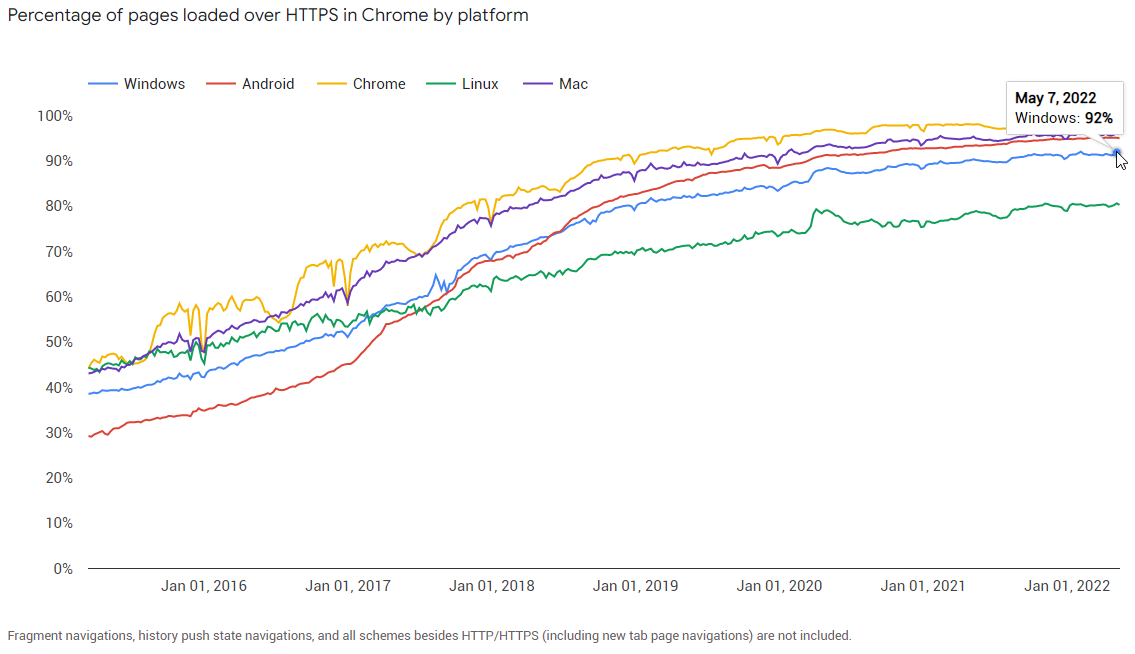
…and the pages loaded account for around 95% of browsing time:
Browsers are working hard to get these numbers up, by locking down non-secure HTTP permissions, blocking mixed content downloads, and by attempting to get the user to a secure version of a site if possible (upgrading subresource loads, a.ka. mixed content, and upgrading navigations).
Chrome and Edge have adopted different strategies for navigation upgrades:
Chrome
In Chrome, if you don’t type a protocol in the address bar, will try HTTPS first and if a response isn’t received in three seconds, it will race a HTTP request. There’s an option to require HTTPS:
When this option is set, attempting to navigate to a site that does not support HTTP results in a warning interstitial:
The feature defaults to a list-based upgrade approach, whereby we deliver a component containing sites believed to be compatible with TLS. The list data is stored on disk, but is unfortunately not readily human-readable due to its encoding (for high-performance read operations):
Alternatively, if Always switch is specified, all requests are upgraded from HTTP to HTTPS unless one of the following is true:
The URL’s hostname is dotless (e.g. http://intranet, http://localhost)
The URL’s hostname is an IP literal (e.g. http://192.168.1.1)
The URL targets a non-default port (http://example.com:8080)
The hostname is included on a hardcoded exemption list containing just a handful of HTTP-only hostnames that are used by features or users to authenticate to Captive Portal interceptors. kAutomaticHttpsNeverUpgradeList = {"http://msftconnecttest.com", "http://edge.microsoft.com", "http://neverssl.com", "edge-http.microsoft.com“};
The user has previously opted-out of HTTPS upgrade for the host by clicking the link on the connection failure error page.
Update: Edge 119 picked up the upstream Chromium change to try HTTPS first. If you’d like to experiment, you can disable that feature via a command line flag:
msedge.exe --disable-features=HttpsUpgrades
Diagnostics
Beyond the browser-specific features, browsers might end up on a HTTPS site even when the user specified a http:// url because:
The site is on the HSTS Preload list (including preloaded TLDs)
The site was previously visited over HTTPS and returned a Strict-Transport-Security header to opt-in to HSTS. This might be particularly problematic for developers using multiple sites on localhost. (Update: see [1] below)
The site was previously visited over HTTP and returned a cacheable HTTP/3xx redirect to the HTTPS page
In some cases, such upgrades might be unexpected or problematic, but figuring out the root cause might not be entirely trivial, particularly if an end-user is reporting the problem and you do not have access to their computer.
Local Diagnostics
You can use the Network tab of the F12 Developer Tools to see whether a cached redirect response is responsible for an HTTPS upgrade.
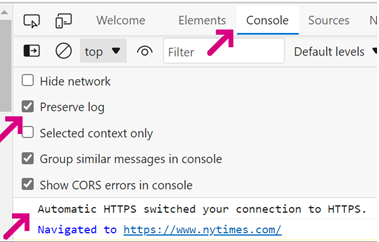
You can see whether Edge’s Automatic HTTPS feature upgraded a request to HTTPS by looking at the F12 Console tab:
To see if HSTS is responsible for an upgrade, on the impacted client, visit about://net-internals/#hstsand enter the domain in the box and click Query. Look at the upgrade_mode values:
If the static_upgrade_mode value shows FORCE_HTTPS, the site is included in the HSTS preload list. If FORCE_HTTPS is specified in dynamic_upgrade_mode, the site sent a Strict-Transport-Security opt-in header.
You can clear out dynamic_upgrade_mode entries by using the Cached images and files: All time option in the Clear Browsing Data dialog box:
If someone accidentally HSTS pre-loaded your domain into browsers’ preload list (e.g. forgetting that this will apply to subdomains), you don’t have great options.
Remote Diagnostics
If you don’t have direct access to the client, you can ask the user to collect a NetLog capture to analyze. The NetLog will show HTTPS upgrades from HSTS and from previously cached responses.
You can see a HSTS Upgrade by using the search box to look for either TRANSPORT_SECURITY_STATE_SHOULD_UPGRADE_TO_SSL (which will appear for all URLRequests with a true or false value) or for reason = "HSTS" which will find the internal redirect to upgrade to HTTPS:
Unfortunately, at the moment there’s no clear signal that a request was upgraded by Edge’s Automatic HTTPS feature, because the rewrite of the URL happens above the network stack.
Please help secure the web by moving all sites to HTTPS!
-Eric
[1] The problem is that many developers work on sites served from their own machine (e.g. https://localhost:1234 and `http://localhost:2345). This is a problem if the HTTPS site returns a HSTS directive, because it will make the HTTP-served URLs inaccessible.
Web browsers are made up of much more than the native code (mostly compiled C++) that makes up their .exe and .dll files. A significant portion of the browser’s functionality (and bulk) is what we’d call “resources”, which include things like:
Images (at two resolutions, regular and “high-DPI”)
Localized UI Strings
HTML, JavaScript, and CSS used in Settings, DevTools and other features
UI Theme information
Other textual resources, like credits
In ancient times, this resource data was compiled directly into resource segments of Windows DLL files, but many years ago Chromium introduced a new format, called .pak files, to hold resource data. The browser loads resource streams out of the appropriate PAK files chosen at runtime (based on the user’s locale and screen resolution) and uses the data to populate the UI of the browser. PAK files are updated as a part of every build of the browser, because every change to any resource requires rebuilding the file.
High-DPI
Over the years, devices were released with ever-higher resolution displays, and software started needing to scale resources up so that they remain visible to human eyes and tappable by human fingers.
Scaling non-vector images up has a performance cost and can make them look fuzzy, so Chromium now includes two copies of each bitmap image, one in the 100_percent resource file, and a double-resolution version in the 200_percent resource file. The browser selects the appropriate version at runtime based on the current device’s display density.
Exploring PAK Files
You can find the browser’s resource files within Chrome/Edge’s Application folder:
Unfortunately for the curious, PAK is a binary format which is not easily human readable. Beyond munging many independent resources into a single file, the format relies upon GZIP or Brotli compression to shrink the data streams embedded inside the file. Occasionally, someone goofs and forgets to enable compression on a resource, bloating the file but leaving the plaintext easy to read in a hex-editor:
If you want a better look inside of a PAK file, you can use the unpack.bat tool, but this tool does not yet support decompressing brotli-compressed data (because Brotli support was added to PAK relatively recently). If you need to see a brotli-compressed resource, use unpack.bat to get the raw file. Then strip 8 bytes off the front of the file and use brotli.exe to decompress the data.
Despite the availability of more efficient image formats (e.g. WebP), many browser bitmap resources are still stored as PNG files. My PNGDistill tool offers a GROVEL mode that allows extracting all of the embedded PNGs out of any binary file, including PAK:
You can then run PNGDistill on the extracted PNGs and discover that our current PNG compression efficiency inside resources.pak is just 94%, with 146K of extra size due to suboptimal compression.
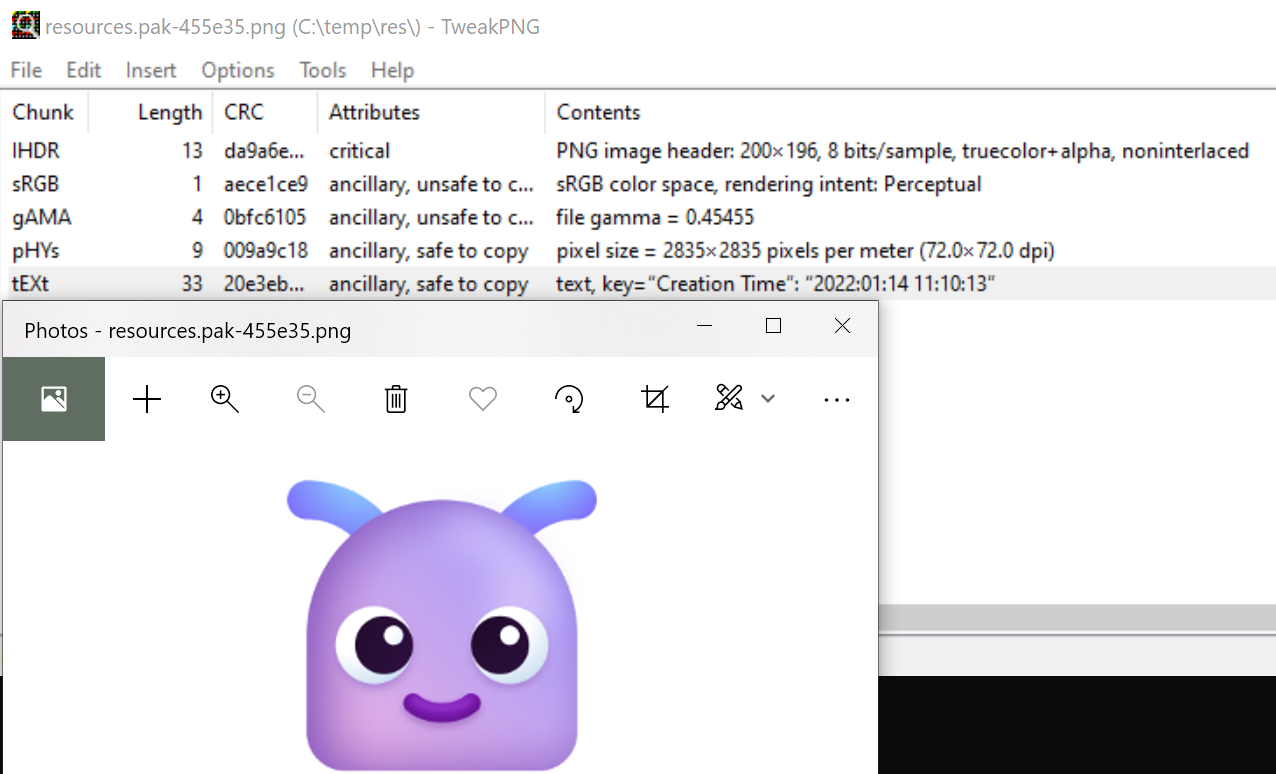
Fortunately, the PNGs are almost all properly-stripped of metadata with the exception of this cute little guy, whose birthday is recorded in a PNG comment:

















 text/plain