I wrote some foundational web platform explanation posts back in my IEBlog days and they keep getting lost. So I’m linking them here.
Same Origin Policy, the security policy which determines whether one site may interact with content from another site, and what limits apply, is one such foundational concept that is core to understanding the platform.
For over twenty years, browsers broadly supported two features that were often convenient but sometimes accidentally invoked, leading to data loss.
The first feature was that hitting backspace would send the user back one page in their navigation history. (Dec 2022 Update: I’ve been using this feature for 25 years or so now and only today did I realize that if you hold backspace, you’ll keep going back.) This shortcut was convenient for those of us who keep our hands on the keyboard, but could lead to data loss– for instance, when filling out a web form, if focus accidentally left a text box, hitting backspace could result in navigating away from the form. Smart websites would warn you with an OnBeforeUnload handler, and some browsers tried to restore the contents of the form if the user understood what happened and hit “forward”, but these protections are imperfect and might not work for all forms.
One of the IE browser UI leads complained about this behavior annually for a decade, and users periodically howled as they lost work. Finally, circa 2016, this feature was removed from Chrome and Microsoft Edge followed in 2018. If you happened to love the old behavior and accept the risk of data loss, you can restore it via extension or in Edge 86, via the edge://flags/#edge-backspace-key-navigate-page-back flag.
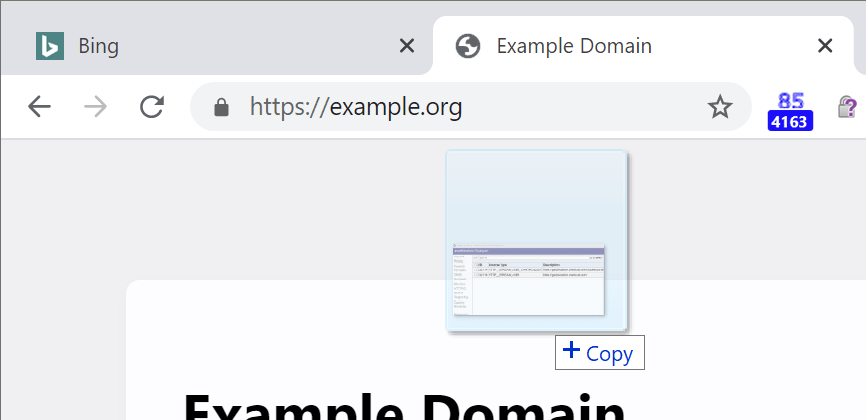
The second feature was drop to navigate. Dragging and dropping a file into the browser’s content area (the body of the page) would, (unless the page’s JavaScript was designed to handle the drop, e.g. to upload it or process it locally), navigate to that local file in the current tab. Some folks like that behavior– e.g. web developers loading HTML files from their local filesystem, but it risks the same data loss problem. If a web page doesn’t accept file uploads via drag/drop, the contents of that page will be blown away by navigation. Back in 2015, a bug was filed against Chromium suggesting that the default behavior was too dangerous, and many examples were provided where the default behavior could be problematic. Yesterday, I landed a tiny change for Chromium 85 [later merged to v84] such that dropping a file or URL into the content area of a tab will instead open the file in a new tab:
Dropping in the content area now opens it in a new tab:
If you do want to replace the content of the tab with the dropped file, you can simply drag/drop the file to the tab strip.
A small white arrow shows you which tab’s content will be replaced:
Dropping the file between tabs on the tab strip will insert a new tab at the selected location:
Chrome (85.0.4163/v84) and Microsoft Edge (85.0.541) include this change; it was also later merged to v84. Microsoft Edge Legacy didn’t support drop to navigate. Firefox still has the old behavior; the closest bug I could find is this one. Safari 13.1.1 still has the old behavior and replaces the content of the current tab with the local file. Safari Tech Preview 13.2 Release 108 instead navigates the tab to an error page (NSPOSIXErrorDomain:1 Operation not permitted”).
The Web Platform offers a great deal of power, and unfortunately evil websites go to great lengths to abuse it. One of the weakest (but simplest to implement) protections against such abuse is to block actions that were not preceded by a “User Gesture.” Such gestures (sometimes more precisely called User Activations) include a variety of simple actions, from clicking the mouse to typing a key; each interpreted as “The user tried to do something in this web content.”
A single user gesture can unlock any of a surprisingly wide array of privileged (“gated”) actions:
Allow a popup window to open
Allow a subframe to navigate the top-level window (framebusting)
…chances are good that what they’re really trying to do is trick you into performing a gesture (mouse click) so they can perform a privileged action– in this case, open a popup ad in a new tab. In the worst case, an attacker might use your innocuous-seeming gesture (e.g. “Please hold down the Enter key“) to not only spawn a popup, but to cause you to take action (e.g. “Confirm that transaction”) on the victim website loaded into the popup, a gesture jackingor gesture laundering attack. Historically, browser UI itself was also vulnerable to these sorts of abuses.
In terms of which actions can cause a gesture, the list is surprisingly limited, and includes keystrokes and mousedown (but not mouseup/click):
Some gestures are considered “consumable”, meaning that a single user action allows only one privileged action; subsequent privileged actions require another gesture. Web Developers do not have unlimited time to consume the action: In Chrome, when you click in a web page, the browser considers this “User Activation” valid for five seconds (as of February 2019, last verified June 2025) before it expires. Here’s a simple Time-Delayed Open()test.
Unfortunately, even this weak protection is subject to both false positives (an unwanted granting of privilege) and false negatives (an action is unexpectedlyblocked).
For the first few years of the web, developers pretty much coded whatever they thought was cool and shipped it. Specifications, if written at all, were an afterthought.
Then, for the next two decades, spec authors drafted increasingly elaborate specifications with optional features and extensibility points meant to be used to enable future work.
Unfortunately, browser and server developers often only implemented enough of the specs to ensure interoperability, and rarely tested that their code worked properly in the face of features and data allowed by the specs but not implemented in the popular clients.
Over the years, the web builders started to notice that specs’ extensibility points were rusting shut– if a new or upgraded client tried to make use of a new feature, or otherwise change what it sent as allowed by the specs, existing servers would fail when they saw the encountered the new values. (Formally, this is called ossification).
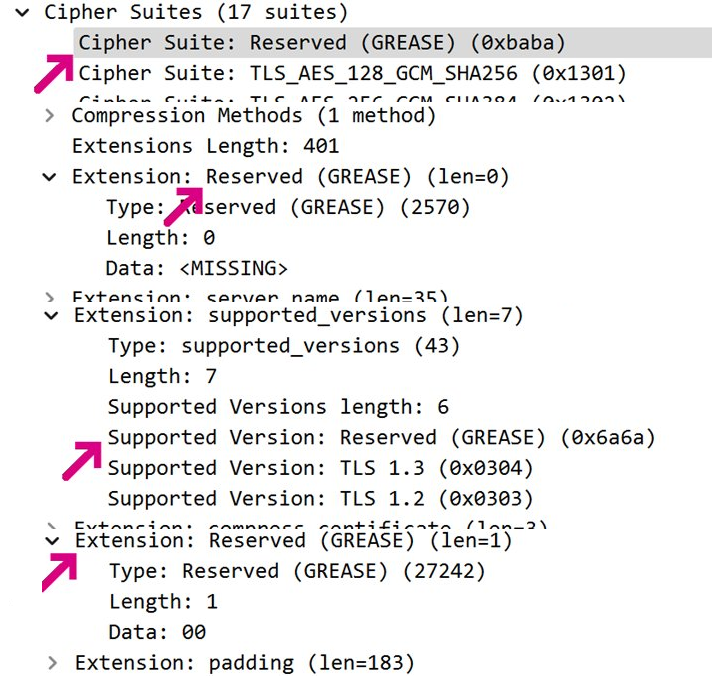
In light of this, spec authors came up with a clever idea: clients should send random dummy values allowed by the spec, causing spec-non-compliant servers that fail to properly ignore those values to fail immediately. This concept is called GREASE (with the backronym “Generate Random Extensions And Sustain Extensibility“), and it was first implemented for the values sent by the TLS handshake:
GREASE values in the TLS ClientHello
When connecting to servers, clients would claim to support new ciphersuites and handshake extensions, and intolerant servers would fail. Users would holler, and engineers could follow up with the broken site’s authors and developers about how to fix their code. To avoid “breaking the web” too broadly, GREASE is typically enabled experimentally at first, in Canary and Dev channels. Only after the scope of the breakages is better understood does the change get enabled for most users. GREASE is now unconditionally enabled for all TLS handshakes in Chromium, and the browser does not offer any flags/overrides to turn it off.
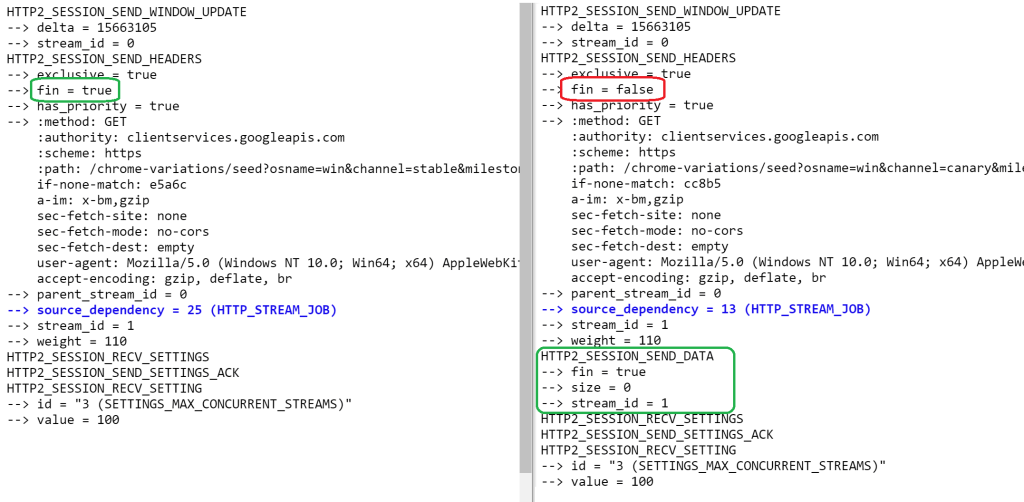
GREASE has proven such a success for TLS handshakes that the idea has started to appear in new places. Last week, the Chromium project turned on GREASE for HTTP2 in Canary/Dev for 50% of users, causing connection failures to many popular sites, including some run by Microsoft. These sites will need to be fixed in order to properly load in the new builds of Chromium.
One interesting consequence of sending GREASE H2 Frames is that it requires moving the END_STREAM flag (recorded as fin=true in the netlog) from the HTTP2_SESSION_SEND_HEADERSframe into an empty (size=0) HTTP2_SESSION_SEND_DATA frame; unfortunately, the intervening GREASE Frame is not presently recorded in the netlog.
You can try H2 GREASE in Chrome Stable using command line flags that enable GREASE settings values and GREASE frames respectively:
PS: I’ve tried to apply GREASE principles to my life as well. When I first signed up for my Kilimanjaro trip, I worried that I wasn’t going to able to book time off from work 18 months in advance. Ultimately, I concluded that if when the time came, my employer couldn’t let me take time off for the trip of a lifetime, things had rusted badly enough that I’d have to quit anyway. As it turned out, I had no problems getting three weeks away, two for the hike and one to relax afterward.
Someone complained that a Japanese page is garbled in Edge/Chrome, but renders with the correct characters in Firefox and IE:
The problem is that Chromium is using an unexpected character set to interpret the response in the HTML Parser. That happens because the server doesn’t send a proper character set directive. To avoid problems like this and improve performance, document authors should specify the character set in the HTTP response headers:
Unfortunately, this site accidentally includes a div tag up in the head (ending the head section prematurely), and buries the charset down 1479 bytes into the response:
To avoid problems like this:
Specify the CHARSET in the Content-Type response header, and
Ensure META CHARSET appears as the first element of your HEAD.




 text/plain