Updated July 31, 2020 to reflect changes planned to ship in Chrome 85 and Edge 86.
As your browser navigates from page to page, servers are informed of the URL from where you’ve come from using the Referer HTTP header1; the document.referrer DOM property reveals the same information to JavaScript.
Similarly, as the browser downloads the resources (images, styles, JavaScript) within webpages, the Referer header on the request allows the resource’s server to determine which page is requesting the resource.
The Referrer is omitted in some cases, including:
When the user navigates via some mechanism other than a link in the page (e.g. choosing a bookmark or using the address box)
When navigating from HTTPS pages to HTTP pages
When navigating from a resource served by a protocol other than HTTP(S)
When the page opts-out (details in a moment)
Usefulness
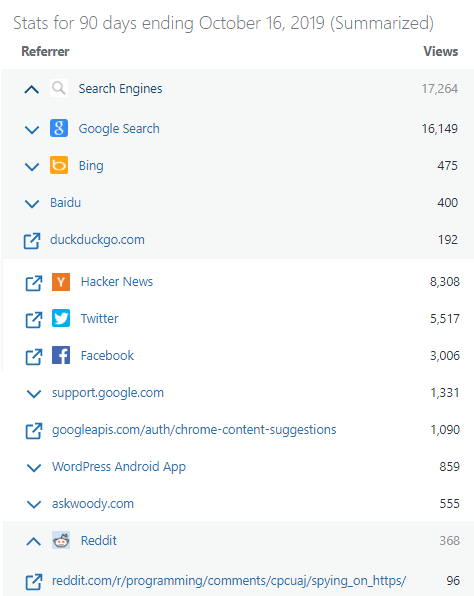
The Referrer mechanism can be very useful, because it helps a site owner understand from where their traffic is originating. For instance, WordPress automatically generates this dashboard which shows me where my blog gets its visitors:
I can see not only which Search Engines send me the most users, but also which specific posts on Reddit are driving traffic my way.
Privacy Implications
Unfortunately, this default behavior has a significant impact on privacy, because it can potentially leak private and important information.
Imagine, for example, that you’re reviewing a document your mergers and acquisitions department has authored, with the URL https://contoso.com/Q4/PotentialAcquisitionTargetsUpTo5M.docx. Within that document, there might have a link to https://fabrikam.com/financialdisclosures.htm. If you were to click that link, the navigation request to Fabrikam’s server will contain the full URL of the document that led you there, potentially revealing information that your firm would’ve preferred to keep quiet.
Similarly, your search queries might contain something you don’t mind Bing knowing (“Am I required to disclose a disease before signing up for HumongousInsurance.com?”) but that you didn’t want to immediately reveal to the site where you’re looking for answers.
If your web-based email reader puts your email address in the URL, or includes the subject of the current email, links you click in that email might be leaking information you wish to keep private.
The list goes on and on. This class of threat was noted almost thirty years ago:
Referrer Policy
Websites have always had ways to avoid leaking information to navigation targets, usually involving nonstandard navigation mechanisms (e.g. meta refresh) or by wrapping all links so that they go through an innocuous page (e.g. https://example.net/offsitelink.aspx).
However, these mechanisms were non-standard, cumbersome, and would not control the referrer information sent when downloading resources embedded in pages. To address these limitations, Referrer Policy was developed and implemented by most browsers2.
Referrer Policy allows a website to control what information is sent in Referer headers and exposed to the document.referrer property. As noted in the spec, the policy can be specified in several ways:
Via the Referrer-Policy HTTP response header.
Via a meta element with a name of referrer.
Via a referrerpolicy content attribute on an a, area, img, iframe, or link element.
Via the noreferrer link relation on an a, area, or link element.
no-referrer-when-downgrade – Don’t send the Referer when navigating from HTTPS to HTTP. [The longstanding default behavior of browsers.]
strict-origin-when-cross-origin – For a same-origin navigation, send the URL. For a cross-origin navigation, send only the Origin of the referring page. Send nothing when navigating from HTTPS to HTTP. [Spoiler alert: The new default.]
origin-when-cross-origin For a same-origin navigation, send the URL. For a cross-origin navigation, send only the Origin of the referring page. Send the Referer even when navigating from HTTPS to HTTP.
same-origin – Send the Referer only for same-origin navigations.
origin – Send only the Origin of the referring page.
strict-origin – Send only the Origin of the referring page; send nothing when navigating from HTTPS to HTTP.
As you can see, there are quite a few policies. That’s partly due to the strict- variations which prevent leaking even the origin information on HTTPS->HTTP navigations.
Improving Defaults
With this background out of the way, the Chromium team has announced that they plan to change the default Referrer Policy from no-referrer-when-downgrade to strict-origin-when-cross-origin. This means that cross-origin navigations will no longer reveal path or query string information, significantly reducing the possibility of unexpected leaks.
I’ve published a few toy test cases for playing with Referrer Policy here.
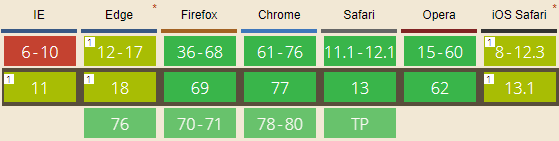
As noted in their Intent To Implement, the Chrome team are not the first to make changes here. As of Firefox 70 (Oct 2019), the default referrer policy is set to strict-origin-when-cross-origin, but only for requests to known-tracking domains, OR while in Private mode. In Safari ITP, all cross-site HTTP referrers and all cross-site document.referrers are downgraded to origin. Brave forges the Referer (sending the Origin of the target, not the source) when loading 3rd party resources.
Understand the Limits
Note that this new default is “opt-out”– a page can still choose to send unrestricted referral URLs if it chooses. To opt-out, a site can set a ReferrerPolicy for the entire document using the META tag or HTTP header, or can opt-out a single link with the ReferrerPolicy attribute on the element:
<a referrerpolicy="unsafe-url" href="http://webdbg.com/test/refer/">Send the full unstripped Referrer, even to HTTP sites</a>
As an author, I selfishly hope that sites like Reddit and Hacker News might do so.
Also note that this new default does not in any way limit JavaScript’s access to the current page‘s URL. If your page at https://contoso.com/SuperSecretDoc.aspx includes a tracking script:
… the HTTPS request for track.js will send Referer: https://contoso.com/, but when the script runs, it will have access to the full URL of its execution context (https://contoso.com/SuperSecretDoc.aspx) via the window.location.href property.
Test Your Sites
If you’re a web developer, you should test your sites in this new configuration and update them if anything is unexpectedly broken. If you want the browser to behave as it used to, you can use any of the policy-specification mechanisms to request no-referrer-when-downgrade behavior for either an entire page or individual links.
Or, you might pick an even stricter policy (e.g. same-origin) if you want to prevent even the origin information from leaking out on a cross-site basis. You might consider using this on your Intranet, for instance, to help prevent the hostnames of your Intranet servers from being sent out to public Internet sites.
1 The misspelling of the HTTP header name is a historical error which was never corrected.
2 Notably, Safari, IE11, and versions of Edge 18 and below only supported an older draft of the Referrer policy spec, with tokens never (matching no-referrer), always (matching unsafe-url), origin (unchanged) and default (matching no-referrer-when-downgrade). Edge 18 supported origin-when-cross-origin, but only for resource subdownloads.
For security reasons, Microsoft Edge 76+ and Chrome impose a number of restrictions on file://URLs, including forbidding navigation to file:// URLs from non-file:// URLs.
If a browser user clicks on a file:// link on an https-delivered webpage or PDF, nothing visibly happens. If you open the Developer Tools console on the webpage, you’ll see a note: “Not allowed to load local resource: file://host/page“.
In contrast, Edge18 (like Internet Explorer before it) allowed pages in your Intranet Zone to navigate to URLs that use the file:// url protocol; only pages in the Internet Zone were blocked from such navigations1.
No option to disable this navigation blocking is available in Chrome or Edge 76+, but (UPDATE) a Group Policy IntranetFileLinksEnabled was added to Edge 95+.
What’s the Risk?
The most obvious problem is that the way Windows retrieves content from file:// can result in privacy and security problems. Because Windows will attempt to perform Single Sign On (SSO), fetching remote resources over SMB (the file: protocol) can leak your user account information (username) and a hash of your password to the remote site. This is a long-understood threat, with public discussions in the security community dating back to 1997.
What makes this extra horrific is that if you log into Windows using an MSA account, the bad guy gets both your global userinfo AND a hash he can try to crack1. Crucially, SMB SSO is not restricted by Windows Security Zone as HTTP/HTTPS SSO is:
By default, Windows limits SSO to only the Intranet Zone for HTTP/HTTPS protocols
An organization that wishes to mitigate this attack can drop SMB traffic at the network perimeter (gateway/firewall), disable NTLM or SMB, or use a new feature in Windows 11 to prevent the leak.
Beyond the data leakage risks related to remote file retrieval, other vulnerabilities related to opening local files also exist. Navigating to a local file might result in that file opening in a handler application in a dangerous or unexpected way. The Same Origin Policy for file URLs is poorly defined and inconsistent across browsers (see below), which can result in security problems.
Workaround: IE Mode
Enterprise administrators can configure sites that must navigate to file:// urls to open in IE mode. Like legacy IE itself, IE mode pages in the Intranet zone can navigate to file urls.
Workaround: Extensions
Unfortunately, the extension API chrome.webNavigation.onBeforeNavigate does not fire for file:// links that are blocked in HTTP/HTTPS pages, which makes working around this blocking via an extension difficult.
One could write an extension that uses a Content Script to rewrite all file:// hyperlinks to an Application Protocol handler (e.g. file-after-prompt://) that will launch a confirmation dialog before opening the targeted URL via ShellExecute or explorer /select,”file://whatever”, but this would entail the extension running on every page, which has non-zero performance implications. It also wouldn’t fix up any non-link file navigations (e.g. JavaScript that calls window.location.href=”file://whatever”).
Similarly, the Enable Local File Links extension simply adds a click event listener to every page loaded in the browser. If the listener observes the user clicking on a link to a file:// URL, it cancels the click and directs the extension’s background page to perform the navigation to the target URL, bypassing the security restriction by using the extension’s (privileged) ability to navigate to file URLs. But this extension will not help if the page attempts to use JavaScript to navigate to a file URI, and it exposes you to the security risks described above.
Workaround: Edge 95+ Group Policy
A Group Policy (IntranetFileLinksEnabled) was added to Edge 95+ that permits HTTPS-served sites on your Intranet to open Windows Explorer to file:// shares that are located in your Intranet Zone. This scenario does not accommodate all scenarios, but allows you to configure Edge to behave more like Internet Explorer did.
Necessary but not sufficient
Unfortunately, blocking file:// urls in the browser is a solid security restriction, but it’s not complete. There are myriad formats which have the ability to hit the network for file URIs, ranging from Office documents, to emails, to media files, to PDF, MHT, SCF files, etc, and most of them will do so without confirmation. Raymond Chen explores this in Subtle ways your program can be Internet-facing.
In an enterprise, the expectation is that the Organization will block outbound SMB at the firewall. When I was working for Chrome and reported this issue to Google’s internal security department, they assured me that this is what they did. I then proved that they were not, in fact, correctly blocking outbound SMB for all employees, and they spun up a response team to go fix their broken firewall rules. In a home environment, the user’s router may or may not block the outbound request.
Various policies are available to better protect credential hashes, but I get the sense that they’re not broadly used.
Navigation Restrictions Aren’t All…
Subresources
This post mostly covers navigating to file:// URLs, but another question which occasionally comes up is “how can I embed a subresource like an image or a script from a file:// URL into my HTTPS-served page.” This, you also cannot do, for security and privacy reasons (we don’t want a web page to be able to detect what files are on your local disk). Blocking file:// embeddings in HTTPS pages can even improve performance.
Chromium and Firefox allow HTML pages served from file:// URIs to load (execute) images, regular (non-Worker) scripts, and frames from any file same path. However, modern browsers treat file origins as unique, blocking simple read of other files via fetch(), DOM interactions between frames containing different local files, or getImageData() calls on canvases with images loaded from other local files:
Legacy Edge (v18) and Internet Explorer are the only browsers that consider all local-PC file:// URIs to be same-origin, allowing such pages to refer to other HTML resources on the local computer. (This laxity is one reason that IE has a draconian “local machine zone lockdown” behavior that forbids running script in the Local machine zone). Internet Explorer’s “SecurityID” for file URLs is made up of three components (file:servername/sharename:ZONEID).
In contrast, Chromium’s Same-Origin-Policy treats file: URLs as unique origins, which means that if you open an XML file from a file: URL, any XSL referenced by the XML is not permitted to load and the page usually appears blank, with the only text in the Console ('file:' URLs are treated as unique security origins.) noting the source of the problem.
This behavior impacts scenarios like trying to open Visual Studio Activity Log XML files and the like. To workaround the limitation, you can either embed your XSL in the XML file as a data URL:
Note: For this command-line flag (and most others) to take effect, all Edge instances must be closed; check Task Manager. Edge’s “Startup Boost” feature means that there’s often a hidden msedge.exe instance hanging around in the background. You can visit edge://version in a running Edge window to see what command-line arguments are in effect for that window.
However, please note that this flag doesn’t remove all restrictions on file, and only applies to pages served from file origins.
Test Case
Consider a page loaded from a file on disk that contains three IFRAMEs to text files (one in the same folder, one in a sub folder, and one in a different folder altogether), three fetch() requests for the same URLs, and three XmlHttpRequests for the same URLs. In Chromium and Firefox, all three IFRAMEs load.
However, all of the fetch and XHR calls are blocked in both browsers:
If we then relaunch Chromium with the --allow-file-access-from-files argument, we see that the XHRs now succeed but the fetch() calls all continue to fail*.
*UPDATE: This changed in Chromium v99.0.4798.0 as a side-effect of a change to support an extensions scenario. The fetch() call is now allowed when the command-line argument is passed.
With this flag set, you can use XHR and fetch to open files in the same folder, parent folder, and child folders, but not from a file:// url with a different hostname.
In Firefox, setting privacy.file_unique_origin to false allows both fetch and XHR to succeed for the text file in the same folder and a subfolder, but the text file in the unrelated folder remains forbidden.
Extensions
By default, extensions are forbidden to run on file:// URIs. To allow the user to run extensions on file:-sourced content, the user must manually enable the option in the Extension Options page:
When this permission is not present, you’ll see a console message like:
extension error injecting script :
Cannot access contents of url "file:///C:/file.html". Extension manifest must request permission to access this host.
Historically, any extension was allowed to navigate a tab to a file:/// url, but this was changed in late 2023 to require that the extension’s user tick the Allow access to file URLs checkbox within the extension’s settings.
Bugs
While Chrome attempts to include a file:// URL’s path in its Same Origin Policy computation, it’s currently ignored for localStorage calls, one of the oldest active security bugs in Chromium. This bug means that any HTML file loaded from an file:/// can read or overwrite the localStorage data from any other file:///-loaded page, even one loaded from a different internet host.
-Eric
1 Interestingly, some alarmist researchers didn’t realize that file access was allowed only on a per-zone basis, and asserted that IE/Edge would directly leak your credentials from any Internet web page. This is not correct. It is further incorrect in old Edge (Spartan) because Internet-zone web pages run in Internet AppContainers, which lack the Enterprise Authentication permission, which means that the processes don’t even have your credentials.
Under the hood
Under the hood, Chromium’s file protocol implementation is pretty simple. The FileURLLoaderhandles the file scheme by converting the file URI into a system file path, then uses Chromium’s base::File wrapper to open and read the file using the OS APIs (in the case of Windows, CreateFileW and ReadFile).
The Chrome team is embarking on a clever and bold plan to change the recipe for cookies. It’s one of the most consequential changes to the web platform in almost a decade, but with any luck, users won’t notice anything has changed.
But if you’re a web developer, you should start testing your sites and services nowto help ensure a smooth transition.
What’s this all about?
As originally designed, cookies were very simple. When a browser made a request to a website, that website could return a tiny piece of text, called a cookie, to the browser. When the web browser subsequently requested any resource from that website, the cookie string would be echoed back to the server that first sent it.
Simple, right?
A bit too simple, as it turns out.
Browser designers have spent the last two decades trying to clear up the mess that this one simple feature causes, and alternatives might never gain adoption.
There are two major classes of problem with the design of cookies: Privacy, and Security.
Privacy
The top privacy problem is that cookies are sent every time a request is made for a resource, even if that request is made from a completely different context. So, if you visit A.example.com, that page might request a tracking pixel from ad.doubleclick.net. This tracking pixel might set a cookie. The tracking pixel’s cookie is called a third party cookie because it was set by a domain unrelated to the page itself.
If you later visit B.textslashplain.com, which also contains a tracking pixel from ad.doubleclick.net, the tracking pixel’s cookie set on your visit to A.example.com is sent to ad.doubleclick.net, and now that tracker knows that you’ve visited both sites. As you browse more and more sites that contain a tracking pixel from the same provider, that provider can build up a very complete profile of the sites you like to visit, and use that information to target ads to you, sell the data to a data aggregation company, etc.
Today, Brave blocks 3rd party cookies by default, while Safari’s ITP feature does something more intricate. Firefox and the new Edge have “Tracking Prevention” features that block 3rd-party cookies from known trackers.
Most browsers offer a setting to turn off ALL third party cookies, and older versions of Internet Explorer used to P3P block cookies that did not promise to abide by reasonable privacy protections. However, almost all users leave 3rd party cookies enabled, and enough sites sent fraudulent P3P declarations that the P3P support was ripped out of the only browser that supported it.
Security
The security problems with cookies are a bit more subtle.
In most cases, after you log in, a site will store your identity in a cookie, such that you don’t have to reenter your password on every page, or retap your security key every time you do anything. An authentication token is stored in a cookie, and each request you make to a site carries that cookie and token.
The problem is that this creates the possibility of a cross site request forgery attack, in which an attacker carefully crafts a request to a website to which you are logged in. When you visit the attacker’s site (say, to read a news article or view an image link posted to your social media feed), the attacker’s page instructs your browser to send its malicious request (“Transfer $1000 from me to @badguy”) to the victim site where you are logged in (e.g. https://bank.example).
Normally, such a request would be ignored or responded to by a demand for credentials, but because your browser is already logged in to bank.example and because your browser made the request, the server receives the cookie containing your authentication token and deems the request legitimate. You’ve been robbed! This class of attack is called the confused deputy attack.
Now, there are myriad ways to protect against this problem, but they all require careful work on the part of web application developers, and a long history of exploits shows that failing to protect against CSRF is a common mistake.
Other Privacy and Security Problems
I’ve described the biggest and most prominent of the security and privacy problems with the design of cookies, but those are just the tip of the iceberg. There are many other problems, including:
Because cookies are sent on plaintext HTTP requests, a passive network observer can watch your cookies as they’re sent over the network and correlate requests back to a single client. The NSA famously abused this vulnerability.
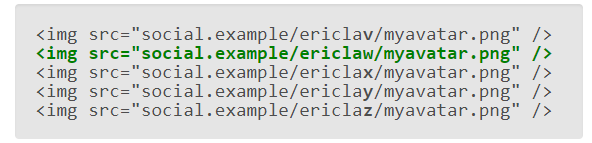
Cookies are sent to servers which respond with data that might allow Cross Site Leaks or violations of Same Origin Policy. For instance, an attacker might include in their page several guesses as to your identity. If they guess right (e.g. your cookie matches the URL identity), the images loads and now the attacker site knows exactly who you are:
Cookies can be trivially stolen in a XSS Attack if the HTTPOnly attribute was not set.
Cookies can be trivially leaked if the server forget to set the Secure attribute and the site isn’t on the HSTS preload list.
Same Origin Policy blocks readingof cross-origin resources, but this depends on the integrity of the browser sandbox. Attacks like Spectre weaken this guarantee. Ambient authentication (like cross-origin cookies) weakens Cross-Origin-Read-Blocking‘s ability to prevent a compromised renderer from stealing data.
In Chrome 85 (and Edge 86) and later, cookies will default to SameSite=Lax. This means that cookies will automatically be sent only in a first party context unless they opt-out by explicitly setting a directive of None:
This change is small in size, and huge in scope. It has huge implications for any site that expects its cookies to be used in a cross-origin context.
What’s the Immediate Good?
In one fell swoop, many websites will get more secure. Sites that were previously vulnerable to CSRF and cross-site leak attacks will be protected from attack in the most popular browser.
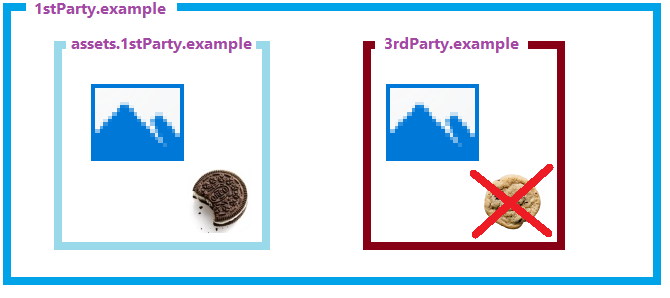
Privacy improves, because setting and sending of 3rd party cookies are blocked-by-default:
Who’s on board?
We plan to match this change in default for the new Edge browser (with experiments starting in v82 and shipping in Edge 86 Stable). However, there’s no plan to match this change for Internet Explorer (please stop using it!) or the old Edge (v18 and earlier).
Per the I2I, Safari has not yet weighed in on this change. Safari’s ITP feature already imposes many interesting restrictions on cross-site cookies.
What Can Go Wrong?
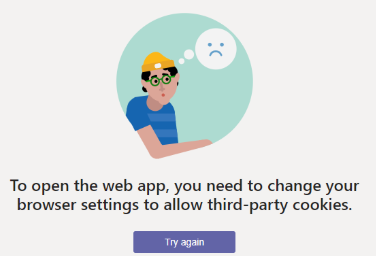
If users visit a site that expects its cookies to be available but the cookies are missing, users might get a confusing error message suggesting that they toggle a setting that won’t help:
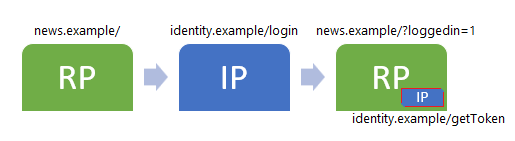
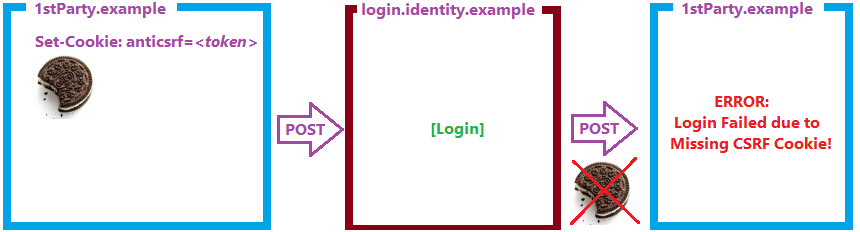
These sorts of problems happen on sites that use Federated Identity providers that depend on accessing cookies from 3rd-party subframes:
To fix this, the identity provider site will either need to set SameSite=None on its cookies, or will need to use a browser storage feature (e.g. localStorage) that is not impacted by this change. Please note that other browser featuresdo impact the availability of DOM Storage, so it’s not a silver bullet.
Rollout Plan
UPDATE: After assorted delays and experiments, Chrome is shipping this change on-by-default in 85, and Edge is shipping it in Edge 86.
The Chrome team also announced two enterprise policies for Chrome 80+ that will allow admins to opt-out of the new default entirely, or to opt-out only specific sites. Edge expects to offer these same policies.
Developer Tooling
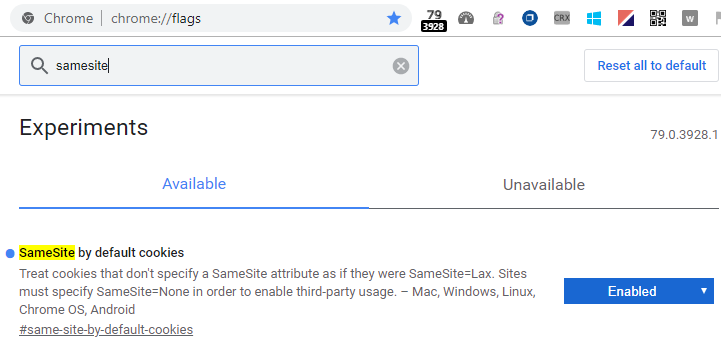
Developers who wish to enable the SameSite-by-Default feature locally for testing purposes can do so by visiting chrome://flags and searching for SameSite:
Set the SameSite by default cookies feature to Enabled and restart the browser.
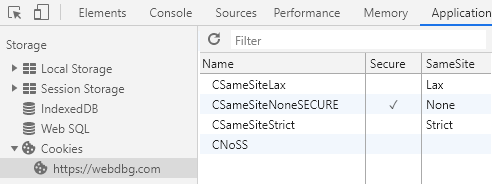
You can view the cookies used by the current page using the Application tab of the Developer Tools; the column at the far right shows the declared SameSite attribute:
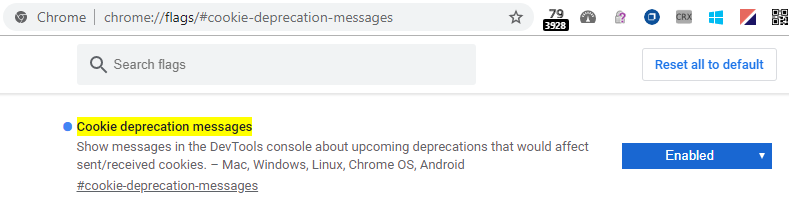
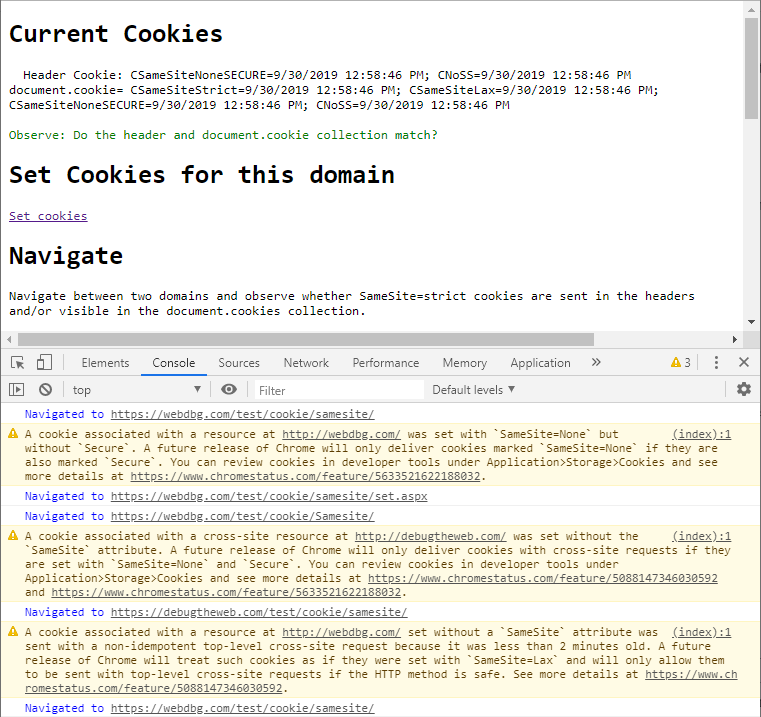
The Chrome team have enabled logging in the Developer Tools to notify web developers that cookie behavior is changing. Visit chrome://flags/cookie-deprecation-messages to ensure that the warnings are enabled:
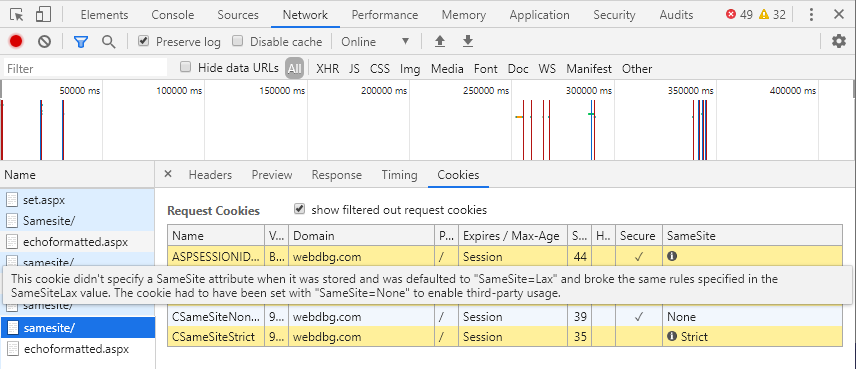
The Cookies subtab of the Network tab picked up a new checkbox “show filtered out request cookies” which allows you to see (in yellow) which cookies were not sent for the selected request due to SameSite rules:
While the vast majority of cookie scenarios will continue to work as expected, compatibility breaks are inevitable. Unfortunately, some of these breaks might not be trivially fixed by adding the SameSite=None attribute.
The .NET Framework’s cookie writer used to simply omit the SameSite attribute when the SameSiteMode was “None.” Changing this will require the affected sites to update their framework to a version with the patch.
Early in our investigations, we found another problem related to how SameSite impacts cookies sent while navigating.
Specifically, over a million sites first set an anti-CSRF cookie on themselves, then redirect to a federated Login provider, then the Login provider POSTs the login information back to the site. That initial anti-CSRF cookie is only meant to be used in a first party context. Crucially, however, SameSite cookies are not sent on navigations if the navigations use the HTTP POST verb. Making the anti-CSRF cookies SameSite=Lax by default breaks this scenario and thus breaks tons of websites.
The Two Minute Mitigation
Demanding these security cookies be set to SameSite=None would be both onerous (many more sites would need to change) and misleading (because these cookies are really only meant to go to a 1st party context).
To address this breakage, the new default was adjusted to allow a SameSite-Lax-by-Default cookie to be sent on a subsequent POST requests for two minutes, significantly reducing the breakage without giving up all of the security benefit of the change.
Note that the 2 minute mitigation might not be enough for login scenarios that take longer than 2 minutes. For instance, consider the case where the login flow is happening in a background tab, or you have to fetch your Security Key, or a child must get a parent’s permission, etc. Sites that wish to handle scenarios like this will need to store a copy of their anti-CSRF token elsewhere (e.g. sessionStorage seems appropriate).
The Chrome team plans to eventually remove the 2 minute mitigation entirely.
Compat Landmine: document.cookie
In Firefox and Safari, the document.cookie DOM property matches the Cookie header, including omission of cookies that were restricted by SameSite navigation rules.
In contrast, in Chrome and Edge, SameSite cookies that are omitted from the Cookie header are still included in the document.cookie collection following a cross-origin navigation. I’ve been convinced that this actually makes more sense, although the reasoning is subtle [issue].
To the extent possible, you should set your cookies with the httponly attribute, so that they’re not available to JavaScript and this compatibility difference is irrelevant.
Close all instances of the browser and start it using msedge.exe –enable-features=SameSiteDefaultChecksMethodRigorously
Step #3 disables the two-minute mitigation that allows SameSiteByDefault cookies on POST for two minutes; this exemption is slated for removal from Chromium at some unknown time (likely 6-12 months).
If you’re a Fiddler user, you can use this script to easily visualize which cookies are being set with which SameSite values.
What’s Next?
After this change lands, users get more security and more privacy. But that’s just the start.
The next step is to combat the “non-secure-cookies-are-trackable” attack mentioned previously. To prevent non-secure cross-site cookies being used by network observers to follow users around the web, SameSite=None cookies will be blocked if set without the Secure attribute. Chrome’s timeline for enabling this change by default seems squishier, but ChromeStatus claims it is also slated for Chrome 80.Update: The SameSiteNoneMustBeSecure change is launching in parallel with SameSiteLaxByDefault for both Chrome and Edge.
After that, the next step is to combat the inevitable abuse by trackers.
Because trackers can simply opt their own cookies out of restrictions by setting SameSite=None, trackers will do so. But this isn’t is bad as you think– by forcing sites to explicitly declare each cookie for which cross-site use is intended, browsers can then focus extra love and attention around such cookies.
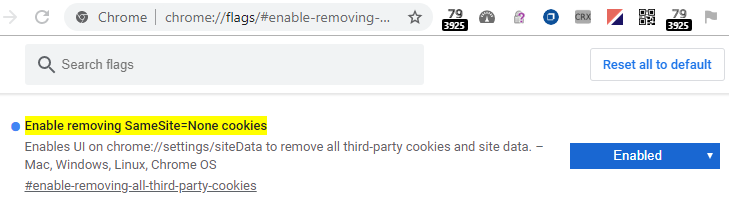
If we peek at Chrome’s flags page today, we see an interesting hint about the Chrome team’s plans:
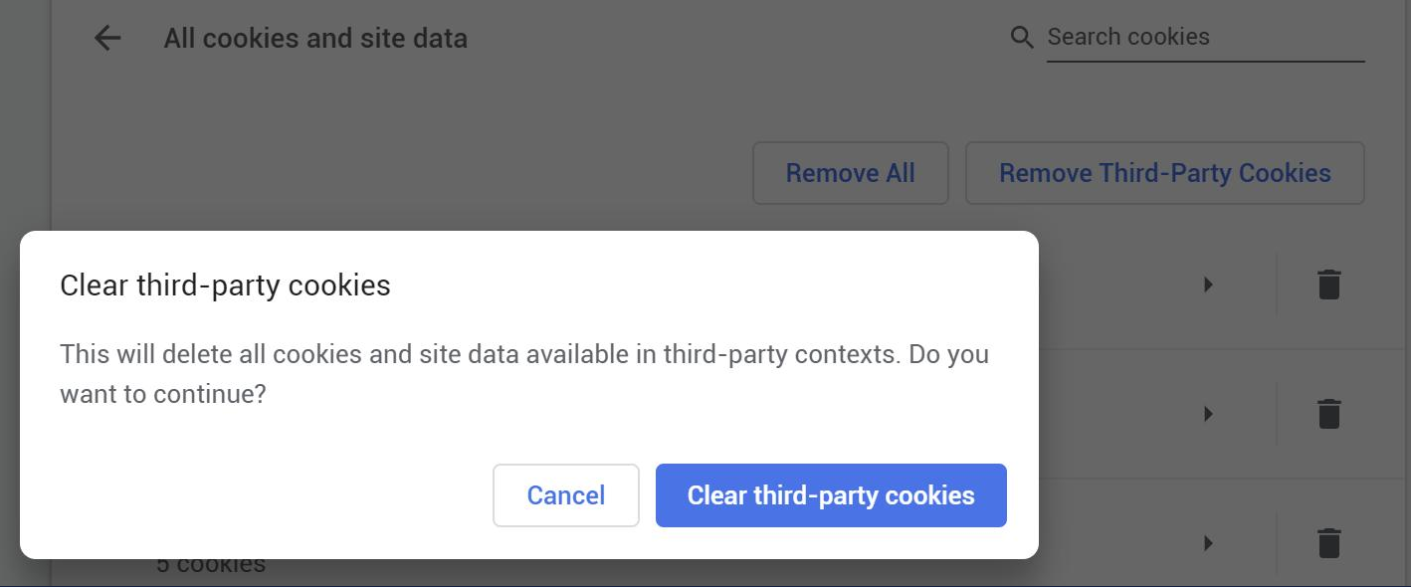
Enabling that option enables EnableRemovingAllThirdPartyCookies which adds a new Remove Third-Party Cookies button to the All cookies and site data page. When clicked, it pops the following dialog:
The HandleRemoveThirdParty() function invoked by the Clear button clears not only the cookies from those domains, but also all of the site data for the sites on which those cookies existed. This provides a strong disincentive for sites to opt-in to SameSite=None cookies unless they really need to.
(Disclaimer: Chrome might never launch the “Clear third-party cookies” button, but it’s in the code today).
You can expect that browser designers will soon dream up new and interesting remediations for cookies marked for access across multiple sites. For instance, browsers could limit the lifetime of those cookies to days or hours, or even a single browser session (tricky).
We live in interesting times!
Update: Chrome pushed back experimenting with this feature from Chrome 78 to Chrome 79. As of August 2020, they’ve enabled the feature for all Chrome 80+ users in all channels.
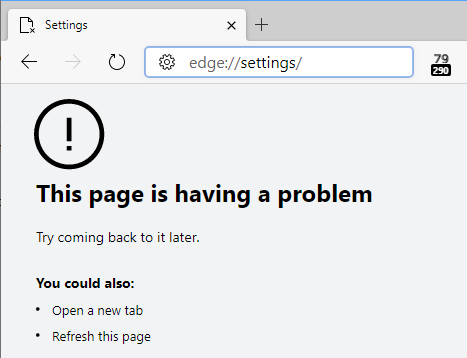
For a small number of users of Chromium-based browsers (including Chrome and the new Microsoft Edge) on Windows 10, after updating to 78.0.3875.0, every new tab crashes immediately when the browser starts.
Impacted users can open as many new tabs as they like, but each will instantly crash:
As of Chrome 81.0.3992, the page willshow the string Error Code: STATUS_INVALID_IMAGE_HASH.
What’s going wrong?
This problem relates to a security/reliability improvement made to Chromium’s sandboxing. Chromium runs each of the tabs (and extensions) within locked down (“sandboxed”) processes:
In Chrome 78, a change was made to prevent 3rd-party code from injecting itself into these sandboxed processes. 3rd-party code is a top source of browser reliability and performance problems, and it has been a longstanding goal for browser vendors to get this code out of the web platform engine.
This new feature relies on setting a Windows 10Process Mitigation policy that instructs the OS loader to refuse to load binaries that aren’t signed by Microsoft. Edge 13 enabled this mitigation in 2015, and the Chromium change brings parity to the new Edge 78+. Notably, Chrome’s own DLLs aren’t signed by Microsoft so they are specially exempted by the Chromium sandboxing code.
Unfortunately, the impact of this change is that the renderer is killed (resulting in the “Aw snap” page) if any disallowed DLL attempts to load, for instance, if your antivirus software attempts to inject its DLLs into the renderer processes. For example, Symantec Endpoint Protection versions before 14.2 are known to trigger this problem.
If you encounter this problem, you should follow the following steps:
Update any security software you have to the latest version.
Other than malware, security software is the other likely cause of code being unexpectedly injected into the renderers.
Temporarily disable the new protection
You can temporarily launch the browser without this sandbox feature to verify that it’s the source of the crashes.
Close all browser instances (verify that there are no hidden chrome.exe or msedge.exe processes using Task Manager)
Use Windows+R to launch the browser with the command line override:
Ensure that the tab processes work properly when code integrity checks are disabled.
If so, you’ve proven that code integrity checks are causing the crashes.
Hunt down the culprit
Navigate your browser to the URL chrome://conflicts#R to show the list of modules loaded by the client. Look for any files that are not Signed By Microsoft or Google.
If you see any, they are suspects. (There will likely be a few listed as Shell Extensions; e.g. 7-Zip.dll, that do not cause this problem)– check for an R in the Process types column to find modules loading in the Renderers.
You should install any available updates for any of your suspects to see if doing so fixes the problem.
Check the Event Log
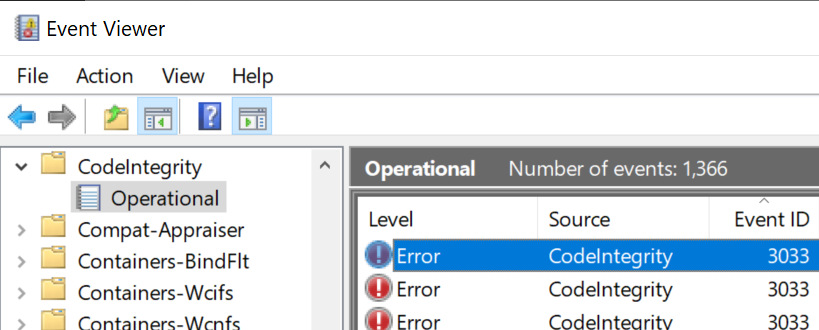
The Windows Event Log will contain information about modules denied loading. Open Event Viewer. Expand Applications and Services Logs > Microsoft > Windows > CodeIntegrity > Operational and look for events with ID 3033. The detail information will indicate the name and location of the DLL that caused the crash:
Optional: Use Enterprise Policy to disable the new protection
If needed, IT Adminstrators can disable the new protection using the RendererCodeIntegrity policy for Chrome and Edge. You should outreach to the software vendors responsible for the problematic applications and request that they update them.
Other possible causes
Note that it’s possible that you could have a PC that encounters symptoms like this (all subprocesses crash) but not a result of the new code integrity check. In such cases, the Error Code on the crash page will be something other than STATUS_INVALID_IMAGE_HASH.
For instance, Chromium once had an obscure bug in its sandboxing code that caused all sandboxes to crash depending on the random memory mapping of Address Space Layout Randomization.
Similarly, Chrome and Edge still have an active bug where all renderers crash on startup if the PC has AppLocker enabled and the browser is launched elevated (as Administrator).
If the error code is STATUS_ACCESS_VIOLATION, consider running the Windows Memory diagnostic (which tests every bit of your RAM) to rule out faulty memory.
Typically, if you want your website to send a document to a client application, you simply send the file as a download. Your server indicates that a file should be treated as a download in one of a few simple ways:
Specifying a non–webby type in the Content-Type response header.
Sending a Content-Disposition: attachment; filename=whatever.ext response header.
These approaches are well-supported across browsers (via headers for decades, via the download attribute anywhere but IE since 2016).
The Trouble with Plain Downloads
However, there’s a downside to traditional downloads — unless the file itself contains the URL from which the download originated, the client application will not typically know where the file originated, which can be a problem for:
Security – “Do I trust the source of this file?“
Functionality – “If the user makes a change to this file, to where should I save changes back?“, and
Performance – “If the user already had a copy of this 60mb slide deck, maybe skip downloading it again over our expensive trans-Pacific link?“
Maybe AppProtocols?
Rather than sending a file download, a solution developer might instead just invoke a target application using an App Protocol. For instance, the Microsoft Office clients might support a syntax like:
ms-word:ofe|u|https://example.com/docx.docx
…which directs Microsoft Word to download the document from example.com.
However, the AppProtocol approach has a shortcoming– if the user doesn’t happen to have Microsoft Word installed, the protocol handler will fail to launch and either nothing will happen or the user may get a potentially confusing error message. That brokenness will occur even if they happen to have another client (e.g. WordPad) that could handle the document.
DirectInvoke
To address these shortcomings, we need a way to instruct the browser: “Download this file, unless the client’s handler application would prefer to just get its URL.” Internet Explorer and Microsoft Edge support such a technology.
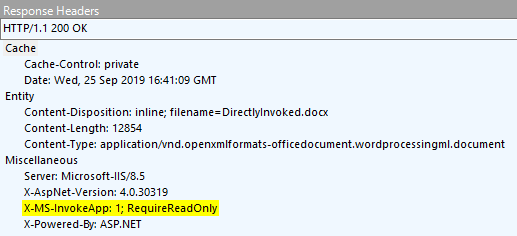
While a poorly-documented precursor technology existed as early as the late 1990s[1], Windows 8 reintroduced this feature as DirectInvoke. When a client application registers itself indicating that it supports receiving URLs rather than local filenames, and when the server indicates that it would like to DirectInvoke the application using the X-MS-InvokeAppresponse header:
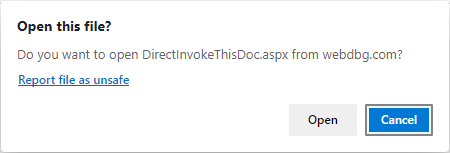
…then the download stream is aborted and the user is instead presented with a confirmation prompt:
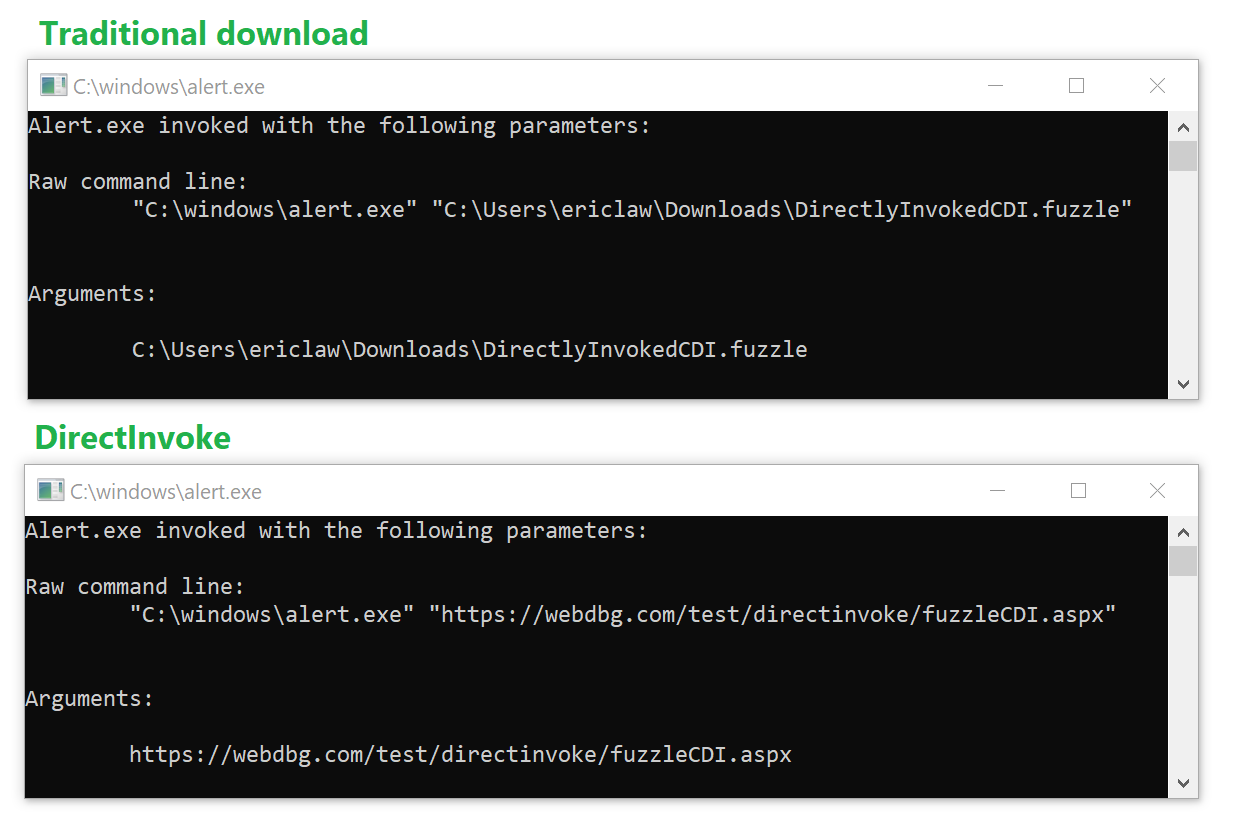
If the user accepts the prompt, the handler application is launched, passing the URL to the web content.
Mechanics of Launch
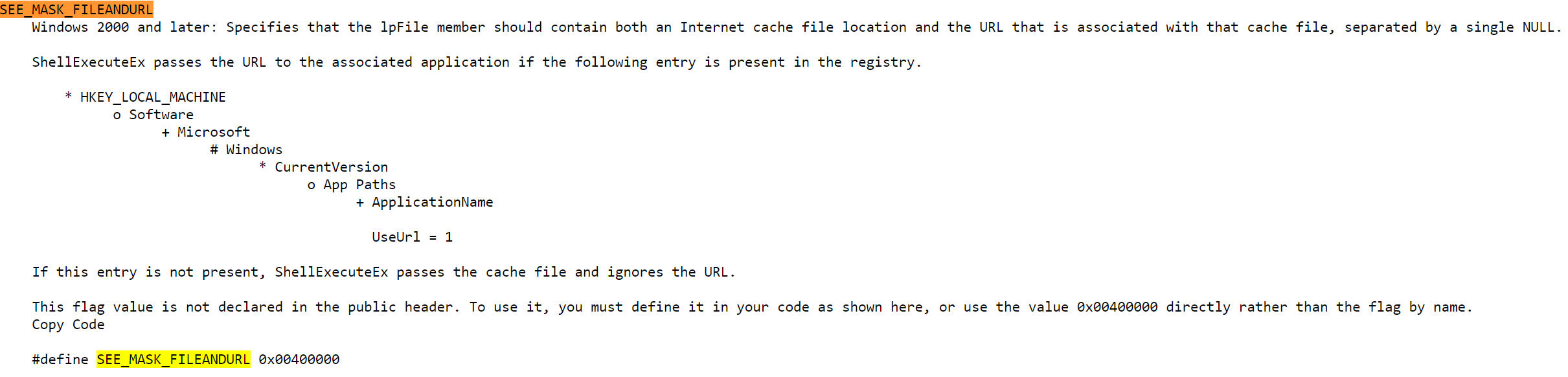
The browser launches the handler by calling ShellExecuteEx, passing in the SEE_MASK_CLASSKEY flag, with the hkeyClass set to the registry handle retrieved from IQueryAssociations::GetKey when passed ASSOCKEY_SHELLEXECCLASS for the DirectInvoke’d resource’s MIME type.
Note: This execution will fail if security software on the system breaks ShellExecuteEx‘s support for SEE_MASK_CLASSKEY. As of September 2021, “HP’s Wolf Security” software (version 4.3.0.3074) exhibits such a bug.
Application Opt-in
Apps can register to handle URLs via the SupportedProtocols declaration for their verbs. HKCR\Applications\<app.exe>\SupportedProtocols or HKCR\CLSID\<verb handler clsid>\SupportedProtocols can be populated using values that identify the Uniform Resource Identifier (URI) protocol schemes that the application supports or * to indicate all protocols. Windows Media Player’s verbs registration looks like this:
Now, for certain types, the server doesn’t even need to ask for DirectInvoke behavior via the X-MS-InvokeApp header. The FTA_AlwaysUseDirectInvoke bit can be set in the type’s EditFlagsregistry value. The bit is documented on MSDN as:
FTA_AlwaysUseDirectInvoke 0x00400000 Introduced in Windows 8. Ensures that the verbs for the file type are invoked with a URL instead of a downloaded version of the file. Use this flag only if you’ve registered the file type’s verb to support DirectInvoke through the SupportedProtocols or UseUrl registration.
Microsoft’s ClickOnce deployment technology makes use of the FTA_AlwaysUseDirectInvoke flag.
A sample registry script for a type that should always be DirectInvoke’d might look like this:
This file contains hidden or bidirectional Unicode text that may be interpreted or compiled differently than what appears below. To review, open the file in an editor that reveals hidden Unicode characters.
Learn more about bidirectional Unicode characters
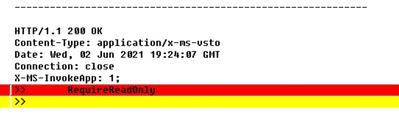
To accommodate scenarios where the server wants to communicate to the client that the target URL should be considered “read only” (for whatever meaning the client and server have for that concept), an additional token can be added to the X-MS-Invoke-App header, RequireReadOnly:
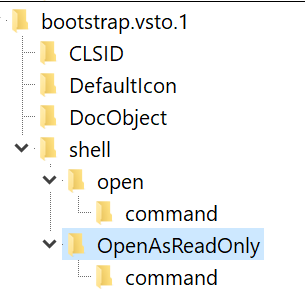
When this token is present, the Windows Shell verb used to invoke the handler for the URL is changed from Opento OpenAsReadOnly.
However, crucially, the handler’s registration for that type must advertise support that verb– if it doesn’t, the DirectInvoke request will be ignored (even if FTA_AlwaysUseDirectInvoke was specified) and the file will be treated as a traditional download.
If you update your registry to claim support for that verb:
… you’d find that the scenario starts working again. Of course, for deployability reasons, it’s probably more straightforward to remove the RequireReadOnly directive if you do not expect your client application to support that verb.
Caveats
In order for this architecture to work reliably, you need to ensure a few things.
App Should Handle Traditional Files
First, your application needs to have some reasonable experience if the content is provided as a traditional (non-DI) file download, as it would be using Chrome or Firefox, or on a non-Windows operating system.
By way of example, it’s usually possible to construct a ClickOnce manifest that works correctly after download. Similarly, Office applications work fine with regular files, although the user must take care to reupload the files after making any edits.
App Should Avoid Depending On Browser State
If your download flow requires a cookie, the client application will not have access to that cookie and the download will fail. The client application probably will not be able to prompt the user to login to otherwise retrieve the file.
If your download flow requires HTTP Authentication or HTTPS Client Certificate Authentication, the client application might work (if it supports NTLM/Negotiate) or it might not (e.g. if the server requires Digest Auth and the client cannot show a credential prompt.
App Should Ensure Robust URL Support
Many client applications have limits in the sorts of URLs that they can support. For instance, the latest version of Microsoft Excel cannot handle a URL longer than 260 characters. If a .xlsx download from SharePoint site attempts to DirectInvoke, Excel will launch and complain that it cannot retrieve the file.
App Should Ensure Network Protocol Support
Similarly, if the client app registers for DirectInvoke of HTTPS URLs, you should ensure that it supports the same protocols as the browser. If a server requires a protocol version (e.g. TLS/1.2) that the client hasn’t yet enabled (say it only enables TLS/1.0), then the download will fail.
Server Must Not Send |Content-Disposition: attachment|
As noted in the documentation, a Content-Disposition: attachment response header takes precedence over DirectInvoke behavior. If a server specifies attachment, DirectInvoke will not be used.
Note: If you wish to use a Content-Disposition header to set the default name for the file, you can do so using Content-Disposition: inline; filename="fuzzle.fuzzle"
Conclusion
As you can see, there’s quite a long list of caveats around using the DirectInvoke WebToApp communication scheme, but it’s still a useful option for some scenarios.












 text/plain