For over twenty years, browsers broadly supported two features that were often convenient but sometimes accidentally invoked, leading to data loss.
The first feature was that hitting backspace would send the user back one page in their navigation history. (Dec 2022 Update: I’ve been using this feature for 25 years or so now and only today did I realize that if you hold backspace, you’ll keep going back.) This shortcut was convenient for those of us who keep our hands on the keyboard, but could lead to data loss– for instance, when filling out a web form, if focus accidentally left a text box, hitting backspace could result in navigating away from the form. Smart websites would warn you with an OnBeforeUnload handler, and some browsers tried to restore the contents of the form if the user understood what happened and hit “forward”, but these protections are imperfect and might not work for all forms.
One of the IE browser UI leads complained about this behavior annually for a decade, and users periodically howled as they lost work. Finally, circa 2016, this feature was removed from Chrome and Microsoft Edge followed in 2018. If you happened to love the old behavior and accept the risk of data loss, you can restore it via extension or in Edge 86, via the edge://flags/#edge-backspace-key-navigate-page-back flag.
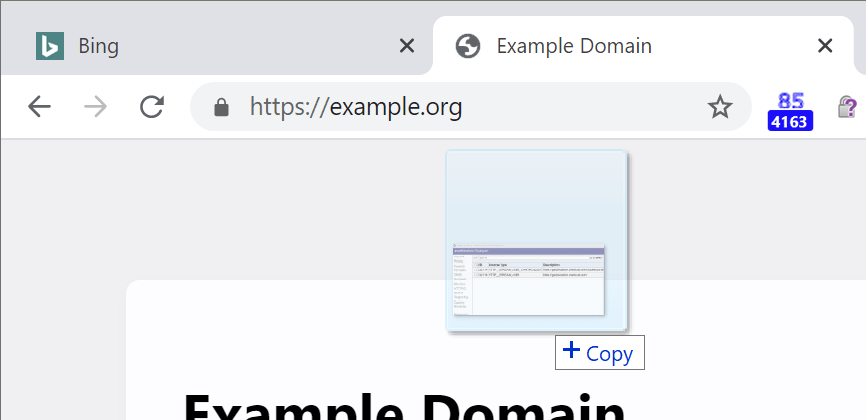
The second feature was drop to navigate. Dragging and dropping a file into the browser’s content area (the body of the page) would, (unless the page’s JavaScript was designed to handle the drop, e.g. to upload it or process it locally), navigate to that local file in the current tab. Some folks like that behavior– e.g. web developers loading HTML files from their local filesystem, but it risks the same data loss problem. If a web page doesn’t accept file uploads via drag/drop, the contents of that page will be blown away by navigation. Back in 2015, a bug was filed against Chromium suggesting that the default behavior was too dangerous, and many examples were provided where the default behavior could be problematic. Yesterday, I landed a tiny change for Chromium 85 [later merged to v84] such that dropping a file or URL into the content area of a tab will instead open the file in a new tab:
Dropping in the content area now opens it in a new tab:
If you do want to replace the content of the tab with the dropped file, you can simply drag/drop the file to the tab strip.
A small white arrow shows you which tab’s content will be replaced:
Dropping the file between tabs on the tab strip will insert a new tab at the selected location:
Chrome (85.0.4163/v84) and Microsoft Edge (85.0.541) include this change; it was also later merged to v84. Microsoft Edge Legacy didn’t support drop to navigate. Firefox still has the old behavior; the closest bug I could find is this one. Safari 13.1.1 still has the old behavior and replaces the content of the current tab with the local file. Safari Tech Preview 13.2 Release 108 instead navigates the tab to an error page (NSPOSIXErrorDomain:1 Operation not permitted”).
The Web Platform offers a great deal of power, and unfortunately evil websites go to great lengths to abuse it. One of the weakest (but simplest to implement) protections against such abuse is to block actions that were not preceded by a “User Gesture.” Such gestures (sometimes more precisely called User Activations) include a variety of simple actions, from clicking the mouse to typing a key; each interpreted as “The user tried to do something in this web content.”
A single user gesture can unlock any of a surprisingly wide array of privileged (“gated”) actions:
Allow a popup window to open
Allow a subframe to navigate the top-level window (framebusting)
…chances are good that what they’re really trying to do is trick you into performing a gesture (mouse click) so they can perform a privileged action– in this case, open a popup ad in a new tab. In the worst case, an attacker might use your innocuous-seeming gesture (e.g. “Please hold down the Enter key“) to not only spawn a popup, but to cause you to take action (e.g. “Confirm that transaction”) on the victim website loaded into the popup, a gesture jackingor gesture laundering attack. Historically, browser UI itself was also vulnerable to these sorts of abuses.
In terms of which actions can cause a gesture, the list is surprisingly limited, and includes keystrokes and mousedown (but not mouseup/click):
Some gestures are considered “consumable”, meaning that a single user action allows only one privileged action; subsequent privileged actions require another gesture. Web Developers do not have unlimited time to consume the action: In Chrome, when you click in a web page, the browser considers this “User Activation” valid for five seconds (as of February 2019, last verified June 2025) before it expires. Here’s a simple Time-Delayed Open()test.
Unfortunately, even this weak protection is subject to both false positives (an unwanted granting of privilege) and false negatives (an action is unexpectedlyblocked).
For the first few years of the web, developers pretty much coded whatever they thought was cool and shipped it. Specifications, if written at all, were an afterthought.
Then, for the next two decades, spec authors drafted increasingly elaborate specifications with optional features and extensibility points meant to be used to enable future work.
Unfortunately, browser and server developers often only implemented enough of the specs to ensure interoperability, and rarely tested that their code worked properly in the face of features and data allowed by the specs but not implemented in the popular clients.
Over the years, the web builders started to notice that specs’ extensibility points were rusting shut– if a new or upgraded client tried to make use of a new feature, or otherwise change what it sent as allowed by the specs, existing servers would fail when they saw the encountered the new values. (Formally, this is called ossification).
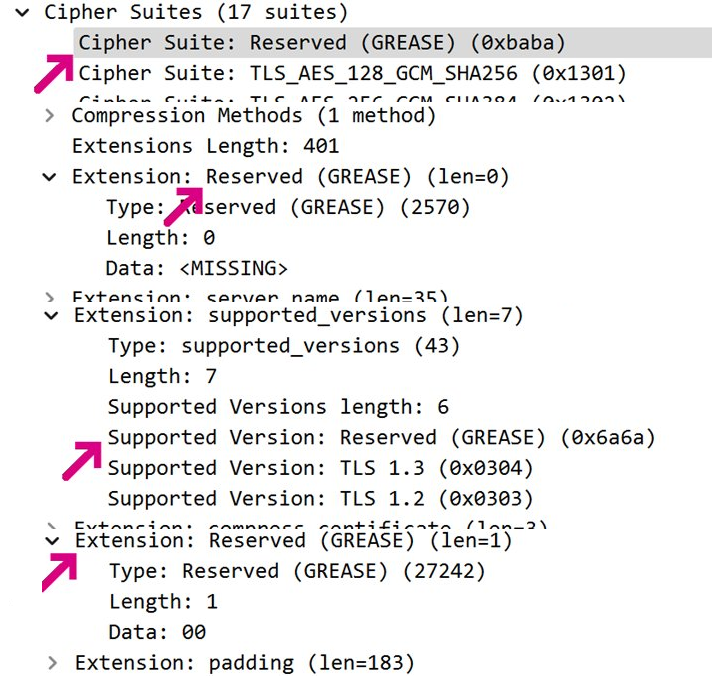
In light of this, spec authors came up with a clever idea: clients should send random dummy values allowed by the spec, causing spec-non-compliant servers that fail to properly ignore those values to fail immediately. This concept is called GREASE (with the backronym “Generate Random Extensions And Sustain Extensibility“), and it was first implemented for the values sent by the TLS handshake:
GREASE values in the TLS ClientHello
When connecting to servers, clients would claim to support new ciphersuites and handshake extensions, and intolerant servers would fail. Users would holler, and engineers could follow up with the broken site’s authors and developers about how to fix their code. To avoid “breaking the web” too broadly, GREASE is typically enabled experimentally at first, in Canary and Dev channels. Only after the scope of the breakages is better understood does the change get enabled for most users. GREASE is now unconditionally enabled for all TLS handshakes in Chromium, and the browser does not offer any flags/overrides to turn it off.
GREASE has proven such a success for TLS handshakes that the idea has started to appear in new places. Last week, the Chromium project turned on GREASE for HTTP2 in Canary/Dev for 50% of users, causing connection failures to many popular sites, including some run by Microsoft. These sites will need to be fixed in order to properly load in the new builds of Chromium.
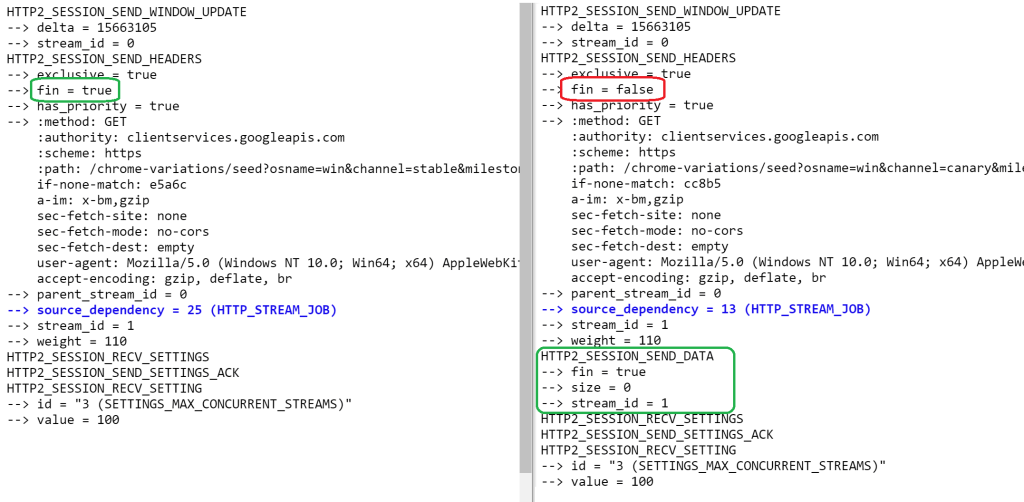
One interesting consequence of sending GREASE H2 Frames is that it requires moving the END_STREAM flag (recorded as fin=true in the netlog) from the HTTP2_SESSION_SEND_HEADERSframe into an empty (size=0) HTTP2_SESSION_SEND_DATA frame; unfortunately, the intervening GREASE Frame is not presently recorded in the netlog.
You can try H2 GREASE in Chrome Stable using command line flags that enable GREASE settings values and GREASE frames respectively:
PS: I’ve tried to apply GREASE principles to my life as well. When I first signed up for my Kilimanjaro trip, I worried that I wasn’t going to able to book time off from work 18 months in advance. Ultimately, I concluded that if when the time came, my employer couldn’t let me take time off for the trip of a lifetime, things had rusted badly enough that I’d have to quit anyway. As it turned out, I had no problems getting three weeks away, two for the hike and one to relax afterward.
Someone complained that a Japanese page is garbled in Edge/Chrome, but renders with the correct characters in Firefox and IE:
The problem is that Chromium is using an unexpected character set to interpret the response in the HTML Parser. That happens because the server doesn’t send a proper character set directive. To avoid problems like this and improve performance, document authors should specify the character set in the HTTP response headers:
Unfortunately, this site accidentally includes a div tag up in the head (ending the head section prematurely), and buries the charset down 1479 bytes into the response:
To avoid problems like this:
Specify the CHARSET in the Content-Type response header, and
Ensure META CHARSET appears as the first element of your HEAD.
While most HTTPS sites only authenticate the server (using a certificate sent by the website), HTTPS also supports a mutual authentication mode, whereby the client supplies a certificate that authenticates the visiting user’s identity. Such a certificate might be stored on a SmartCard, or used as a part of an OS identity feature like Windows Hello.
To request mutual authentication, servers send a CertificateRequest message to the client during the HTTPS handshake, specifying a criteria filter that the browser will use to find a client certificate to satisfy the server’s request.
If a client certificate is supplied in the browser’s Certificate response to the server’s challenge, the browser proves the user’s possession of that certificate using the private key that matches that client certificate’s public key.
A client may choose not to send a certificate (either because no matching certificate is available, or because the user declined to supply a certificate that it had)—in such cases, the server may terminate the handshake (showing a Client Certificate Required error message) or it may continue the handshake and attempt to authenticate the user via other means.
Certificate Selection
The CertificateRequest message allows the server to specify criteria for the certificates it is willing to accept from the client, including details such as the certificate’s issuer, and key/signature/hash types.
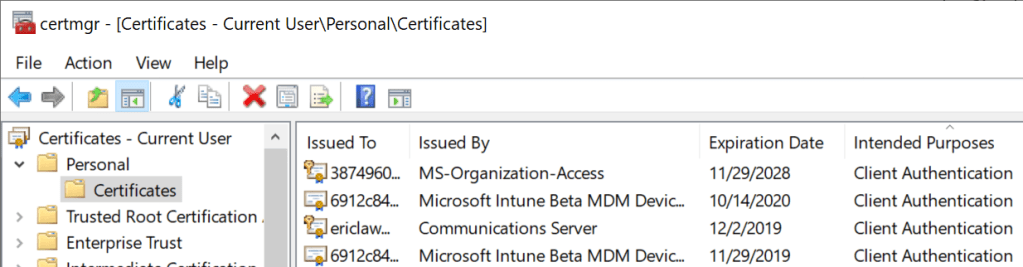
The browser consults the Operating System’s trust store (Keychain on Mac OS X, certmgr.msc on Windows) to find any candidate certificates (unexpired certificates with the Client Authentication purpose set and a private key available) that match the server-supplied filtering criteria:
The private key for a given certificate might be stored on a SmartCard — when a SmartCard is inserted, the certificate(s) on it are “virtually” propagated to the OS trust store for use by browsers and other applications.
Certificates that meet the server’s filtering criteria are shown in a prompt:
If the user hits “Cancel”, the handshake is completed without sending a certificate. However, if the user selects a certificate, the browser caches that decision for the lifetime of the browser instance. The selected certificate will be resent on all new connections to the target origin and the prompt will not be shown again.
There used to be no good way to clear the selection decision, short of restarting the browser entirely. In contrast, legacy IE offered two very awkward mechanisms, the Clear SSLState button in the Internet Control Panel, and the ClearAuthenticationCache web API. (but keep reading)
Update: “Forget” feature in Edge 102
The Edge team is now testing a feature (which will likely be available by default starting in Edge 102) to allow the user to “forget” which Client Certificate was selected.
Selection UI Change in Edge 93
In Edge 92 and earlier, defaultfocus was set on the Cancel button to help prevent the user from accidentally sending their certificate to a site they didn’t want to get it.
That meant that hitting Enter would thus submit “No Cert” (despite a blue highlight on the first certificate in the list). Sending NoCert to a server that needed it would likely result in an authentication failure that could not be fixed without completely restarting all browser windows, as mentioned previously. This was very bad and very easily hit.
Now, in Edge 93, no certificate is highlighted and the Cancel button is no longer focused. This helps ensure that the user makes an explicit selection.
Sending a certificate now requires two clicks, either:
Click the desired certificate, then click the Accept button, or
Double-click the desired Cert.
Sending NoCert now requires one explicit click, on the Cancel button.
This UX change means users are much less likely to make an difficult-to-recover mistake. All in all, the new UX seems MUCH better.
Automatic Selection of Client Certificate
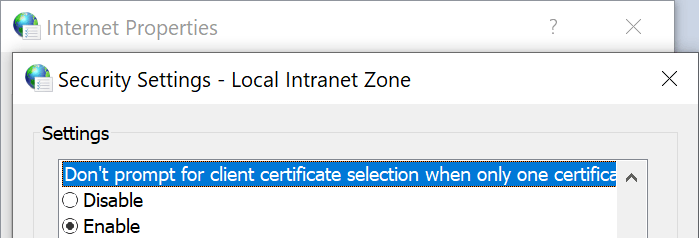
Internet Explorer and Edge Legacy offered a URLAction setting (Don’t prompt for client certificate selection when only one certificate exists,aka URLACTION_CLIENT_CERT_PROMPT), on-by-default for the Local Intranet Zone:
…whereby the browser would not prompt the user to select a certificate if the user only has one certificate that matches the server’s request. In such cases, the client would automatically send the matching certificate without showing a prompt.
For other zones, IE and Edge Legacy will prompt the user to select a certificate before any certificate is sent. This is a privacy measure, because if the browser silently sends the user’s identity to any website that asks for it, this is a “super-cookie” that would allow tracking that user’s identity across sites. Also, the client’s certificate might directly contain personally identifiable information about the user (e.g. their email address, office phone number, home address, etc).
Chromium (and thus Chrome, Edge, Brave, Opera, Vivaldi) largely does not use the concept of Zones, so instead the AutoSelectCertificateForUrls policy exists. This policy allows an IT administrator to configure clients to automatically send certificates to specified websites that request them, which can be used to satisfy the need to have, say, the user’s Windows Hello certificate sent to *.login.microsoft.com sites.
Here are two examples of policies: the first selects the first certificate issuedby “Windows Hello PIN – MSIT1” and the second rule selects the certificate with a SubjectCN=”RSACSP”.
If you’re trying to set a rule whereby multiple client certificates are valid candidates and the client should just return the first match found, just add another rule with the same pattern and a different filter.
//   - [*.]domain.tld (matches domain.tld and all sub-domains)
//   - host (matches an exact hostname)
//   - a.b.c.d (matches an exact IPv4 ip)
//   - [a:b:c:d:e:f:g:h] (matches an exact IPv6 ip)
//   - file:///tmp/test.html (a complete URL without a host)
You may have noticed that the AutoSelectCertificateForUrls policy has one major limitation, which is that it always sends the user’s first matching certificate to the selected site. Some users might have more than one certificate that matches the policy (for instance, some enterprises have both “test” and “production” certificates.
For instance, this set of rules will use SubjectCN=”RSACP” if a matching certificate found, or a certificate with IssuerCN=”Windows Hello PIN – MSIT1” if not:
To address this shortcoming, the Edge team introduced a new policy in Edge 81. The new ForceCertificatePromptsOnMultipleMatches policy which does as it says: If the client has multiple certificates that could be used to satisfy the {OriginFilter->CertificateFilter} policy specified by a AutoSelectCertificateForUrls policy, instead of simply sending the first matching certificate, the browser will instead show a certificate selection prompt filtered to the certificates that match the policy.
Sidebar: Automatic Selection in WebView2
The WebView2 Control does not respect most Group Policies. Instead, WebView2 has added a ClientCertificateRequested API that allows apps to select the certificate rather than showing the dialog.
Debugging
If you find that Microsoft Edge shows a client certificate selection prompt in one scenario where other browsers do not, one possibility is that the site in question is not actually requesting a client certificate from those other browsers for some reason. For instance, some web authentication flows, including Microsoft’s AAD login, take the browser’s User-Agent into account when deciding what authentication mechanisms to use with the client.
In order to understand exactly what’s going on with Client Authentication, collect Network Traffic logs. SSL_HANDSHAKE_MESSAGE_RECEIVED messages of type 13 represent the client certificate request.
Registry-specified certificate selection policies apply across browser profiles, meaning that they are in force even when the user is in an Incognito browser session (!!)
The general notion of “how Client Certificates were supposed to work” was that each user would have one certificate for each organization to which they belong, issued by that organization’s root certificate. When visiting that organization’s servers, the server would send in the CertificateRequest message the identifier(s) of the root certificate(s) to which acceptable client certificates chain (using the certificate_authorities structure). The visiting client would then filter the certificates available for selection to only those that chain to that root (hopefully one certificate).
So, say I have two certificates, e.g. USA-NationalID and Microsoft-EmployeeID. When I visit https://portal.microsoft.com, Microsoft sends a CertificateRequest with MicrosoftRootCA in the certificate_authorities field. My browser automatically filters my client certificates list to just the Microsoft-EmployeeID certificate and then sends that. In contrast, when I visit https://irs.gov, the government site sends a CertificateRequest with a USGovernmentRootCA in the certificate_authorities field. My browser automatically filters my client certificates list to just the USA-NationalID certificate and sends that.
In practice, unfortunately, things haven’t worked out that way. Most organizations have not had the infrastructure or discipline to configure things to work like that, and as a consequence you end up with varying client behavior.
Firefox doesn’t seem to filter the certificate list, but it does offer a “Remember this decision” checkbox which presumably reduces user annoyance.
Firefox does not respect the Windows Trust Store, so each client certificate must be manually loaded into Firefox’s configuration (unless you set the security.osclientcerts.autoload preference to true). This is a hassle, but it tends to result in a somewhat “cleaner” experience where the user isn’t distracted by random certificates that might be cluttering Windows’ cert store.
Selection UI (as of June 2021)
Edge’s UI shows the certificate’s Friendly Name and includes an icon to try to help convey the type of client certificate (SmartCard, Windows Hello, Traditional).
In some cases, organizations are generating invalid client certificates but expecting them to work, leading to compat accommodations like the FEATURE_CLIENTAUTHCERTFILTER Feature Control Key.
In the browser, SmartCards can be used for two ways: HTTPS Client Certificate Authentication, and Windows Integrated Authentication.
Straight TLS mutual authentication, as described above.
Windows Integrated Authentication that occurs when visiting a website that sends a WWW-Authenticate: Negotiate header. The client may automatically send the user’s login credentials (Intranet Zone). Or, if those creds do not work or the Zone is not configured for automatic credential release (Non-intranet), the user will be prompted for credentials to use. In Edge 79, the user would get a prompt with two blank fields (“Username” and “Password”). In Edge 80 or later, upon noticing that the user has configured Windows Hello, the user will be shown the Windows Hello auth dialog that allows the user to use their face, type a PIN, use a SmartCard, etc. So, now Edge 80 matches Edge Legacy (v18 and lower).
This is the first message the client can send after receiving a ServerHelloDone message. This message is only sent if the server requests a certificate. If no suitable certificate is available, the client MUST send a certificate message containing no certificates. That is, the certificate_list structure has a length of zero. If the client does not send any certificates, the server MAY at its discretion either continue the handshake without client authentication, or respond with a fatal handshake_failure alert. Also, if some aspect of the certificate chain was unacceptable (e.g., it was not signed by a known, trusted CA), the server MAY at its discretion either continue the handshake (considering the client unauthenticated) or send a fatal alert.
CertificateVerify signs a message using the client certificate’s private key, proving possession.









 text/plain